
Logitech MX Revolution's Special Buttons On Fedora 7 - Page 2
4 Install Xbindkeys
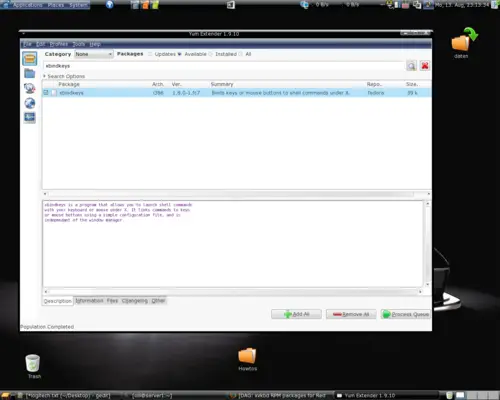
Get xbindkeys from the fedora repository. I use yumex as frontend for yum, you can use your favorite of course.
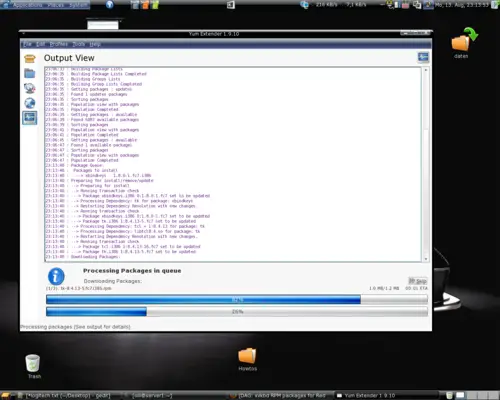
The packages are now being downloaded and installed:
5 Configure Xbindkeys
Open a terminal and initialize xbindkeys:
xbindkeys --defaults > $HOME/.xbindkeysrc
Now we can configure the .xbindkeysrc:
vi .xbindkeysrc
Insert the following content:
# Action back
"/usr/bin/xvkbd -xsendevent -text "\[Alt_L]\[Left]""
m:0x0 + b:8

# Action forward
"/usr/bin/xvkbd -xsendevent -text "\[Alt_L]\[Right]""
m:0x0 + b:9

# Zoom in
"/usr/bin/xvkbd -xsendevent -text "\C+""
m:0x0 + b:13

# Zoom out
"/usr/bin/xvkbd -xsendevent -text "\C-""
m:0x0 + b:15

# Close window
"/usr/bin/xvkbd -xsendevent -text "\Cw""
m:0x0 + b:17
As you see, each button-configuration consists of a xvkbd-event followed by the button-identity.
m:0x0 + b:1 for button 1, m:0x0 + b:2 for button 2 and so on.
The Configuration above is an example - edit it as you like.
6 Add Xbindkeys To Autostart
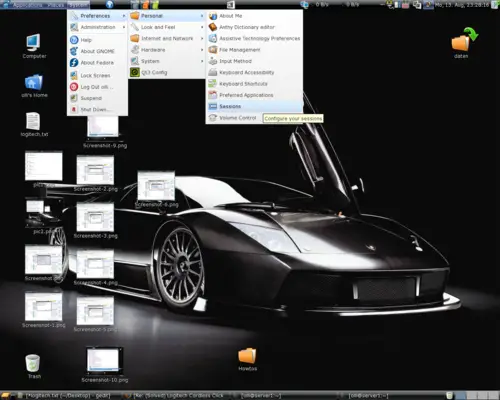
Go to: System - Preferences - Personal - Sessions:
Click "New":
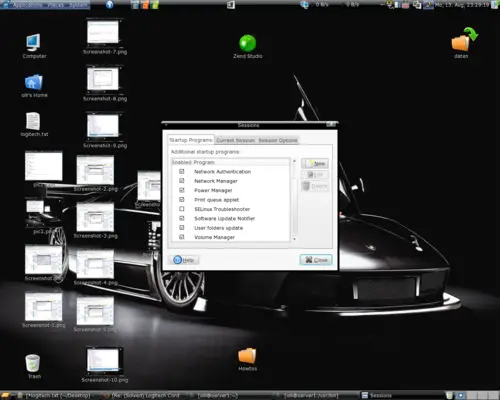
Add xbindkeys to autostart (Command = /usr/bin/xbindkeys):
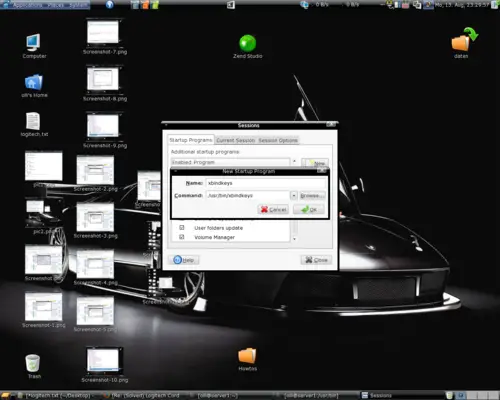
Now you should log out and after that log in again to enable the new configuration.





