
Apache2-Frontpage2002-Howto
Author: Joshua Levitsky
Installation Instructions
Installation on a Fedora Core 1 box: Mandrake instructions can be found here; http://www.newwebsite.com/mandrake.html and Red Hat 9 instructions are located at John Spencer's site. (Note that John Spencer's instructions were used to create the Fedora documentation here.)
Obtaining and Installing the APXS file
A typical problem that is encountered installing FPSE on Fedora is that when running the install script fp_install.sh to install FPSE, the script is unable to build the module as the APXS file can not be found.
In case you are asking, "What is an APXS file?" It is basically a Perl module and normally sits in the bin directory of an Apache install. But, as I mentioned, it does not get installed by default. However it is available as part of the httpd-devel package. Just check to make sure that you do not have the package already. If for some reason you do have this you can skip this step.
# rpm -q httpd-devel
package httpd-devel is not installed
If you see the message above then install httpd-devel via up2date.
# up2date --install httpd-devel
When downloaded and installed.
# rpm -q httpd-devel
httpd-devel-2.0.40-21.5
The httpd-devel rpm should now be updated like any other when running up2date or apt-get in the future.
File Editing and Permissions:
Follow the next sections to make sure your files have the correct information and permissions.
The first step is to make sure the host name is set right. Replace "www.sn.com" below with your servers host name.
# sed --in-place \
-e 's/#ServerName new.host.name:80/ServerName www.sn.com:80/g' \
/etc/httpd/conf/httpd.conf
The next step is to edit the /etc/httpd/conf/httpd.conf and set AllowOverride to All which is set to AllowOverride None as default. I found that it is six statements that need changing. You need to be logged on as root to do this. We also need to add MIMEMagicFile /dev/null to httpd.conf. If you do not do this you will see no Icons on the Front page Server admin pages.
# sed --in-place=-orig \
-e 's/AllowOverride None/AllowOverride All/g' \
-e 's,MIMEMagicFile conf/magic,MIMEMagicFile /dev/null,g' \
/etc/httpd/conf/httpd.conf
It is necessary to change the permissions of /var/log/httpd. This is quite straightforward.
# chmod 755 /var/log/httpd
Historically Frontpage has wanted these two files to exist so we will create them just to be safe.
# touch /etc/httpd/conf/access.conf
# touch /etc/httpd/conf/srm.conf
Now to edit /var/www/error/HTTP_UNAUTHORIZED.html.var to fix the Content-Type. Make sure to type the line below exactly. After running it you should see "Content-type: application/x-hhtpd-cgi" appearing for each language if you look at the file. (The line below is one long line because there was no easy way to break up the line.)
# sed --in-place=-orig -e 's,Content-type: text/html; charset=ISO-[0-9][0-9][0-9][0-9]-[0-9],Content-type: application/x-httpd-cgi,g' /var/www/error/HTTP_UNAUTHORIZED.html.var
Username Information
Please read the information here before running the script. It is quite important that the next parts are understood. This is an area that people on the forums run into difficulty with.
Unix nonlogin accounts
By default within the /etc/httpd/conf/httpd.conf file that is part of the standard Red Hat install of Apache, the non login user of Apache is the user apache who is a member of the group apache. This account also exists by default.
Optionally in this step you may choose to create an alternative Linux/Unix non login account for the Apache User that will be required by the fp_install.sh script later. Actually the script will retrieve this information automatically.
If you do not want to run Apache with the default name and group apache, you will have to create a non logon account and change the user and group in the appropriate part of the httpd.conf file. It is assumed that you know how to add a user account. If not stick with the default or consult the Red Hat documentation on the web.
Either way I advise you to use a non login account for security reasons.
FrontPage Administrator's user name
When we run the fp_install.sh script in the next step at some point you will be asked to enter the
FrontPage Administrator's user name:
I use in the example below the username, frontpageuser. Perhaps frontpageadmin would have been better for the example because a FrontPage User is different to a FrontPage Admin. Of course the Admin can also be a user, but the other way around is best avoided.
This does not have to be your root account, or any other UNIX/LINUX account. In fact it is better that it is not the same as any UNIX/LINUX account login or otherwise. It is purely the FrontPage Administrator's username. Also the script will ask you to enter a user password. This is to create the password for the FrontPage Administrator. In the example below you will see I used banana. The script does not echo back what you type, so type carefully. It is only shown below for Instructional purposes. I would also suggest you pick a better password than banana, I am only using this in a development environment and not on a production network.
Running the FP Install Script
If you have not already done so, download the FPSE and install script from Ready to Run Software. Download both to the same directory on your server. cd to the directory where you downloaded the script and FrontPage tarball and then run the script. For example if you downloaded the 2 files to /root/downloads then you would type the following;
# cd /root/downloads
# gunzip ./fp_install.sh.gz
# chmod +x ./fp_install.sh
# sh ./fp_install.sh
Use the space bar to scroll through the license agreement and accept the defaults if appropriate and enter answers as follows.
Are you satisfied with your backup of the system (y/n) [N]? y
FrontPage Server Extensions directory [/usr/local/frontpage/]:
Where is the zcat which can uncompress gz files? /bin/zcat
Do you accept the terms of the license agreement (y/n) [N]? y
Which version of Apache will you be using? (1.3 or 2.0) 2.0
Where is the current apache control file (apachectl) located: []/usr/sbin/apachectl
WARNING: The Apache you are running is newer than the one
supported by this kit.
You are running Apache 2.0.48 .
This kit supports Apache .
Do you wish to continue? (y/n) [N]? y
| If you see this error then it means you did not install httpd-devel like you should have. Otherwise you will continue normally. To fix this, install httpd-devel and the run "sh ./fp_install.sh" again from the download directory.
Cannot find Apache apxs at /usr/sbin/apxs |
Would you like interactive prompting for each webs owner/group (y/n) [Y]? y
Which local character encoding does your system support: [1]
What should the default language be: [1]
Do you want to install a root web (y/n) [Y]? y
Server config filename: /etc/httpd/conf/httpd.conf
FrontPage Administrator's user name: (whatever user name that you want to use to admin FrontPage. has to be on the system already.)
Enter the new server's port number: 80
Unix user name of the owner of this new web: [apache]
Unix group of this new web: [apache]
Enter user password: (whatever password you want)
Install new sub/per-user webs now (y/n) [Y]? n
Do you want to install Virtual Webs (y/n) [Y]? n
Notice that we install the server on port 80 which is the port for www traffic that the FrontPage Server Extensions will also be reachable on. This is not to be confused with a port like 8090 which we will add in a later step. Use port 80 in this step, only exception is if you are doing port handling on a firewall and running Apache on a different port in which case that also would be changed in your httpd.conf to show which port Apache is listening on. 80 is the default.
Setting the Admin Port for FPSE
cd to the following directory;
# cd /usr/local/frontpage/version5.0/bin
Run the ./owsadm.exe command. This sets the admin port and Admin user and password. The admin user and password you need to use are the FrontPage Administrator's user name and password that was entered when you ran the fp_install.sh script. I am using port 8090 as it is shares a numerical relationship with port 80 the root web. 8080 is a popular choice but I am avoiding it as Tomcat uses that and I may need to use it later.
# ./owsadm.exe -o setadminport -p 8090 -t apache-2.0 \
-s /etc/httpd/conf/httpd.conf -username fpadmin -pw banana
Restart Apache to make sure the file is reread.
# /etc/rc.d/init.d/httpd restart
It will also tell you if there any errors in the file and which line number it occurs on so you can edit as needed.
Going to the administration pages: Finally open up Internet Explorer on a Windows or Macintosh machine, and try to go to http://localhost:8090/ replacing "localhost" with the host name of your web server and 8090 to whatever admin port you picked. You can not use Netscape to use the admin pages unless you change your browser not do download EXE files.
Enter your username / password when prompted and you should be in. Pick to install the extensions to the server on port 80. (If you add virtual hosts to httpd.conf then they should appear on this admin page. Once they appear you can install frontpage to them easily the same way you did to your default web.)
When you are on the install extensions screen you should put /etc/httpd/conf/httpd.conf as the location of your configuration file. If you will only have one hostname on your server (not doing virtual hosting) then leave the hostname blank on this screen. Otherwise fill in the appropriate hostname without any http://. In my case I put "www.joshie.com" in the box.
Lastly if you are going to be using forms that send emails you should be sure to set the smtp server for your web site by going in to the Administration pages and changing the settings for that web. Just put in the hostname of an smtp server that allows you to relay through it.
Userdir Webs
By defaul UserDir webs are disabled in Apache 2.x. You need to first edit /etc/httpd/conf/httpd.conf and look for userdir and you will see that you need to comment out one line and uncomment the next line. There are details in the conf file. It's very simple. Once you make the change you need to restart Apache.
# /etc/rc.d/init.d/httpd restart
Next you need to cd to the following directory;
# cd /usr/local/frontpage/version5.0/bin
Run the following command if you only have one website hosted on your server. ~jlevitsk means the home directory of the user jlevitsk. Then xu and xg are the unix user and group that will own content in /home/jlevitsk/public_html and then u and pw are the frontpage username and password for this userdir web.
# ./owsadm.exe -o install -p 80 -web "~jlevitsk" -xu jlevitsk \
-xg users -u jlevitsk -pw banana -s /etc/httpd/conf/httpd.conf
Below is the same example but for systems where you are doing virtual hosting and the owsadm tool would like you to specify the website.
# ./owsadm.exe -o install -p 80 -web "~jlevitsk" -xu jlevitsk \
-xg users -u jlevitsk -pw banana -m www.crackmonkey.org \
-s /etc/httpd/conf/httpd.conf
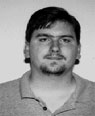 |
Joshua Levitsky has been working as a Linux advocate for 10 years and is now Manager of Desktop Engineering at Time Inc. |
Joshua's Mailing Lists (Apache-Frontpage and others): http://lists.joshie.com





