
Lintrack As A LAN Gateway And An OpenVPN Bridge
This tutorial will guide you through installation and configuration of Lintrack, a GNU/Linux distribution specialized in networking tasks. We will give two LANs access to the internet along with DHCP and DNS cache servers, and then we will connect our networks using OpenVPN in bridging mode. You should be running all these in well under an hour, thanks to the unified configuration interface of Lintrack.
The Plan
The diagram below presents the network we are about to create.
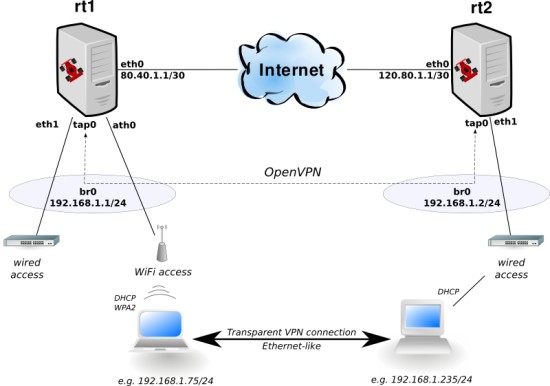
Hosts rt1 and rt2 are our routers running Lintrack. Both of them have Internet connection (e.g. via DSL modems), a public IP address available on eth0 interface and a Local Area Network behind.
You will need two x86 hosts (a typical PC should be good enough), with at least 128MB of RAM and 256MB of storage space (can be a Compact Flash card), some Fast/Gigabit Ethernet cards and, if you wish, WiFi cards based on Atheros chipsets, e.g. on popular AR5213.
If you're going to install Lintrack on VMware, be sure to use an IDE disk instead of default SCSI one. If you prefer qemu, please test running it with and without kqemu enabled in case of problems.
Installation
- Download Lintrack 2.0 installation CD:
wget http://prdownloads.sourceforge.net/lintrack/lintrack-mini-2.0.iso?download
- Burn the ISO image with your favorite CD burner.
- Boot the target computer from CD and press Enter when prompted.
- Type 'setup' and press Enter, Lintrack installer will start. Read short information and press Enter.
- You will be asked for the target partition, press Enter to accept the default choice of running cfdisk in order to create one.
- Using keyboard arrows navigate through cfdisk and create new partition of Linux type (0x83). You will not need any swap partition.
- After exiting from cfdisk, enter the target partition or simply press Enter to accept the default choice of /dev/hda1.
- The installer will offer to format the target partition as ext3, so you may type uppercase YES and press Enter to format it (if you have not already done so). If you have made a mistake, press Ctrl+C quickly.
- Now, the installation process begins and depending on your hardware, it should take less than 5 minutes.
- At the end you will be asked if you want to install the Lintrack bootloader (GRUB) to the MBR. Most probably you should just press Enter here to do so, otherwise type NO and press Enter.
- Remove installation CD and reboot to start Lintrack.
Basic Networking
First, we will configure Internet access and basic services for local network, so login as root using password "asn".
Lintrack is configured by fcc tool, so let's start it on host rt1 and do some basic configuration:
fcc
?
ls
cd sys
ls
set hostname rt1.lan
set hostip 192.168.1.1
Hint: you may try Tab autocompletion (like in Bash), to make typing the commands easier.
Now, we add and configure eth0 interface:
cd / net if eth
add +if eth0
cd eth0
set descr "Internet uplink"
add ip +addr main
set ip main addr 80.40.1.1/30
The LAN bridge:
cd ..
add +if eth1
cd .. br
add +if br0
cd br0
set descr "LAN bridge"
add +if eth1
add ip +addr main
set ip main addr 192.168.1.1/24
Default route and DNS server (replace dns.server.ip.address with proper IP address):
cd / net
set route quickgw 80.40.1.2
add dns +servers dns.server.ip.address
The firewall with two zones - "internet":
cd fw
add +zone internet
cd internet
add +matches uplink
set uplink if eth0
set srv forwarding to
set actions masq true
...and "lan":
cd ..
add +zone lan
cd lan
add +matches bridge
set bridge if br0
cd srv
set forwarding on igmp true dhcp true dns true
cd .. actions
set clampmss true
Finally - we enable dnsmasq as DNS cache and DHCP server:
cd / srv dnsmasq
set boot true
set dhcp true auth true from 192.168.1.50 to 192.168.1.150
Now do the same steps on rt2, replacing host name, IP addresses and DHCP address range (e.g. from 192.168.1.151 to 192.168.1.250).
Note that fcc operates on something like a configuration file - this means the changes made won't be applied immediately. However, we will manually enable basic networking in order to be able to login via SSH e.g. from some more comfortable graphical terminal with clipboard functionality. Exit from fcc by pressing Ctrl+D or typing quit and do the following on both hosts:
cd /etc/rc.d
./rc.firewall restart
./rc.eth eth0 start
./rc.eth eth1 start
./rc.br br0 start
./rcS.d/S40staticrt
This should give you access to both machines from Internet and wired LAN.
Wireless Access
Now we'll add a WiFi access point with WPA2-PSK security. Skip to next section if you don't wish to give your users wireless Internet.
As usual, start fcc on rt1 or rt2 (or both), and type the following commands:
cd / net if ath
info countrycode
set countrycode 840
set xchanmode true
add +if wifi0
cd wifi0
set list freq true
act list
set channel 6
Note that the output of "act list" command does not immediately take into account changes made to card's country code, radio mode (a/b/g), etc. The simplest solution is to reboot after making such low-level changes in order to let the madwifi driver load with new settings.
Now, we have a physical radio configured, so let's create a real network interface on top of it:
add +if ath0
cd ath0
set descr "AP for LAN"
set mode ap
set essid "lintrack"
And to secure it, we enable WPA2-PSK:
cd wpa
set mode server
set pskpass SomeVeryVeryLongPasswordToYourLocalAreaNetwork
Finally, let's add ath0 to local bridge br0 to let WiFi users talk to Ethernet ones.
cd / net if br br0
add +if ath0
Adding OpenVPN
Finally, let's connect both LANs with OpenVPN.
Make rt1 the OpenVPN server:
cd / net if openvpn
add +if tap0
cd tap0
set descr "VPN to rt2" mode server tmode tap syscert false
set genkey sure true
act genkey
get statickey
Copy the static OpenVPN key to clipboard and do the similar commands on rt2:
cd / net if openvpn
add +if tap0
cd tap0
set descr "VPN to rt1" mode client tmode tap syscert false
set real 80.40.1.1
set statickey
Last command starts vim, a file editor. It is worth learning how to use it, but for now just press 'a', paste the copied key, press Escape, write ':wq' and press Enter. You may change the file editor by exporting $EDITOR environmental variable before starting fcc, e.g. set it to mcedit.
In case you don't have a graphical terminal, use scp to copy file /etc/fc/net/if/openvpn/tap0/statickey from rt1 to rt2.
Add tap0 to local bridges - on both hosts do:
cd / net if br br0
add +if tap0
Reboot and that's it ;-).
In case you have problems with OpenVPN, you may always restart it in debugging mode from shell using:
/etc/rc.d/rc.openvpn tap0 restart debug
Going Further
After verying that everything works properly, it's definitely a good idea to change the root password (use passwd command) and update the system:
pkg update
pkg upgrade
You may find more information about Lintrack on it's website - http://www.lintrack.org/. Don't miss our wiki, forum, Trac and especially a more in-depth introductory article on the great PolishLinux.org vortal.





