
Installing PowerDNS (With MySQL Backend) And Poweradmin On Debian Lenny
Version 1.0
Author: Falko Timme  Follow me on Twitter
This article shows how you can install the PowerDNS nameserver (with MySQL backend) and the Poweradmin control panel for PowerDNS on a Debian Lenny system. PowerDNS is a high-performance, authoritative-only nameserver - in the setup described here it will read the DNS records from a MySQL database (similar to MyDNS), although other backends such as PostgreSQL are supported as well. Poweradmin is a web-based control panel for PowerDNS.
I do not issue any guarantee that this will work for you!
1 Preliminary Note
In this example I'm using a Debian Lenny host with the hostname server1.example.com and the IP address 192.168.0.100, set up according to the first six chapters of this tutorial: The Perfect Server - Debian Lenny (Debian 5.0) [ISPConfig 2].
I will set up just one PowerDNS server in this example (a master); adding PowerDNS slave(s) can easily be achieved by using MySQL database replication from the master to the slave(s), therefore no zone transfers are needed (this again is similar to MyDNS). MySQL database replication can be set up according to this tutorial: How To Set Up Database Replication In MySQL (PowerDNS also supports native zone transfers (for scenarios where you cannot use MySQL replication) - see http://downloads.powerdns.com/documentation/html/replication.html).
2 Installing MySQL
In order to install MySQL, we run
aptitude install mysql-server mysql-client
You will be asked to provide a password for the MySQL root user - this password is valid for the user root@localhost as well as [email protected], so we don't have to specify a MySQL root password manually later on:
New password for the MySQL "root" user: <-- yourrootsqlpassword
Repeat password for the MySQL "root" user: <-- yourrootsqlpassword
We want MySQL to listen on all interfaces (this is important for MySQL database replication!), not just localhost, therefore we edit /etc/mysql/my.cnf and comment out the line bind-address = 127.0.0.1:
vi /etc/mysql/my.cnf
[...] #bind-address = 127.0.0.1 [...] |
Then we restart MySQL:
/etc/init.d/mysql restart
Now check that networking is enabled. Run
netstat -tap | grep mysql
The output should look like this:
server1:~# netstat -tap | grep mysql
tcp        0      0 *:mysql                 *:*                     LISTEN     3031/mysqld
server1:~#
3 Installing PowerDNS
To install PowerDNS, we run
aptitude install pdns-server pdns-backend-mysql
The PowerDNS configuration is located in the /etc/powerdns directory - I'll come to that in a moment.
Now we connect to MySQL:
mysql -u root -p
Type in your MySQL root password, and you should be on the MySQL shell. On the MySQL shell, we create a database for PowerDNS:
CREATE DATABASE powerdns;
Next we create a database user (powerdns) for PowerDNS:
GRANT ALL ON powerdns.* TO 'power_admin'@'localhost' IDENTIFIED BY 'power_admin_password';
GRANT ALL ON powerdns.* TO 'power_admin'@'localhost.localdomain' IDENTIFIED BY 'power_admin_password';
FLUSH PRIVILEGES;
(Replace power_admin_password with a password of your choice.)
Now we create the tables needed by PowerDNS...
USE powerdns;
CREATE TABLE domains (
id INT auto_increment,
name VARCHAR(255) NOT NULL,
master VARCHAR(128) DEFAULT NULL,
last_check INT DEFAULT NULL,
type VARCHAR(6) NOT NULL,
notified_serial INT DEFAULT NULL,
account VARCHAR(40) DEFAULT NULL,
primary key (id)
);
CREATE UNIQUE INDEX name_index ON domains(name);
CREATE TABLE records (
id INT auto_increment,
domain_id INT DEFAULT NULL,
name VARCHAR(255) DEFAULT NULL,
type VARCHAR(6) DEFAULT NULL,
content VARCHAR(255) DEFAULT NULL,
ttl INT DEFAULT NULL,
prio INT DEFAULT NULL,
change_date INT DEFAULT NULL,
primary key(id)
);
CREATE INDEX rec_name_index ON records(name);
CREATE INDEX nametype_index ON records(name,type);
CREATE INDEX domain_id ON records(domain_id);
CREATE TABLE supermasters (
ip VARCHAR(25) NOT NULL,
nameserver VARCHAR(255) NOT NULL,
account VARCHAR(40) DEFAULT NULL
);
... and finally leave the MySQL shell:
quit;
Now we must configure PowerDNS so that it uses the MySQL backend:
vi /etc/powerdns/pdns.conf
Add the line launch=gmysql to pdns.conf:
[...] ################################# # launch Which backends to launch and order to query them in # # launch= launch=gmysql [...] |
Then open /etc/powerdns/pdns.d/pdns.local and make it look as follows:
vi /etc/powerdns/pdns.d/pdns.local
# Here comes the local changes the user made, like configuration of # the several backends that exists. gmysql-host=127.0.0.1 gmysql-user=power_admin gmysql-password=power_admin_password gmysql-dbname=powerdns |
Then restart pdns:
/etc/init.d/pdns restart
That's it, PowerDNS is now ready to be used. To learn more about it, please refer to its documentation: http://downloads.powerdns.com/documentation/html/index.html
4 Installing Poweradmin
Now let's install Poweradmin, a web-based control panel for PowerDNS. Poweradmin is written in PHP, so we must install a web server (I'm using Apache2 in this example) and PHP:
aptitude install apache2 libapache2-mod-php5 php5 php5-common php5-curl php5-dev php5-gd php-pear php5-imap php5-mcrypt php5-mhash php5-ming php5-mysql php5-xmlrpc gettext
Poweradmin also requires the following two PEAR packages:
pear install DB
pear install pear/MDB2#mysql
Now all prerequisites for Poweradmin are installed, and we can begin with the Poweradmin installation (I will install it in a subdirectory of /var/www - /var/www is the document root of Apache's default web site on Debian; if you've created a vhost with a different document root, please adjust the paths).
Go to https://www.poweradmin.org/trac/wiki/GettingPoweradmin and download the latest Poweradmin package, e.g. as follows:
cd /tmp
wget https://www.poweradmin.org/download/poweradmin-2.1.4.tgz
Then install it to the /var/www/poweradmin directory as follows:
tar xvfz poweradmin-2.1.4.tgz
mv poweradmin-2.1.4 /var/www/poweradmin
touch /var/www/poweradmin/inc/config.inc.php
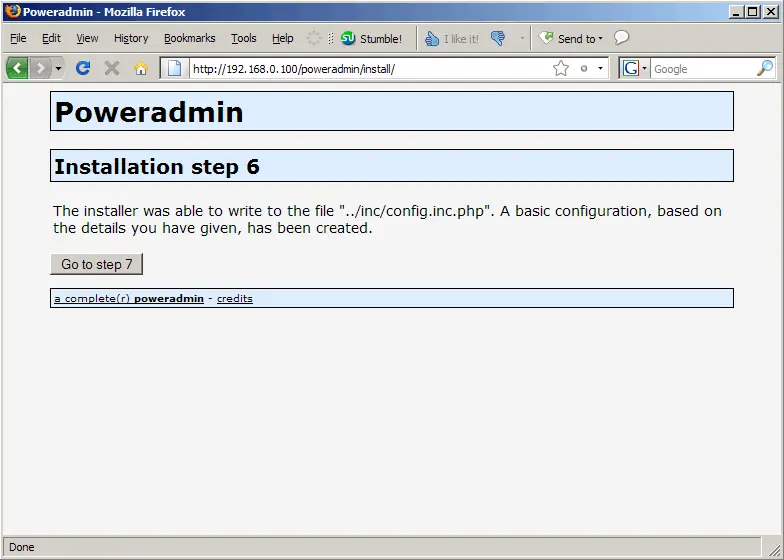
chown -R www-data:www-data /var/www/poweradmin/</p> <p>Now open a browser and launch the web-based Poweradmin installer (<span class="system">http://server1.example.com/poweradmin/install/index.php</span> or <span class="system">http://192.168.0.100/poweradmin/install/index.php</span>). </p> <p>Select your language (English or Dutch): </p> <p><img mce_real_src="https://www.howtoforge.com/images/powerdns_debian_lenny/1.png" src="https://www.howtoforge.com/images/powerdns_debian_lenny/1.png" width="550" height="393"> </p> <p>Click on the <span class="system">Go to step 3</span> button to proceed: </p> <p><img mce_real_src="https://www.howtoforge.com/images/powerdns_debian_lenny/2.png" src="https://www.howtoforge.com/images/powerdns_debian_lenny/2.png" width="550" height="393"></p> <p>Now fill in your database details. <span class="highlight">It is important that you fill in the details for the MySQL root user, not the powerdns MySQL user we created earlier!</span> Also provide a password for the <span class="system">admin</span> user for the Poweradmin web interface (that's the password that the user <span class="system">admin</span> will use to log in to Poweradmin later on): </p> <p><img mce_real_src="https://www.howtoforge.com/images/powerdns_debian_lenny/3.png" src="https://www.howtoforge.com/images/powerdns_debian_lenny/3.png" width="550" height="393"></p> <p>On the next page, fill in the details for the <span class="system">power_admin</span> MySQL user that we created in chapter 3. Also fill in the two default nameservers that will be used in your zones unless you provide different nameservers when you create a zone (typically these are the names of the current system and of the slave server (for which you can set up MySQL replication, see my preliminary notes in chapter 1)): </p> <p><img mce_real_src="https://www.howtoforge.com/images/powerdns_debian_lenny/4.png" src="https://www.howtoforge.com/images/powerdns_debian_lenny/4.png" width="550" height="393"></p> <p>On the next screen the installer asks you to execute a MySQL query. We don't have to do that because we've done something similar in chapter 3 already (the two <span class="system">GRANT</span> statements) so we are set. Click on <span class="system">Go to step 6</span>: </p> <p><img mce_real_src="https://www.howtoforge.com/images/powerdns_debian_lenny/5.png" src="https://www.howtoforge.com/images/powerdns_debian_lenny/5.png" width="550" height="393"></p> <img src="data:image/gif;base64,R0lGODlhAQABAIAAAAAAAP///yH5BAEAAAAALAAAAAABAAEAAAIBRAA7" class="mce-pagebreak" data-mce-resize="false" data-mce-placeholder />
Click on Go to step 7:
The installation is now finished...
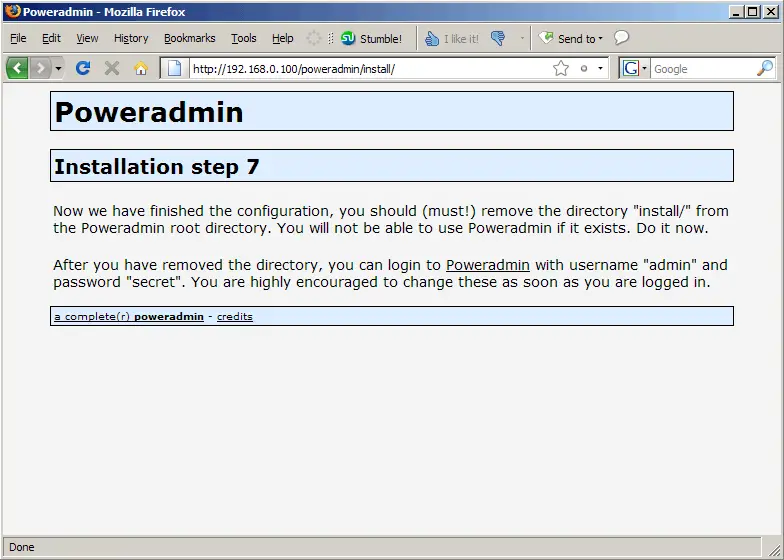
... but for security reasons we must delete the install directory:
rm -fr /var/www/poweradmin/install/
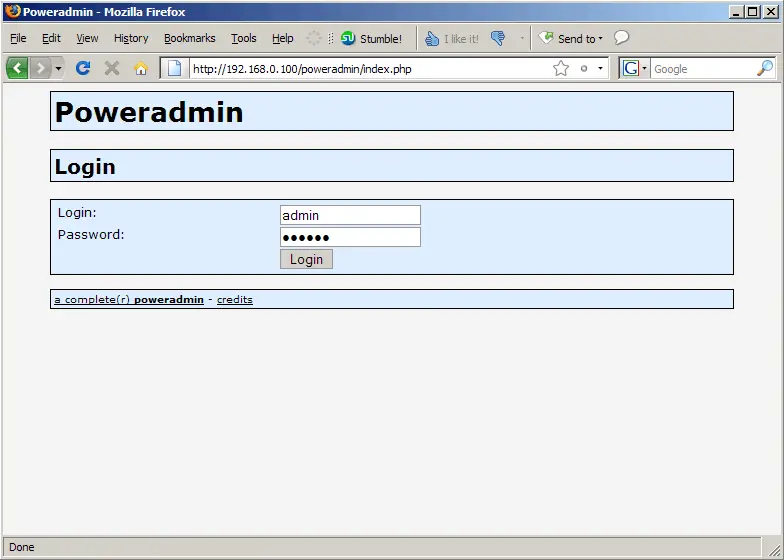
Now you can go to http://server1.example.com/poweradmin or http://192.168.0.100/poweradmin and log in with the username admin and the password you created during the installation:
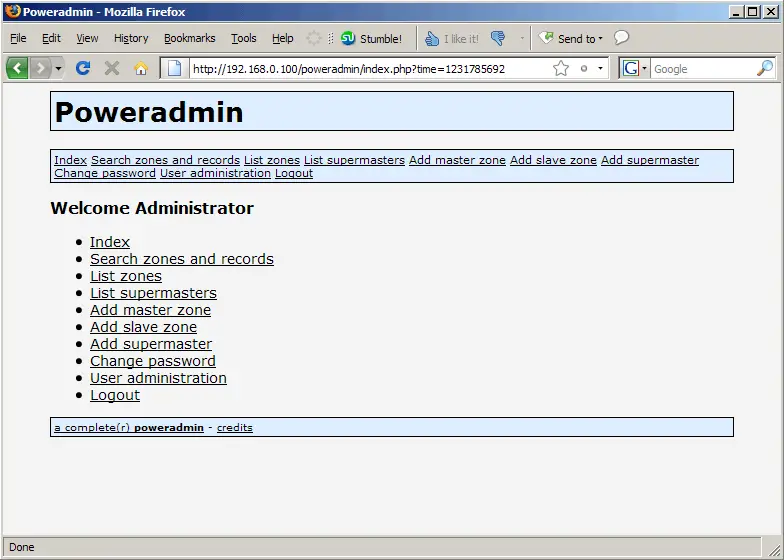
This is how the Poweradmin web interface looks:
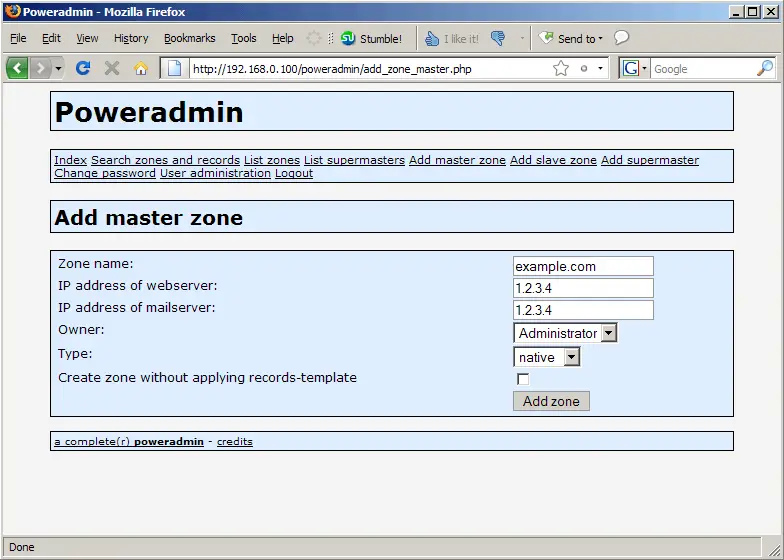
To create a zone, go to Add master zone and fill in the domain name (e.g. example.com). You can already fill in the IP addresses for the www A record ("webserver") and the MX record ("mailserver") for that zone. If you leave the Create zone without applying records-template checkbox unchecked, Poweradmin will automatically create some NS, A (e.g. www) and MX records for that zone:
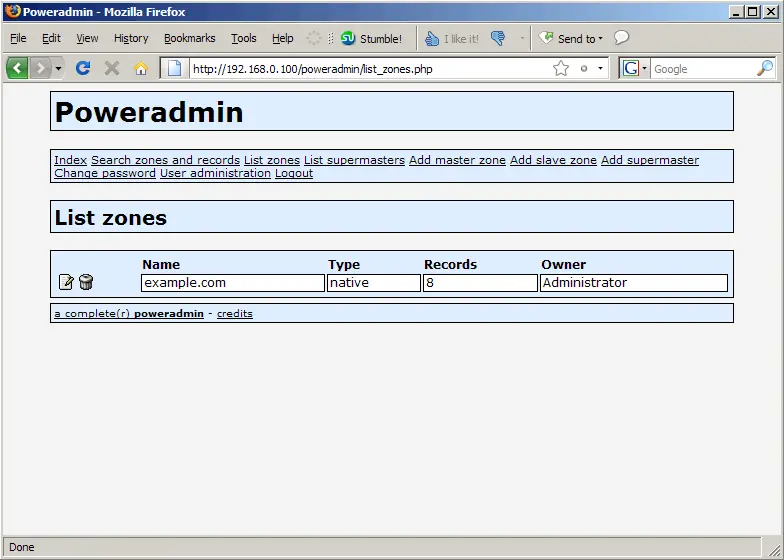
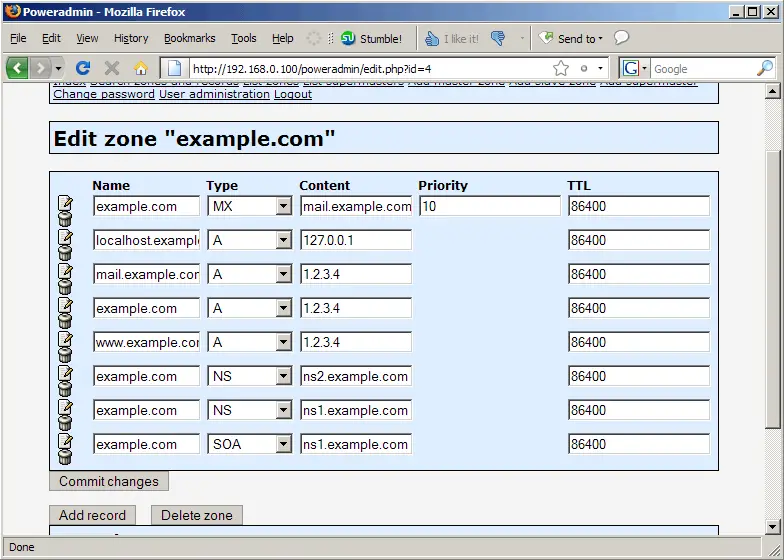
Go to List zones afterwards. You should now see the new zone there, and it already has eight records. Click on the edit icon to see these eight records:
These are the records that are created automatically unless you check the Create zone without applying records-template checkbox when you create a zone. You can now edit them or add and delete records:
Of course, you can as well create all records one-by-one manually - just leave the IP address fields empty and check the Create zone without applying records-template checkbox on the Add master zone page:
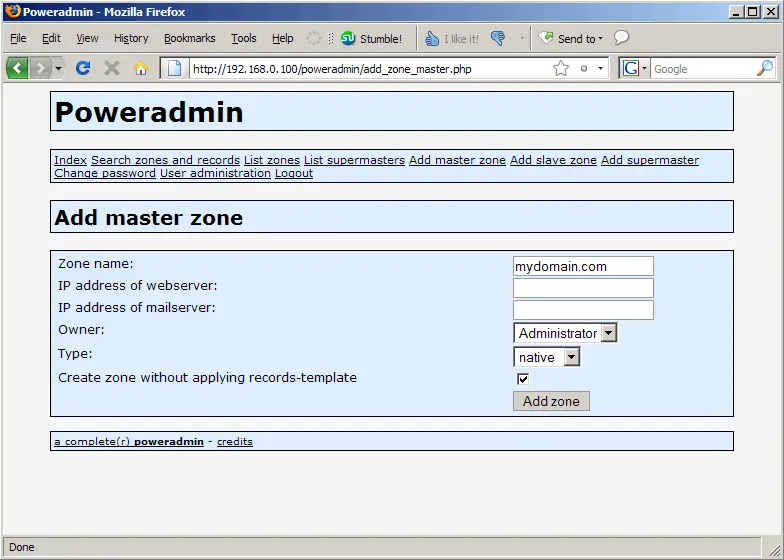
On the List zones page you will see that the new zone has just one record (the SOA record). Click on the edit icon...
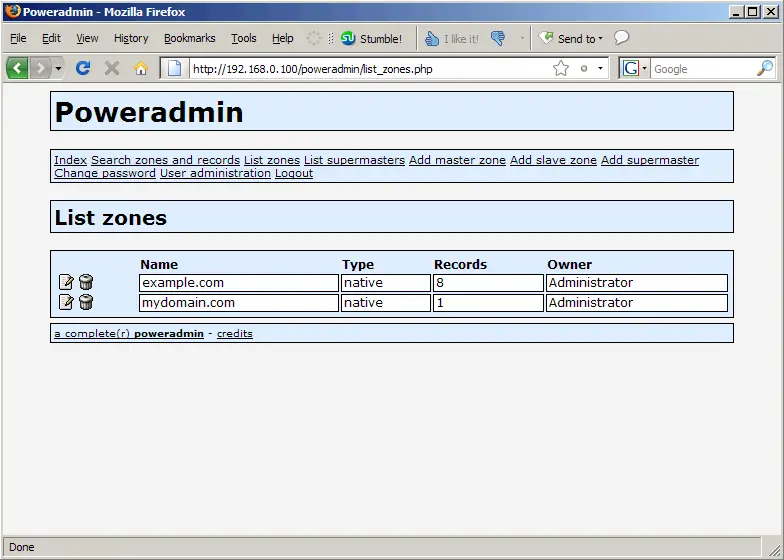
... and then on Add record to add further records, ...
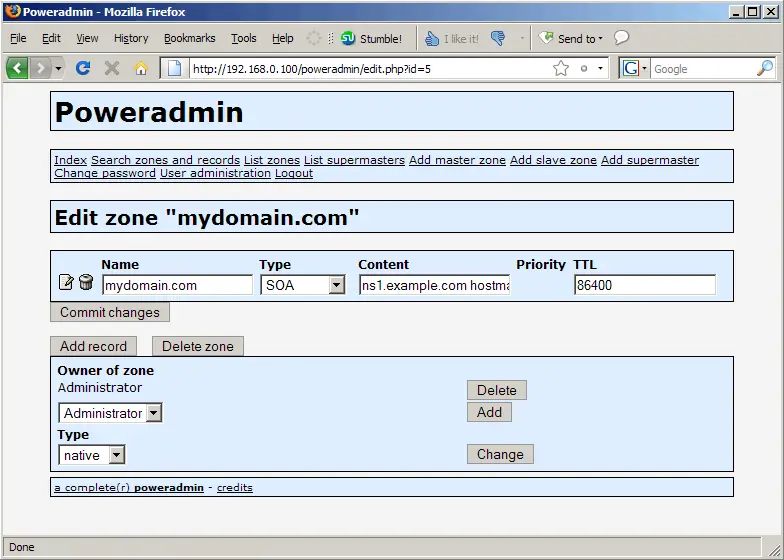
..., e.g. NS records...
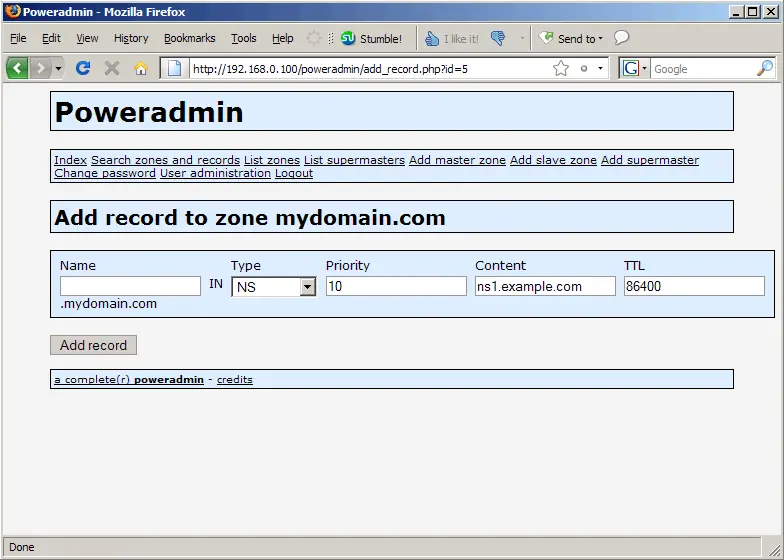
... and A records (e.g. for mydomain.com (leave the Name field empty!) and www.mydomain.com)...
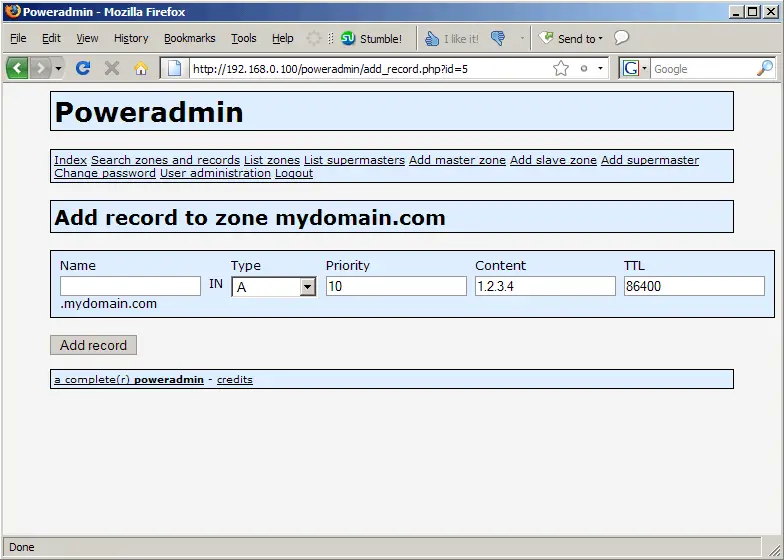
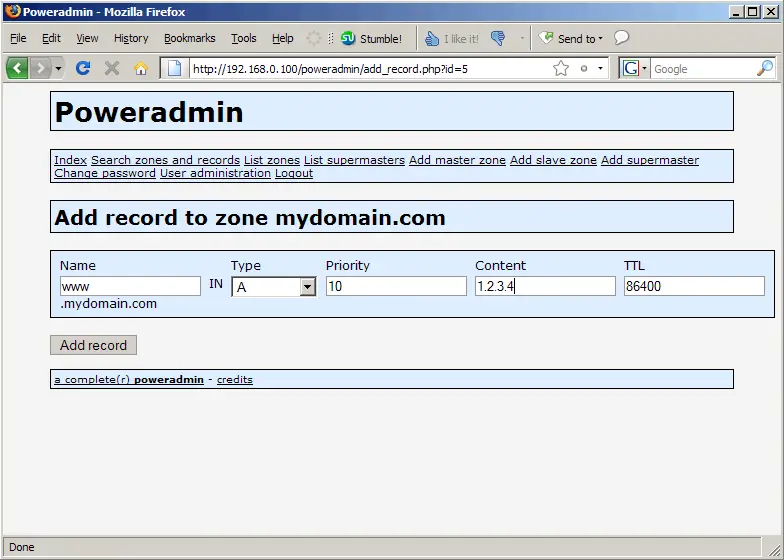
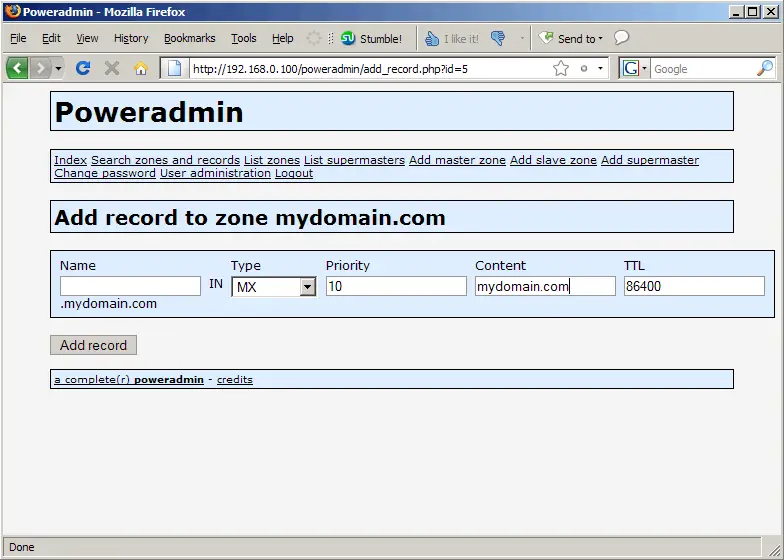
... and MX records:
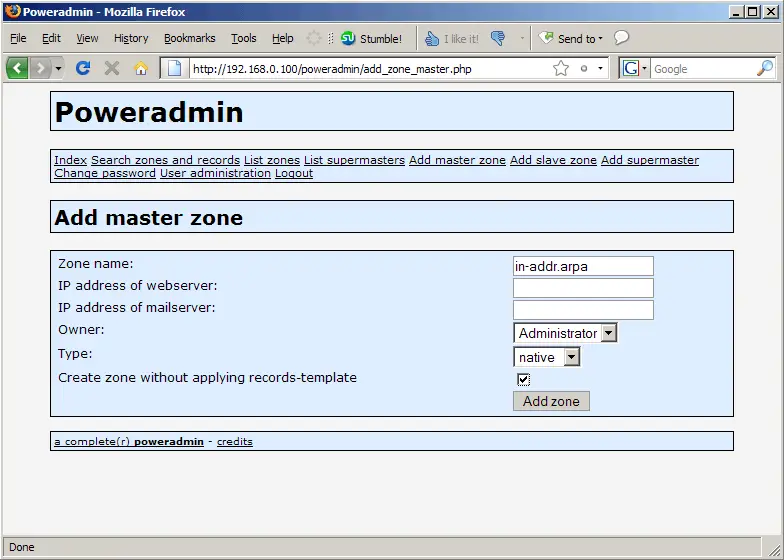
To create PTR records, go to the Add master zone page and create a zone called in-addr.arpa (leave the IP address fields empty and check the Create zone without applying records-template checkbox):
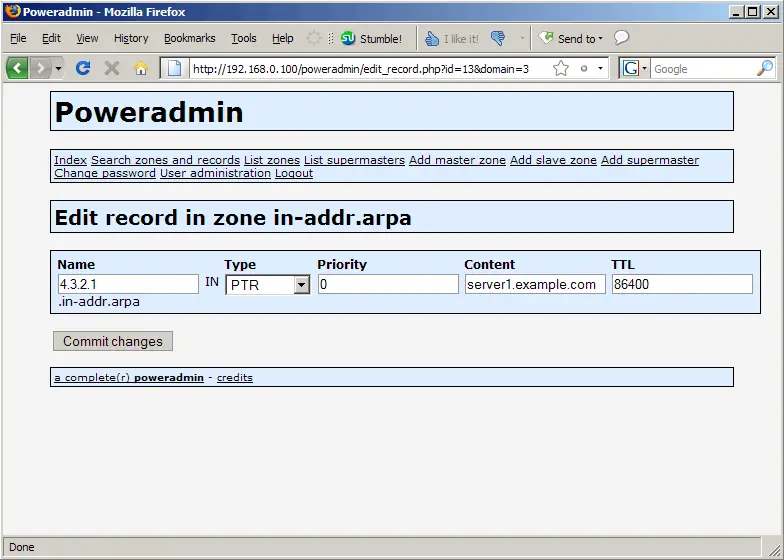
To create a PTR record that points from the IP 1.2.3.4 to server1.example.com, create a record under List zones and fill in 4.3.2.1 in the Name field (that's the IP in reverse order) and server1.example.com in the Content field:
After you've created your records, you can check them with the dig command (see
man dig
for more details), e.g. as follows:
dig @localhost mx example.com
server1:~# dig @localhost mx example.com

; <> DiG 9.3.4 <> @localhost mx example.com
; (1 server found)
;; global options:  printcmd
;; Got answer:
;; ->>HEADER<<- opcode: QUERY, status: NOERROR, id: 37939
;; flags: qr aa rd; QUERY: 1, ANSWER: 1, AUTHORITY: 0, ADDITIONAL: 1

;; QUESTION SECTION:
;example.com.                   IN      MX

;; ANSWER SECTION:
example.com.            86400   IN      MX      10 mail.example.com.

;; ADDITIONAL SECTION:
mail.example.com.       86400   IN      A       1.2.3.4

;; Query time: 9 msec
;; SERVER: 127.0.0.1#53(127.0.0.1)
;; WHEN: Mon Jan 12 19:56:46 2009
;; MSG SIZE  rcvd: 66

server1:~#
5 Links
- PowerDNS: http://www.powerdns.com/
- PowerDNS documentation: http://downloads.powerdns.com/documentation/html/index.html
- Poweradmin: http://www.poweradmin.org/
- Debian: http://www.debian.org/





