
Installing MyDNS And The MyDNSConfig Control Panel On Mandriva 2008.0 - Page 2
On this page
4 Installing MyDNS
Next we install MyDNS as follows:
urpmi mydns
Open the MyDNS configuration file /etc/mydns.conf, fill in the correct database details, allow zone transfers by setting allow-axfr to yes, enable TCP (allow-tcp = yes), and specify a recursive resolver (i.e., a valid nameserver, e.g. from your ISP; e.g. recursive = 213.191.92.86) so that MyDNS can answer queries for domains that it isn't authoritative for:
vi /etc/mydns.conf
##
##  /etc/mydns.conf
##  Mon Sep  4 22:36:05 2006
##  For more information, see mydns.conf(5).
##


                                        # DATABASE INFORMATION

db-host = localhost                     # SQL server hostname
db-user = mydns                 # SQL server username
db-password = mydnspassword                # SQL server password
database = mydns                        # MyDNS database name


                                        # GENERAL OPTIONS

user = mydns                            # Run with the permissions of this user
group = mydns                           # Run with the permissions of this group
listen = *                              # Listen on these addresses ('*' for all)
no-listen =                             # Do not listen on these addresses


                                        # CACHE OPTIONS

zone-cache-size = 1024                  # Maximum number of elements stored in the zone cache
zone-cache-expire = 60                  # Number of seconds after which cached zones expires
reply-cache-size = 1024                 # Maximum number of elements stored in the reply cache
reply-cache-expire = 30                 # Number of seconds after which cached replies expire


                                        # ESOTERICA

log = LOG_DAEMON                        # Facility to use for program output (LOG_*/stdout/stderr)
pidfile = /var/run/mydns/mydns.pid      # Path to PID file
timeout = 120                           # Number of seconds after which queries time out
multicpu = 1                            # Number of CPUs installed on your system
recursive = 213.191.92.86                       # Location of recursive resolver
allow-axfr = yes                        # Should AXFR be enabled?
allow-tcp = yes                         # Should TCP be enabled?
allow-update = no                       # Should DNS UPDATE be enabled?
ignore-minimum = no                     # Ignore minimum TTL for zone?
soa-table = soa                         # Name of table containing SOA records
rr-table = rr                           # Name of table containing RR data
soa-where =                             # Extra WHERE clause for SOA queries
rr-where =                              # Extra WHERE clause for RR queries
|
Next, start MyDNS:
/etc/init.d/mydns start
Finally, we need to fix the system startup links for MyDNS. MyDNS depends on MySQL, so MyDNS must start after MySQL has started, otherwise it will fail. The default startup links for MyDNS make it start before MySQL which is wrong, so we fix this as follows:
cd /etc/rc.d/rc3.d
mv S55mydns S99mydns
cd /etc/rc.d/rc4.d
mv S55mydns S99mydns
cd /etc/rc.d/rc5.d
mv S55mydns S99mydns
MySQL uses the startup links S57mysql, so renaming the MyDNS startup links from S55mydns to S99mydns makes sure that MyDNS starts after MySQL.
The basic installation of MyDNS and MyDNSConfig is now finished. To log in to the MyDNSConfig interface, open a web browser and enter enter the following URL:
http://<your_ip_address>/mydnsconfig/
Replace <your_ip_address> with the IP address of your server.
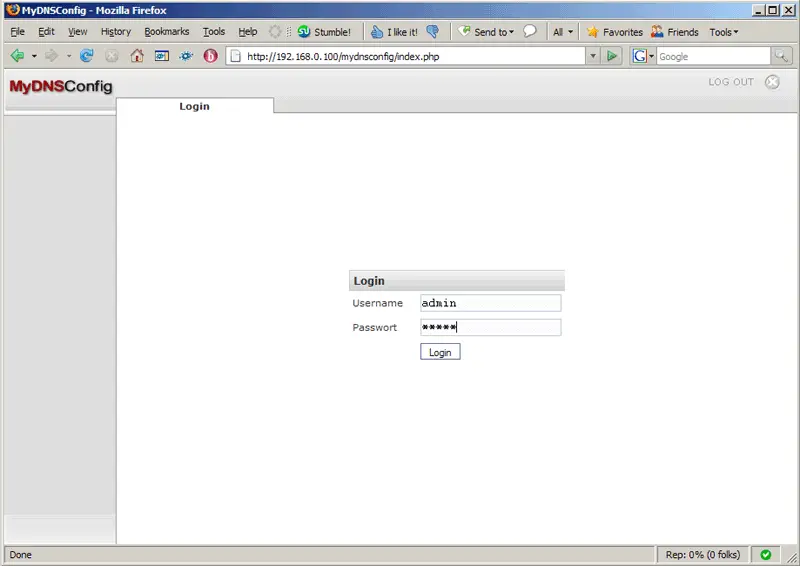
The default username and password of MyDNSConfig are:
Username: admin
Password: admin
Don't forget to change the password after login under System > Users.
5 Using MyDNSConfig
In this chapter I will demonstrate how to use MyDNSConfig by creating an example zone test.com and an A record www.test.com.
First log in:
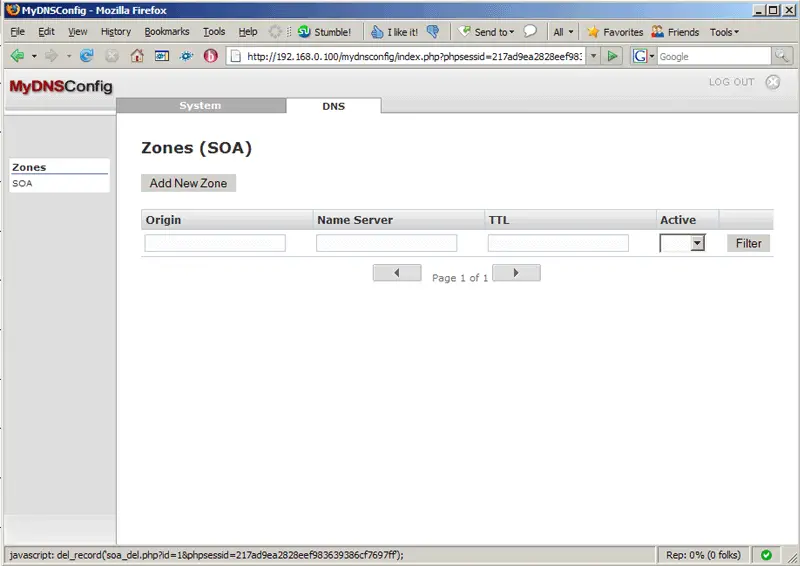
Click on the Add New Zone button:
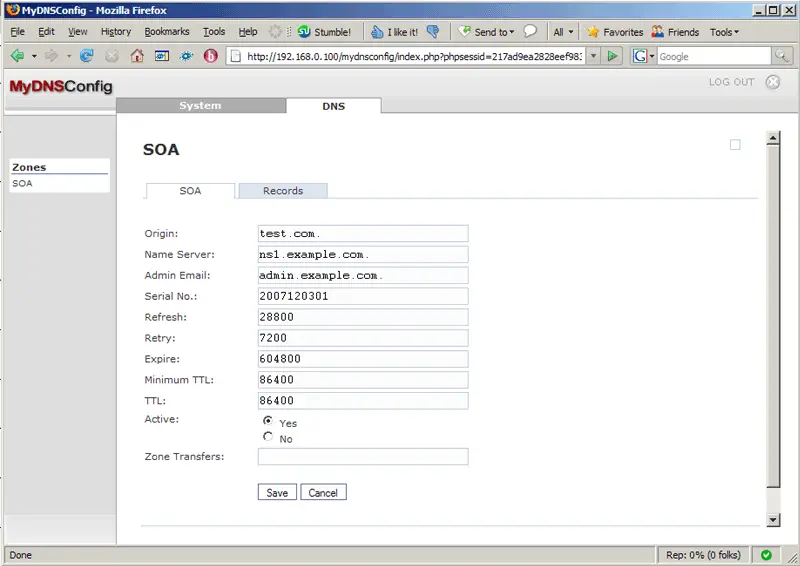
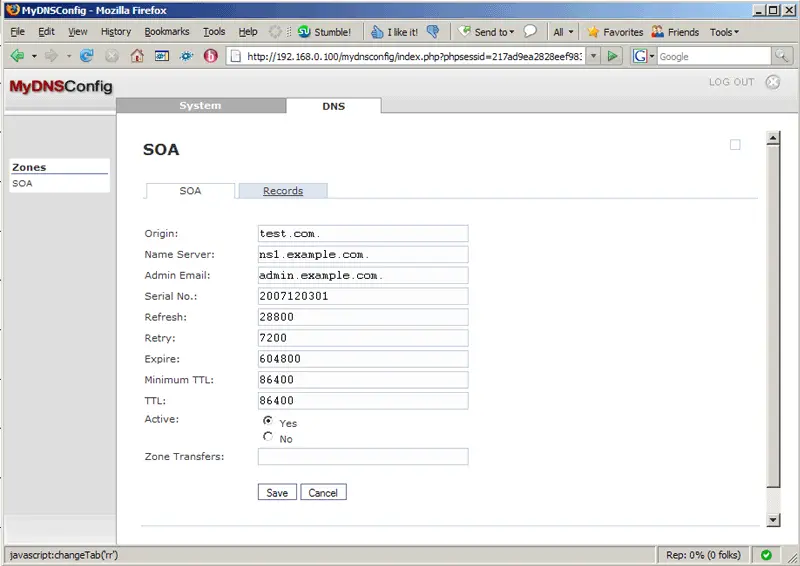
The form on the SOA tab is preseeded with default values. Fill in test.com. (please note the final dot!) in the Origin field and make changes to the other fields, if necessary. The Zone Transfers field can be left empty which means that any server can connect to our MyDNS server to initiate a zone transfer; if you fill in an IP address, only that system can connect:
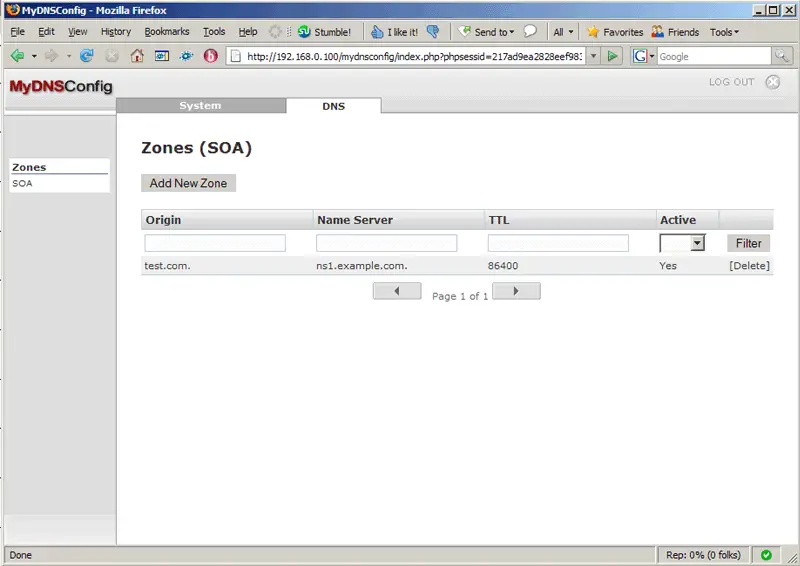
After you've clicked on Save, you will find your new zone listed on the Zones (SOA) page. Click on the test.com. link to go to the zone's properties:
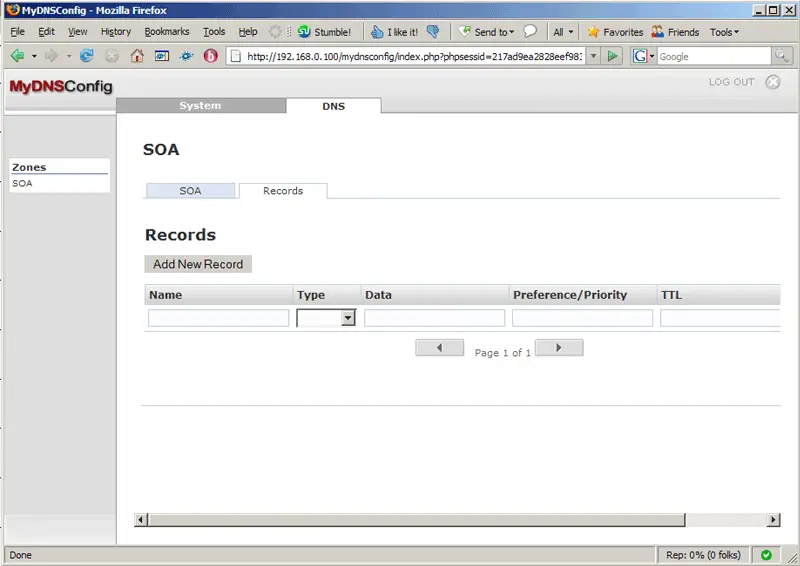
Next, click on the Records tab:
Then click on the Add New Record button to create a record (A/MX/CNAME/...):
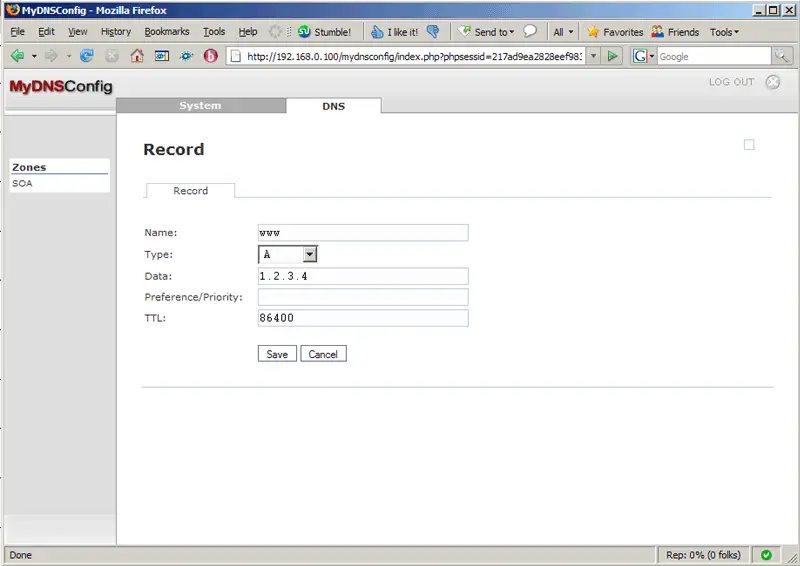
To create the A record www.test.com, fill in www in the Name field, select A as the Type, type in www.test.com's IP address in the Data field (e.g. 1.2.3.4), and specify the TTL (in seconds). The Preference/Priority field can be left empty for A records; it's needed for MX records:
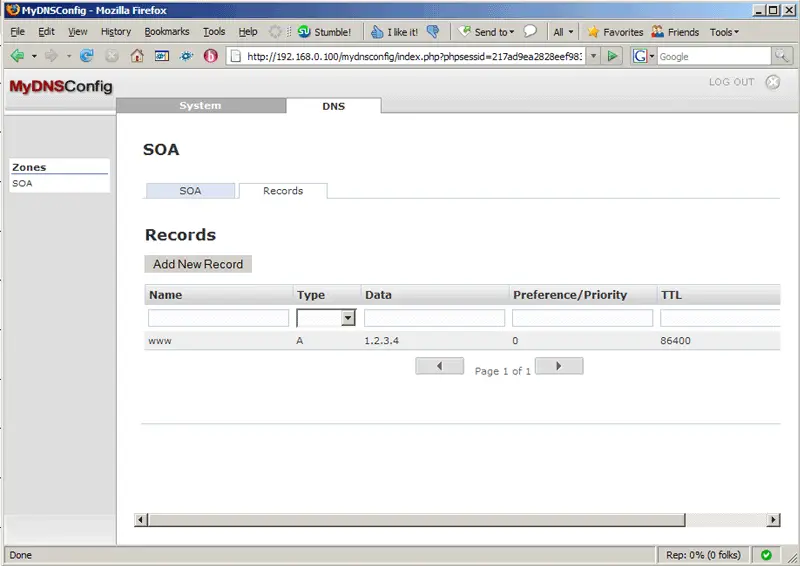
After you've clicked on Save, you will find www.test.com in the list of records for the zone test.com:
That's it already - no restarts are required. You can now test if MyDNS can resolve www.test.com:
dig @localhost www.test.com
If all goes well, the output should look something like this:
[root@server1 ~]# dig @localhost www.test.com

; <<>> DiG 9.5.0a6 <<>> @localhost www.test.com
; (1 server found)
;; global options:  printcmd
;; Got answer:
;; ->>HEADER<<- opcode: QUERY, status: NOERROR, id: 55393
;; flags: qr aa rd ra; QUERY: 1, ANSWER: 1, AUTHORITY: 0, ADDITIONAL: 0

;; QUESTION SECTION:
;www.test.com.                  IN      A

;; ANSWER SECTION:
www.test.com.           86400   IN      A       1.2.3.4

;; Query time: 24 msec
;; SERVER: 127.0.0.1#53(127.0.0.1)
;; WHEN: Mon Dec  3 23:47:14 2007
;; MSG SIZE  rcvd: 46

[root@server1 ~]#
6 Links
- MyDNS: http://mydns.bboy.net
- MyDNSConfig: http://www.mydnsconfig.org
- Mandriva: http://www.mandriva.com





