
Installing Cherokee With PHP5 And MySQL Support On Fedora 14 - Page 2
5 Configuring PHP5
We must modify /etc/php.ini and uncomment the line cgi.fix_pathinfo=1:
vi /etc/php.ini
[...] ; cgi.fix_pathinfo provides *real* PATH_INFO/PATH_TRANSLATED support for CGI. PHP's ; previous behaviour was to set PATH_TRANSLATED to SCRIPT_FILENAME, and to not grok ; what PATH_INFO is. For more information on PATH_INFO, see the cgi specs. Setting ; this to 1 will cause PHP CGI to fix its paths to conform to the spec. A setting ; of zero causes PHP to behave as before. Default is 1. You should fix your scripts ; to use SCRIPT_FILENAME rather than PATH_TRANSLATED. ; http://www.php.net/manual/en/ini.core.php#ini.cgi.fix-pathinfo cgi.fix_pathinfo=1 [...] |
Then we restart Cherokee:
/etc/init.d/cherokee restart
6 Enabling PHP5 In Cherokee
PHP is not enabled in Cherokee by default. To enable it, we need to start Cherokee's web-based control panel...
cherokee-admin -b
... and log into it (http://192.168.0.100:9090/).
Now go to vServers, pick the default vhost and go to the Behavior tab; click the Rule Management button:
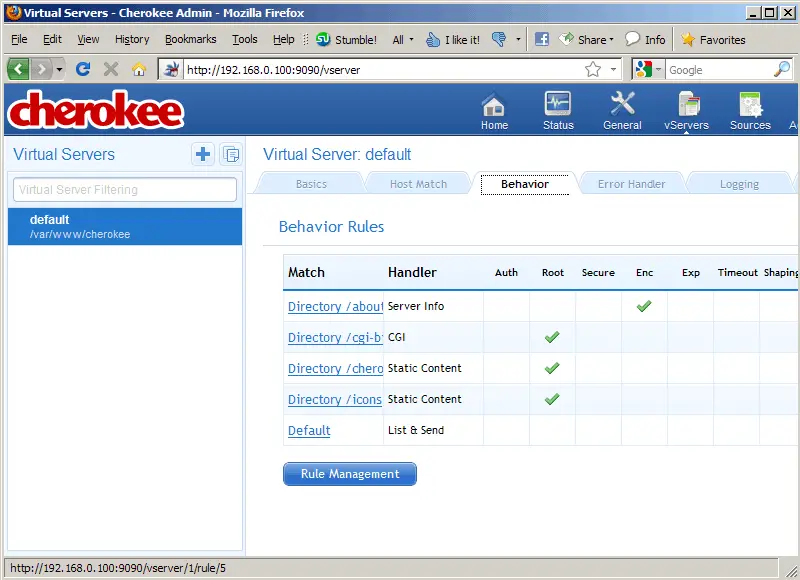
In the left column, you should now see all currently existing rules:
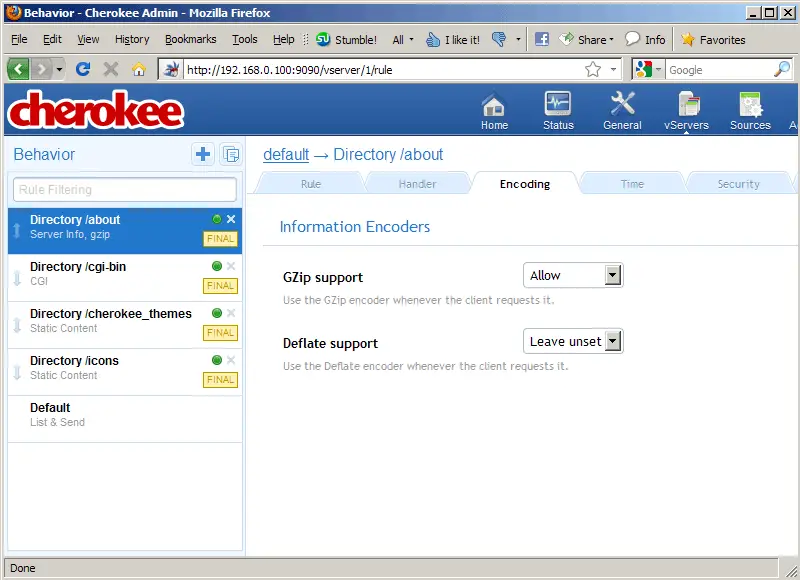
Click the Plus button next to Behaviour to add a new rule:

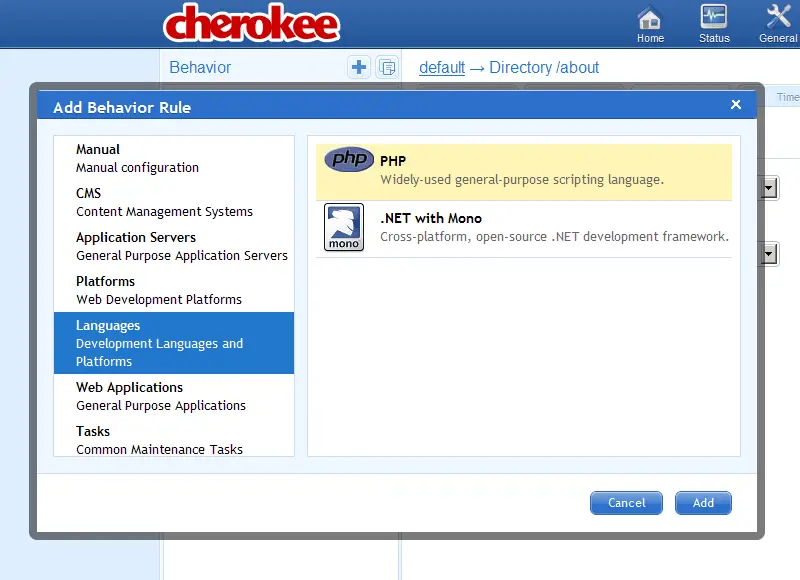
An overlay window pops up; select Languages from the left column, then choose PHP and click the Add button:
Next, click the Create button in the Configuration Assistant window:
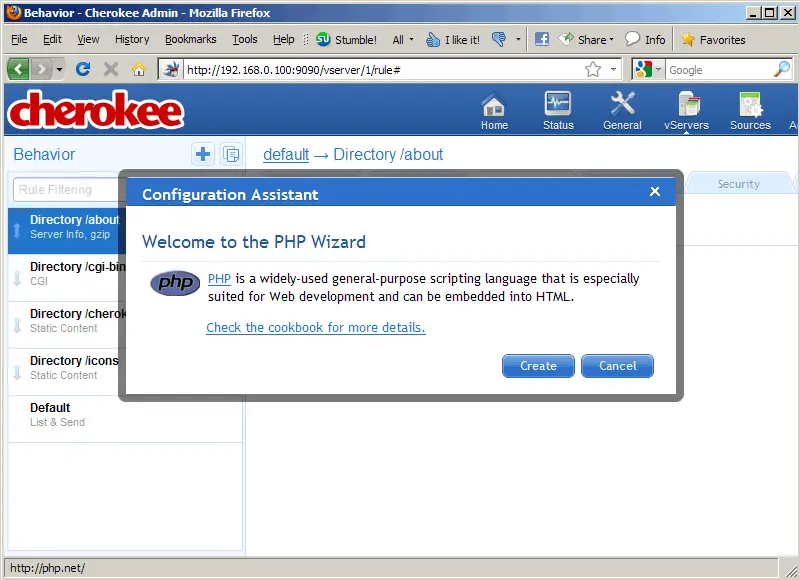
You should now see a new rule for PHP in the left column (with the status NON FINAL). You can change the default PHP settings if you like (this is not necessary, the default settings should be fine in most cases). The FastCGI settings are on the Handler tab:
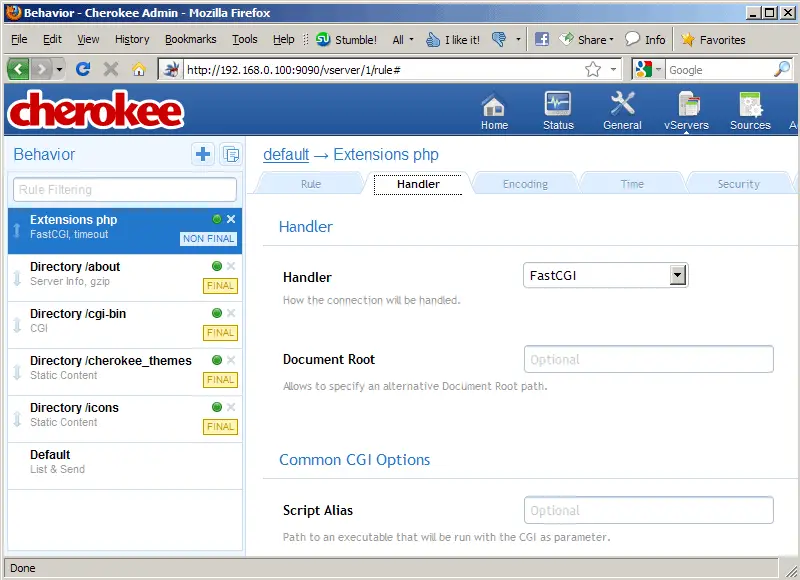
To finalize the setup, click the box that says NON FINAL...

... and it should change to FINAL:

In the upper right corner there should now be a SAVE button - click it to save the new configuration...
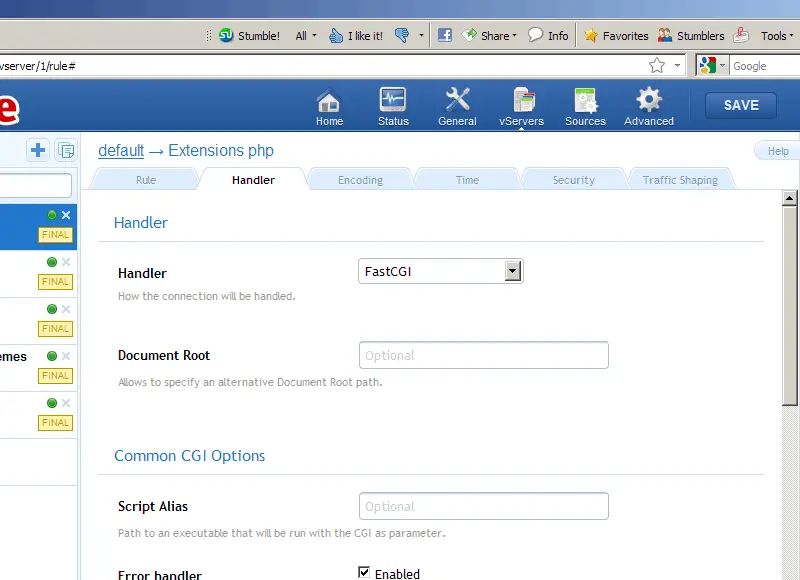
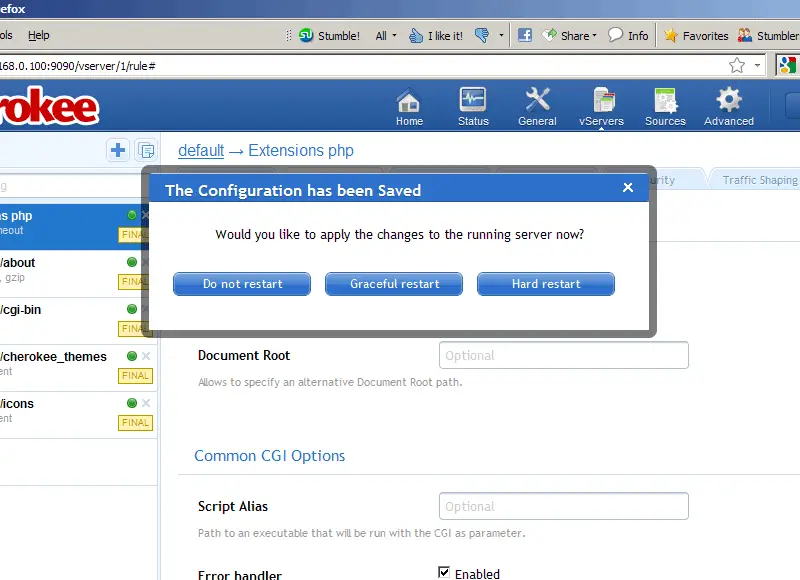
... and then click the Graceful restart button:
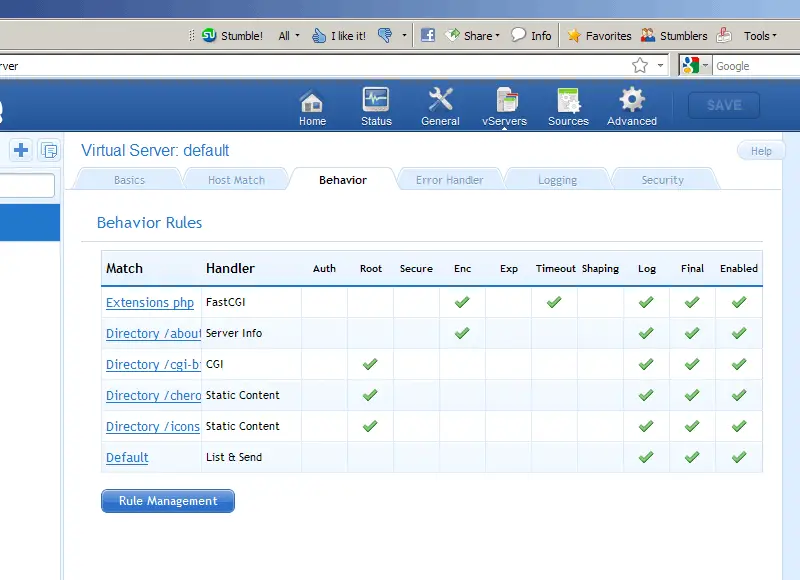
PHP should now be listed on the Behavior tab (there should be a check in the Final column):
Press CTRL+C on the command line to stop the control panel.
7 Testing PHP5 / Getting Details About Your PHP5 Installation
The document root of the default web site is /var/www/cherokee. We will now create a small PHP file (info.php) in that directory and call it in a browser. The file will display lots of useful details about our PHP installation, such as the installed PHP version.
vi /var/www/cherokee/info.php
<?php phpinfo(); ?> |
Now we call that file in a browser (e.g. http://192.168.0.100/info.php):
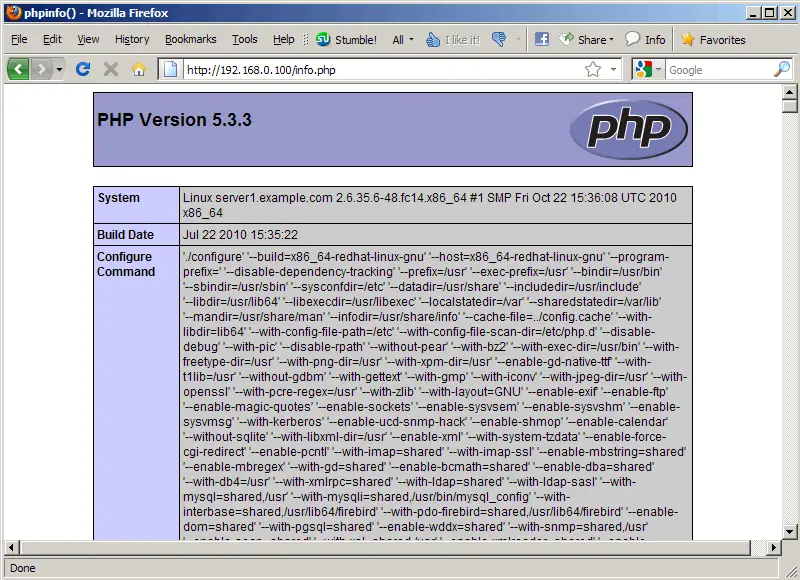
As you see, PHP5 is working, and it's working through FastCGI, as shown in the Server API line. If you scroll further down, you will see all modules that are already enabled in PHP5. MySQL is not listed there which means we don't have MySQL support in PHP5 yet.
8 Getting MySQL Support In PHP5
To get MySQL support in PHP, we can install the php-mysql package. It's a good idea to install some other PHP5 modules as well as you might need them for your applications. You can search for available PHP5 modules like this:
yum search php
Pick the ones you need and install them like this:
yum install php-mysql php-gd php-imap php-ldap php-odbc php-pear php-xml php-xmlrpc
Now restart Cherokee:
/etc/init.d/cherokee restart
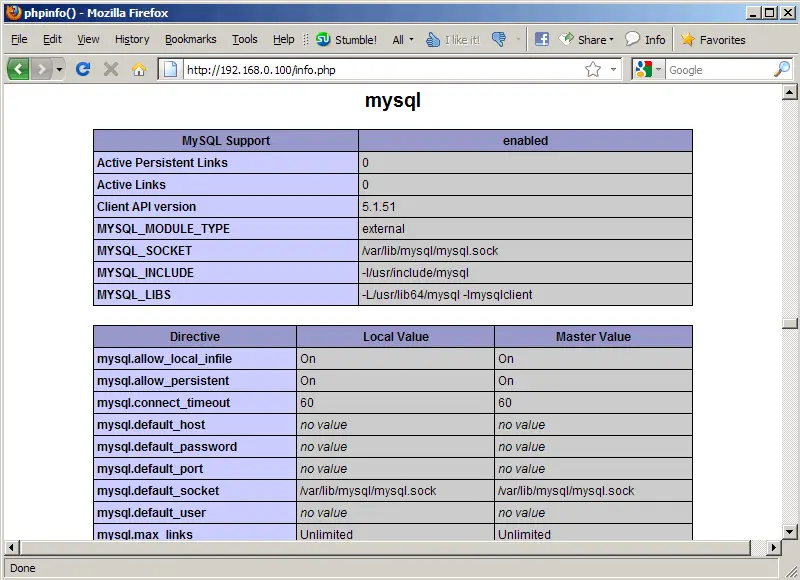
Now reload http://192.168.0.100/info.php in your browser and scroll down to the modules section again. You should now find lots of new modules there, including the MySQL module:
9 Links
- Cherokee: http://www.cherokee-project.com/
- PHP: http://www.php.net/
- MySQL: http://www.mysql.com/
- Fedora: http://fedoraproject.org/





