Icinga (Monitoring Solution) Installation And Configuration On CentOS
Icinga is an enterprise grade open source monitoring system which keeps watch over networks and any conceivable network resource, notifies the user of errors and recoveries and generates performance data for reporting. Scalable and extensible, Icinga can monitor complex, large environments across dispersed locations.
I am going with the Icinga basic installation and this is similar to Nagios and this document can also be referred for Nagios installation, too. Lots of documents are available on the Internet and they will be installing with nagios user but for my setup I made use of the default user which is already present in the system (daemon) and also I will not be installing it on the default path instead I will be referring to /opt since I find it very convenient. The UI of Icinga is much better than Nagios.
In this tutorial I will using three servers:
192.168.1.20 – Icinga monitoring server (centos5)
192.168.1.30 – win 2008 to be monitored
192.168.1.40 – Ubuntu 10.10 server to be monitored
Requirements
Note: Make sure development tools and development libraries have been installed during installation:
- GCC compiler
- C/C++ development libraries
- GD development libraries
Packages Needed
1. Xampp for Linux:
[root@sunil~]# mkdir /software
[root@sunil~]# cd /software
[root@sunil software]# wget http://sourceforge.net/projects/xampp/files/XAMPP%20Linux/1.7.3/xampp-linux-1.7.3.tar.gz/download
2. Icinga core:
[root@sunil software]# wget http://sourceforge.net/projects/icinga/files/icinga/1.2.1/icinga-1.2.1.tar.gz/download
Installation of Icinga
1. Untar the xampp package:
[root@sunil software]# tar -zxvf xampp-linux-1.7.3.tar.gz
[root@sunil software]# mv lampp/ /opt/
Xampp package is very neatly compilied package and extracting the same is more than enough for more details can refer to xampp page:
http://www.apachefriends.org/en/xampp.html
2. Untar the Icinga package:
[root@sunil software]# tar -zxvf icinga-1.2.1.tar.gz
[root@sunil software]# cd icinga-1.2.1
[root@sunil icinga-1.2.1]# ./configure --prefix=/opt/icinga --with-icinga-user=daemon --with-icinga-group=daemon --with-httpd-conf=/opt/lampp/etc
Note: please make sure you do not get any error while compiling. If you are getting errors make sure the required packages are installed.
[root@sunil icinga-1.2.1]# make all
[root@sunil icinga-1.2.1]# make install
[root@sunil icinga-1.2.1]# make install-config
[root@sunil icinga-1.2.1]# make install-commandmode
[root@sunil icinga-1.2.1]# make install-webconf
3. Now need to configure Apache with Icinga:
[root@sunil icinga-1.2.1]# cd /opt/lampp/etc/
[root@suniletc]# vim httpd.conf
4. Add the following line:
Include etc/icinga.conf
5. Set password for login:
[root@sunil /]# cd /opt/lampp/bin/
[root@sunil bin]# ./htpasswd –c /opt/icinga/etc/htpasswd.users icingaadmin
New password:
Re-type new password:
Adding password for user icingaadmin
6. Start Apache:
[root@sunillampp]# cd /opt/lampp/
[root@sunillampp]# ./lamp startapache
XAMPP: Starting Apache with SSL (and PHP5)...
XAMPP: Error 1! Couldn't start Apache!
XAMPP: Starting diagnose...
XAMPP: Make the httpd.conf fit your system.
XAMPP: Next try...
XAMPP: Starting Apache with SSL (and PHP5)...
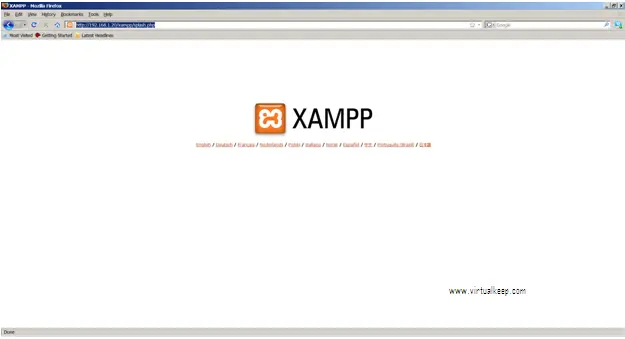
7. Check whether Apache is working:
http://192.168.1.20
8. Now we need to start Icinga but before that we need to check whether Icinga has been compiled properly and all the configuration are set:
[root@sunillampp]# cd /opt/icinga/
9. Before configuring Icinga we will start and see whether we get the page:
[root@sunilicinga]# /opt/icinga/bin/icinga –v /opt/icinga/etc/icinga.cfg
Total Warnings: 0
Total Errors: 0
Things look okay - No serious problems were detected during the pre-flight check.
10. Now start Icinga since we do not get any errors:
[root@sunilicinga]# /opt/icinga/bin/icinga -d /opt/icinga/etc/icinga.cfg
[root@sunilicinga]# ps -ef|grep icinga
daemon 6961 1 0 19:03 ? 00:00:00 /opt/icinga/bin/icinga -d /opt/icinga/etc/icinga.cfg
root 6998 2929 0 19:05 pts/1 00:00:00 grep icinga
[root@sunilrw]# chmod 777 /opt/
[root@sunilrw]# chmod 777 /opt/icinga/
[root@sunilrw]# chmod 777 /opt/icinga/var/
[root@sunilrw]# chmod 777 /opt/icinga/var/rw/
[root@sunilrw]# chmod 777 /opt/icinga/var/rw/icinga.cmd
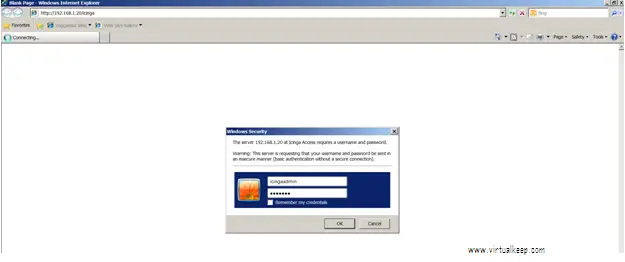
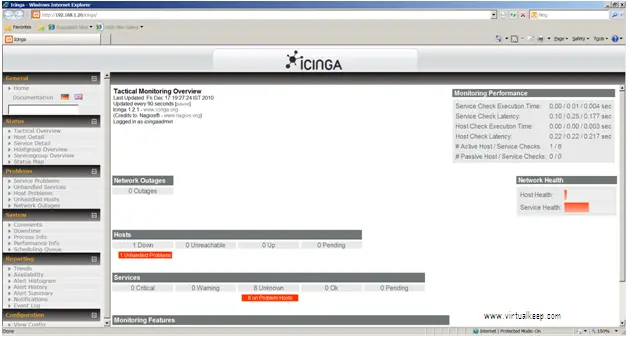
11. Login to check whether Icinga website opens: