
How To Take Screenshots Of Your Android Smartphone
Version 1.0
Author: Falko Timme  Follow me on Twitter
Unfortunately it is not possible to directly take screenshots of an Android phone (e.g. by tapping on a button). This tutorial shows you how you can take screenshots of an Android smartphone with the help of a computer where the Android SDK is installed.
I do not issue any guarantee that this will work for you!
1 Preliminary Note
In this tutorial I use an Ubuntu 11.04 desktop where the Android SDK is installed as explained in this tutorial: Setting Up An Android App Build Environment With Eclipse, Android SDK, PhoneGap (Ubuntu 11.04). But it works with all other distributions (e.g. Fedora, Debian) or operating systems (Windows, Mac) where the Android SDK is installed.
Your Android phone must be plugged into your computer using its USB cable, and USB Debugging must be turned on on the phone (under Settings > Applications > Development).
2 Taking Screenshots
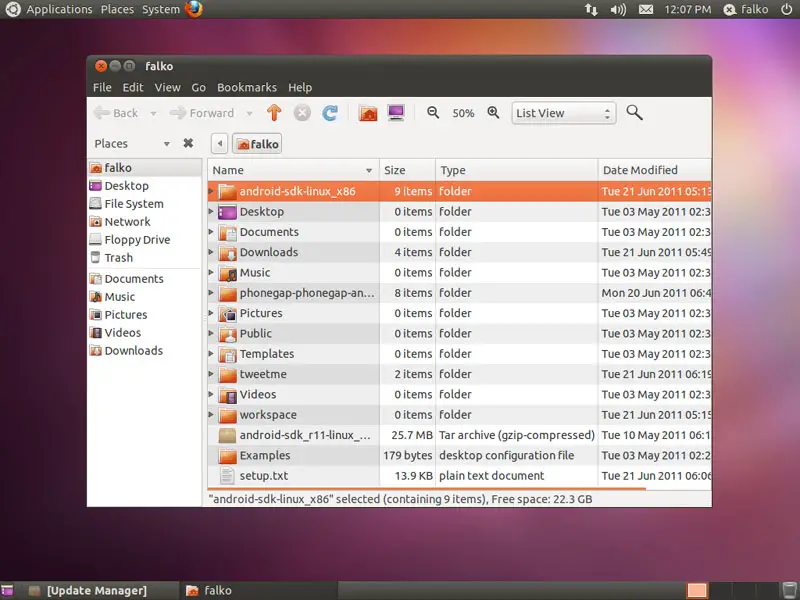
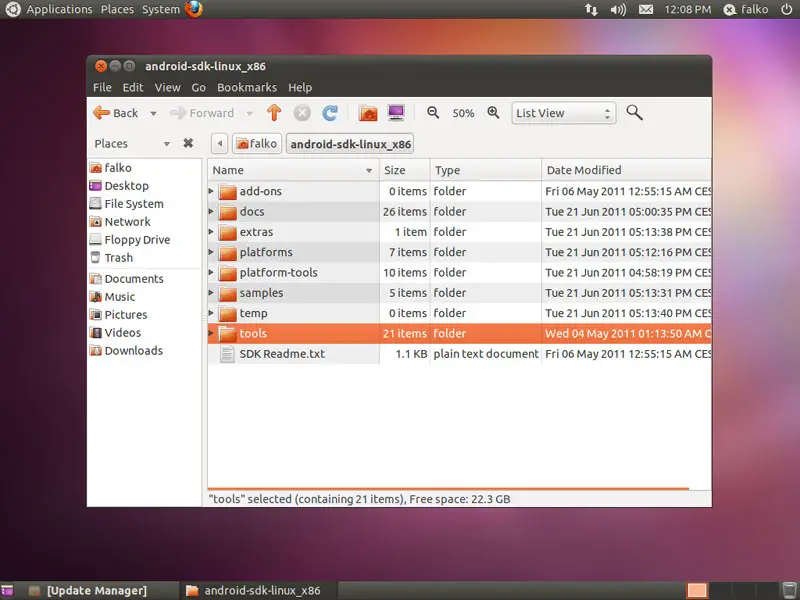
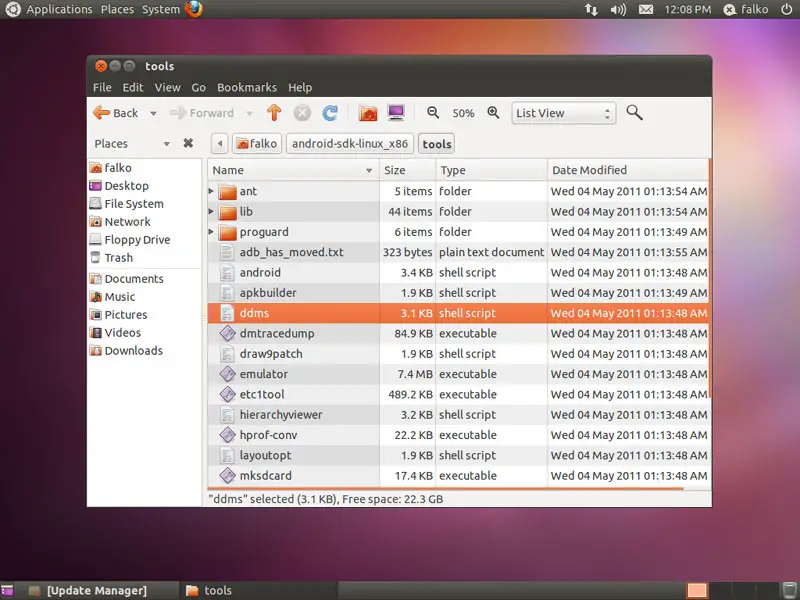
To take screenshots, we must start the ddms tool (Dalvik Debug Monitor) from the tools directory inside your Android directory (if you have used my Setting Up An Android App Build Environment With Eclipse, Android SDK, PhoneGap (Ubuntu 11.04) tutorial, this is the android-sdk-linux_x86 directory in your home directory, so the full path would be ~/android-sdk-linux_x86/tools/ddms).
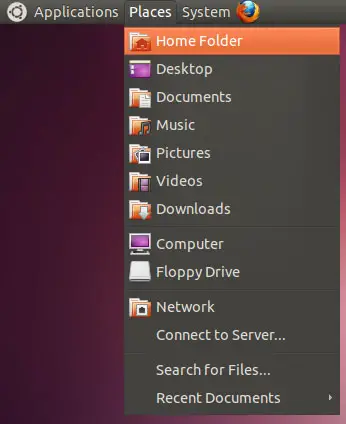
Open a file explorer (Places > Home Folder)...
... and go to the Android directory (android-sdk-linux_x86)...
... and then to the tools subdirectory:
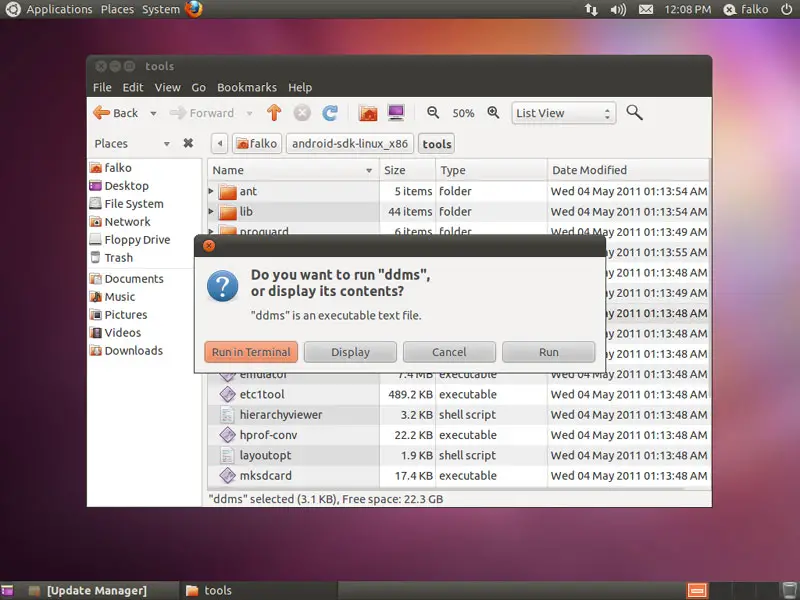
Inside the tools directory, you find the ddms tool. Double-click it:
A dialogue comes up that asks you if you want to run ddms. Click on the Run in Terminal button:
(Another way of starting ddms would simply be to open a terminal - Applications > Accessories > Terminal - and type in the follwing command:
~/android-sdk-linux_x86/tools/ddms
)
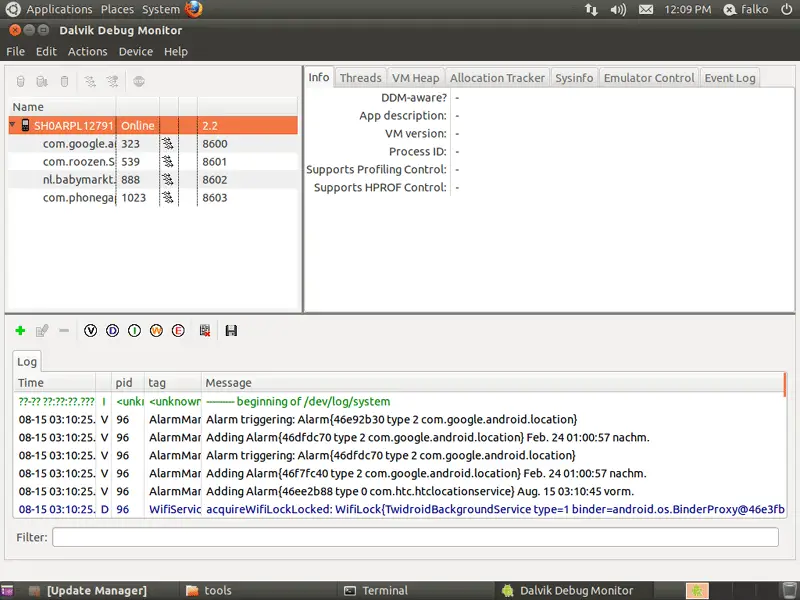
The Dalvik Debug Monitor starts. In the upper left window, you should see your Android phone (mine is named SH0ARPL ... here):
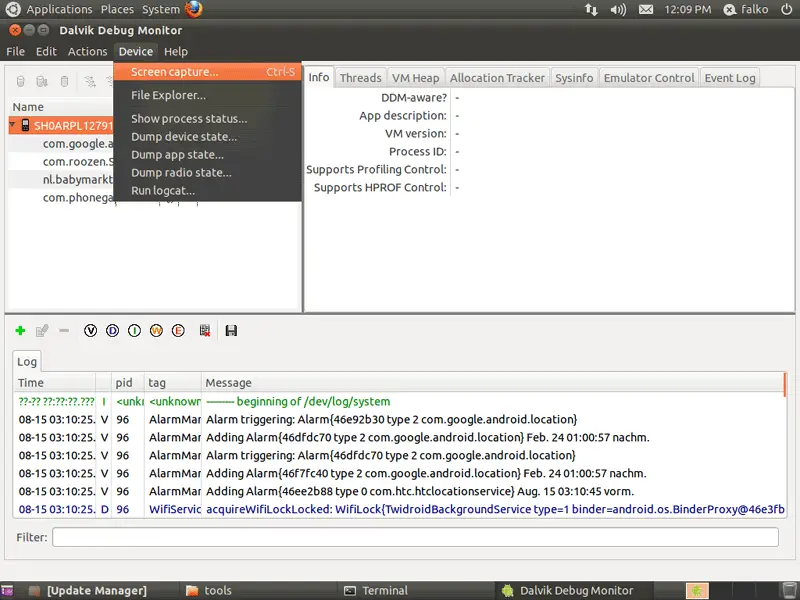
Go to Device > Screen capture...:
The Device Screen Capture window opens with a current screen shot of your Android phone. To change the current screenshot, just navigate to the area from that you want to take a screenshot on your Android phone and click on the Refresh button in the Device Screen Capture window:
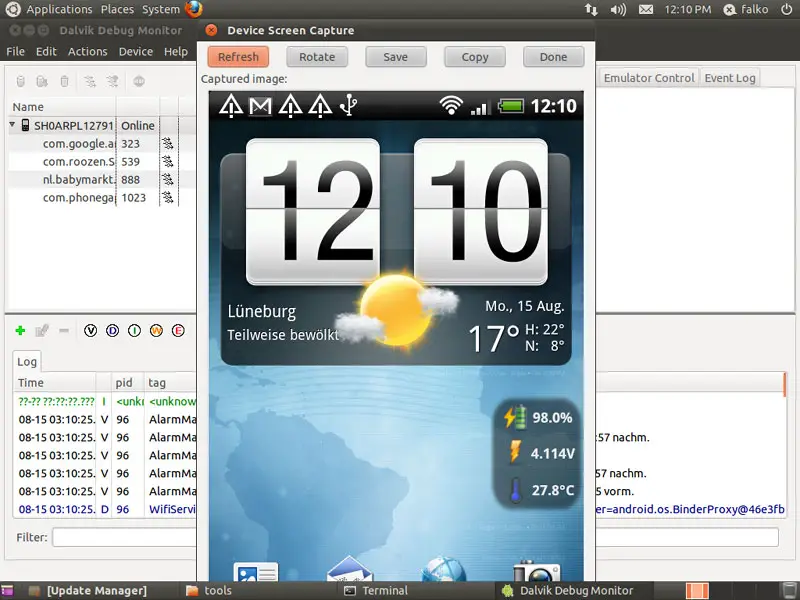
To save the screenshot, click on the Save button. The Save Image... dialogue comes up. Specify a file name and a folder for the screenshot on your computer. The screenshot will be saved as a .png file on your computer.
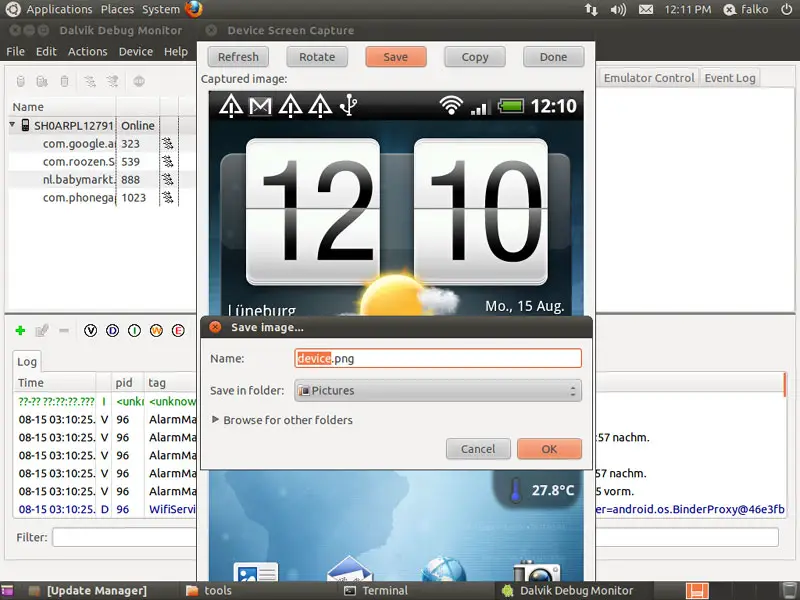
That's it! Now you can go to the folder where you saved the screenshot...
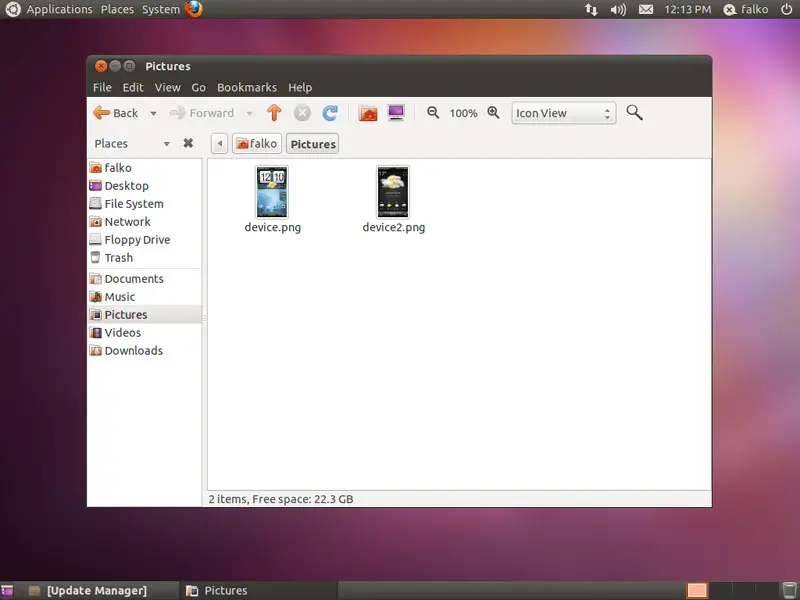
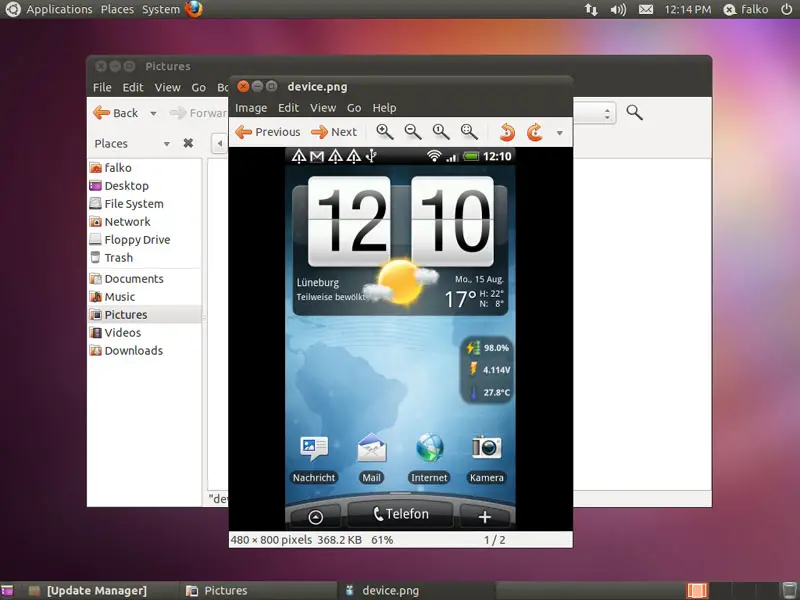
... and take a look at it:
3 Links
- Android SDK: http://developer.android.com/sdk/index.html





