
On this page
- How To Set Up A Postgresql 9.0 Hot Standby Streaming Replication Server With Repmgr On OpenSUSE 11.4
- Step 1. Install postgresql on both master and slave server
- Step 2. Set up trusted copy between servers (on both master and slave)
- Step 3. Change postgresql configuration files (pg_ha.conf, postgresql.conf), and restart postgresql (master server only)
- Step 4. Stop postgresql server, and remove all content in the data directory (slave server only)
How To Set Up A Postgresql 9.0 Hot Standby Streaming Replication Server With Repmgr On OpenSUSE 11.4
There are tons of tutorials about how to setup streaming replication on postgresql 9.0, and detailed documentation on repmgr, the SR manager program from 2ndQuadrant. Like they said on repmgr homepage:
"PostgreSQL 9.0 allow you to have replicated hot standby servers which you can query and/or use for high availability. While the main components of the feature are included with PostgreSQL, the user is expected to manage the high availability parts. repmgr allows you to monitor and manage your replicated PostgreSQL databases as a single cluster."
This is a tutorial how to set up a postgresql replicated hot standby server with streaming replication, and we also set up the repmgr to monitor and manage the replication cluster. Unlike most tutorials that copy the database file from master to slave (or standby) in the middle of running pg_start_backup() and pg_end_backup(), repmgr is used to simplify the whole procedure. (But I still think that procedure helps you a lot to understand how postgresql warm standby, pitr, and hot standby replication work.)
I would like to give most of the credits to postgresql community and all the contributors like 2ndQuadrant. You guys did a wonderful job for the SR hot standby features on postgresql database. The work I did on this tutorial is just make postgresql SR hot standby replication works on opensuse 11.4.
I wish this tutorial could help more people start to use postgresql, the most advanced database, also Opensuse, my favorite OS like Debian.
Jun 20th 2011
In this tutorial I will run 2 OpenSUSE 11.4 32-bit bare bone servers under VMware Workstation, both servers were built from OpenSUSE 11.4 network installation iso, which you can download from http://www.opensuse.org.
pgmaster: 192.168.5.187 (master database server)
pgslave: 192.168.5.188 (slave database server, or standby)
And modify /etc/hosts in both servers to have above 2 records.
Step 1. Install postgresql on both master and slave server
zypper install postgresql postgresql-contrib postgresql-server

And then start postgresql server to make sure it works:
/etc/init.d/postgresql start

Step 2. Set up trusted copy between servers (on both master and slave)
repmgr program will copy database with rsync and ssh for user postgres, so we need to set up ssh login with password between master and slave server:
passwd postgres

su - postgres
ssh-keygen -t rsa

ssh-copy-id -i ~/.ssh/id_rsa.pub pgslave
Test if we can ssh to pgslave from pgmaster with password:
ssh pgslave

And do the same step on the slave:
su - postgres
ssh-keygen -t rsa
ssh-copy-id -i ~/.ssh/id_rsa.pub pgmaster
ssh pgmaster

Make sure you log out from the remote ssh server after your test.
Step 3. Change postgresql configuration files (pg_ha.conf, postgresql.conf), and restart postgresql (master server only)
Make sure the following lines are changed in postgresql.conf on master server only:
listen_addresses = "*"
wal_level = hot_standby
checkpoint_segments=30
archive_mode=on
archive_command='cd .'
max_wal_senders=2
wal_keep_segments=5000
hot_standby=on

And in pg_hba.conf on master server only:
host all all 192.168.5.0/24 trust
host replication all 192.168.5.0/24 trust

Now restart postgresql, and create a test database for replication use.
/etc/init.d/postgresql restart

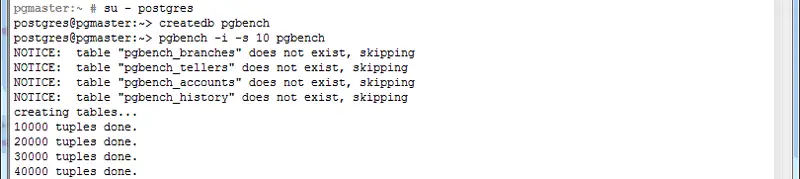
We create a test database and generate some data on master database:
su - postgres
createdb pgbench
pgbench -i -s 10 pgbench
Step 4. Stop postgresql server, and remove all content in the data directory (slave server only)
/etc/init.d/postgresql stop
cd /var/lib/pgsql/data
rm -rf *

Now test the remote postgresql connection to pgmaster:
psql -h pgmaster -d pgbench

Now postgresql has been installed correctly on both the master and slave server. Time to install the repmgr management program. You need to download the source code from 2ndQuadrant website, and compile it yourself.





