
How To Install VMware Server 1.0.x On An Ubuntu 8.10 Desktop
Version 1.0
Author: Falko Timme
This tutorial provides step-by-step instructions on how to install VMware Server 1.0.x (1.0.8 at the time of this writing) on an Ubuntu 8.10 desktop system. This is for those who prefer VMware Server 1.0.x over VMware Server 2.
With VMware Server you can create and run guest operating systems ("virtual machines") such as Linux, Windows, FreeBSD, etc. under a host operating system. This has the benefit that you can run multiple operating systems on the same hardware which saves a lot of money, and you can move virtual machines from one VMware Server to the next one (or to a system that has the VMware Player which is also free).
Also, with VMware Server you can let your old Windows desktop (that you previously converted into a VMware virtual machine with VMware Converter, as described in this tutorial: https://www.howtoforge.com/vmware_converter_windows_linux) run under your Ubuntu desktop. This can be useful if you depend on some applications that exist for Windows only, or if you want to switch to Linux slowly.
I do not issue any guarantee that this will work for you!
Installing VMware Server 1.0.x
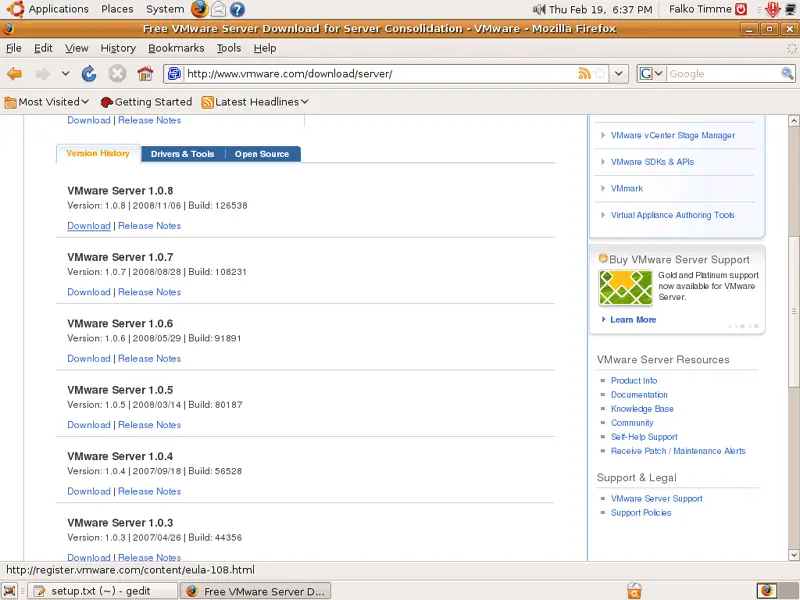
To download VMware Server, go to http://www.vmware.com/download/server/ and click on the Download link of the latest release of the VMware Server 1.0.x series (not VMware Server 2!):
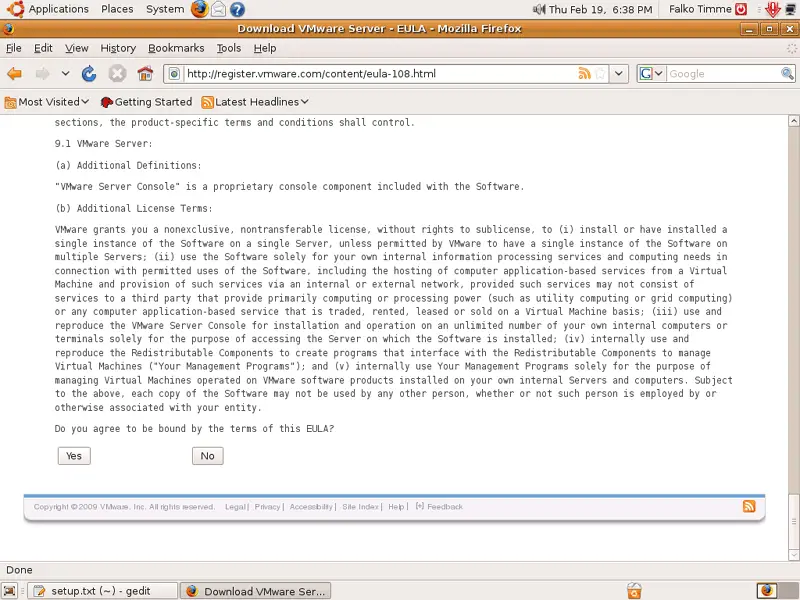
Accept the license agreement by clicking on Yes:
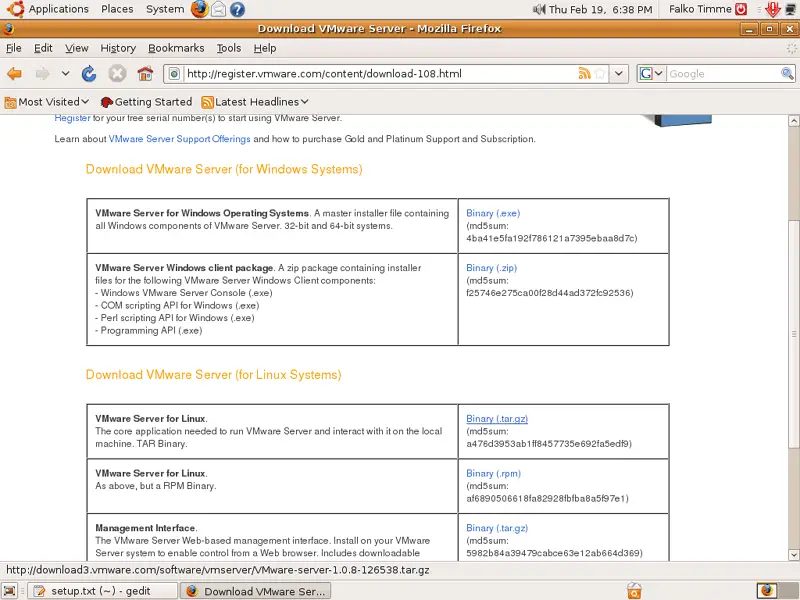
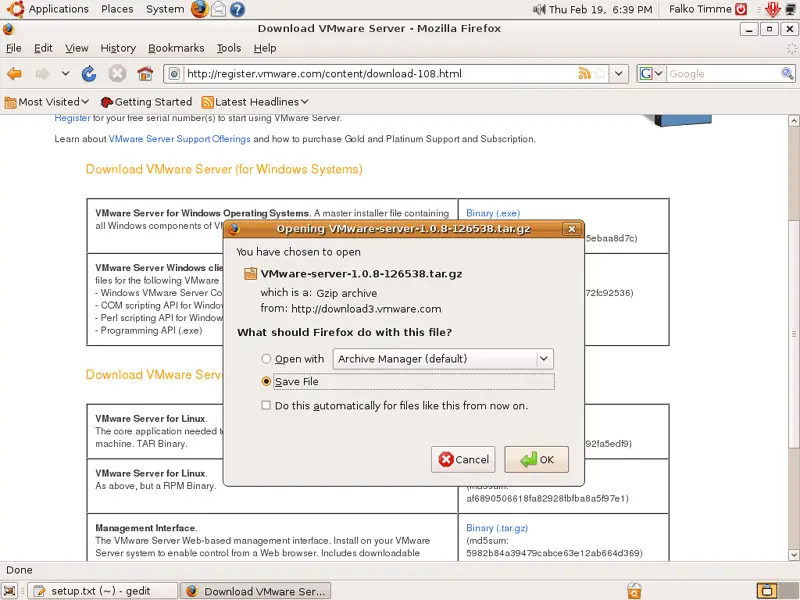
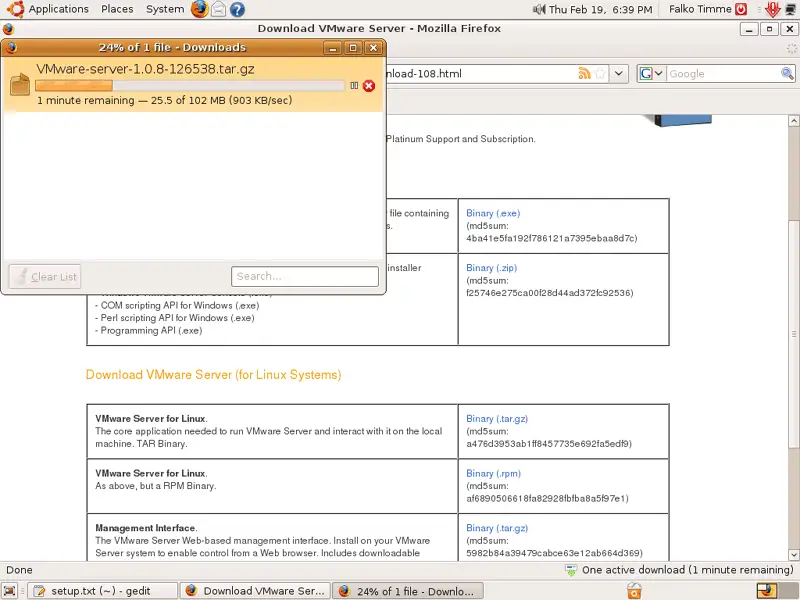
Then download the VMware Server for Linux .tar.gz file (not the rpm file!) to your desktop (e.g. to /home/falko/Desktop):
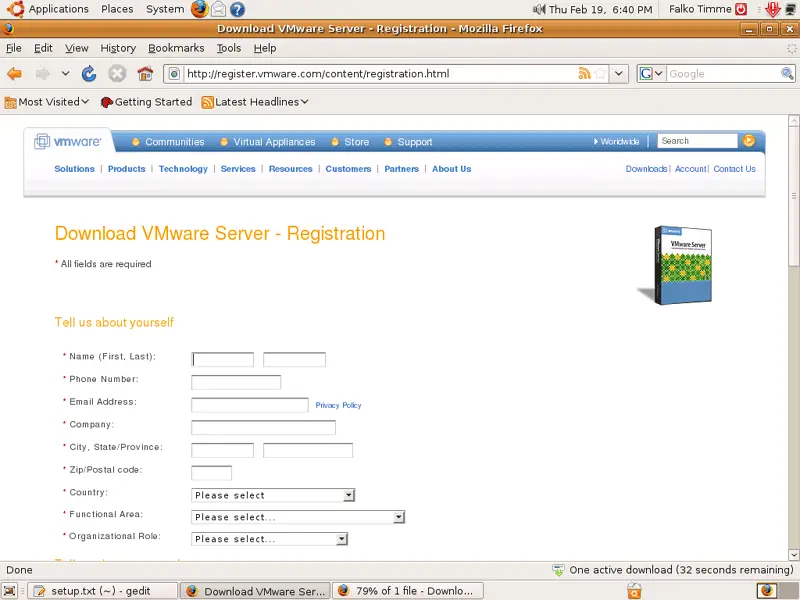
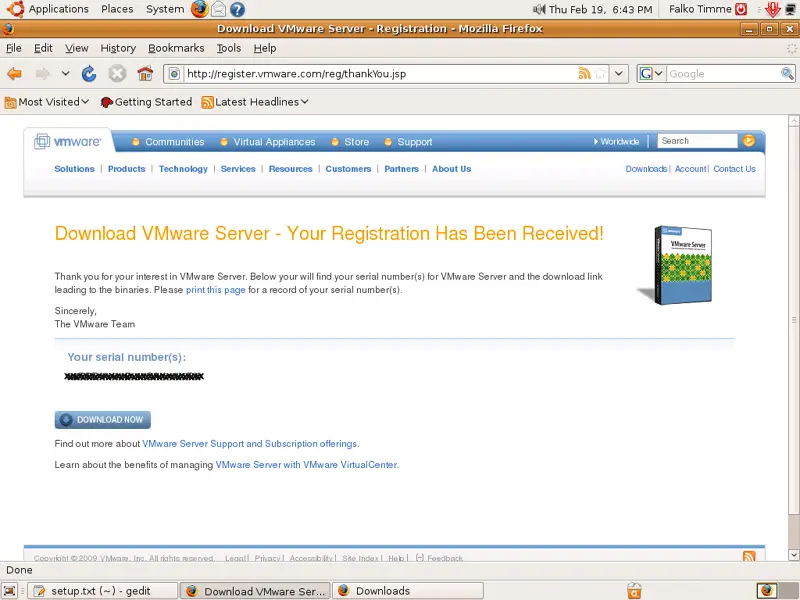
To get the serial number that you need to run VMware Server, go to http://register.vmware.com/content/registration.html. Fill in your personal details. Afterwards you will get a page with a serial number for VMware Server. Write it down or print it out:
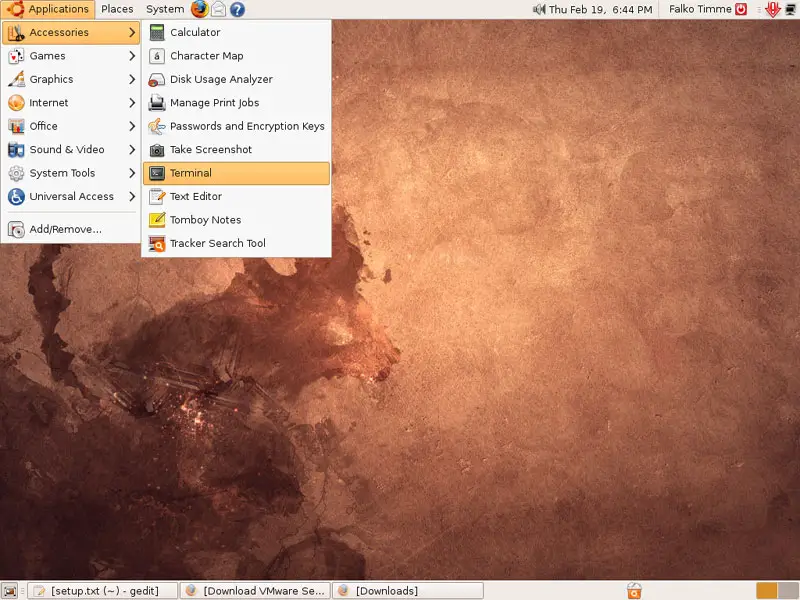
Then open a terminal (Applications > Accessories > Terminal):
Run the following command to install some necessary packages:
sudo apt-get install linux-headers-`uname -r` build-essential xinetd
Then go to the location where you saved the VMware Server .tar.gz file, e.g. /home/falko/Desktop (replace falko with your own username!):
cd /home/falko/Desktop
Unpack the VMware Server .tar.gz file and run the installer:
tar xvfz VMware-server-*.tar.gz
cd vmware-server-distrib
sudo ./vmware-install.pl
The installer will ask you a lot of questions. You can always accept the default values simply by hitting <ENTER>. Answer the following question with no...
Before running VMware Server for the first time, you need to configure it by
invoking the following command: "/usr/bin/vmware-config.pl". Do you want this
program to invoke the command for you now? [yes] <-- no
.. because you'll get an error otherwise when the installer tries to compile the kernel modules needed by VMware. (If you answer with yes and get the errors, that's no problem either - just read on).
We need to patch VMware as follows:
cd /home/falko/Desktop
wget -c http://www.insecure.ws/warehouse/vmware-update-2.6.27-5.5.7-2.tar.gz
tar xvfz vmware-update*.tar.gz
cd vmware-update*/
sudo ./runme.pl
This will patch the VMware installer and continue the installation.
Answer the following question with yes:
Before running VMware for the first time after update, you need to configure it
for your running kernel by invoking the following command:
"/usr/bin/vmware-config.pl". Do you want this script to invoke the command for
you now? [no] <-- yes
Afterwards you can accept the default values simply by hitting <ENTER>.
When the installer asks you
In which directory do you want to keep your virtual machine files?
[/var/lib/vmware/Virtual Machines]
you can either accept the default value or specify a location that has enough free space to store your virtual machines.
At the end of the installation, you will be asked to enter a serial number:
Please enter your 20-character serial number.
Type XXXXX-XXXXX-XXXXX-XXXXX or 'Enter' to cancel:
Fill in your serial number for VMware Server.
After the successful installation, you can delete the VMware Server download file and the installation directory:
cd /home/falko/Desktop
rm -f VMware-server*
rm -fr vmware-server-distrib/
rm -fr vmware-update*
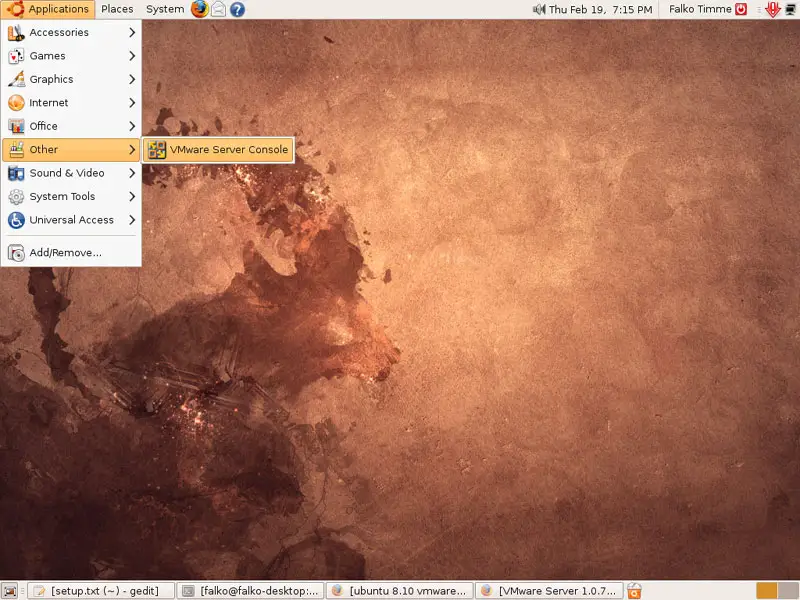
You will now find VMware Server under Applications > Other > VMware Server Console:
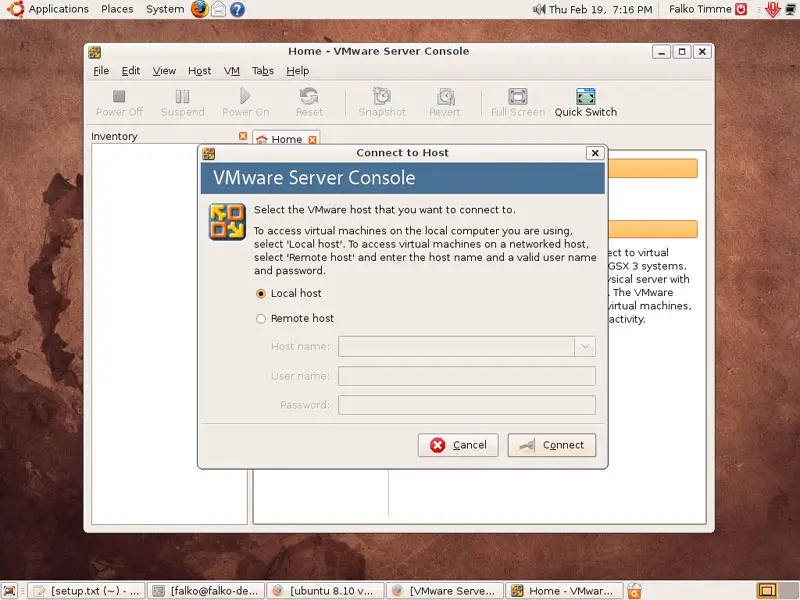
When you start it, select Local host:
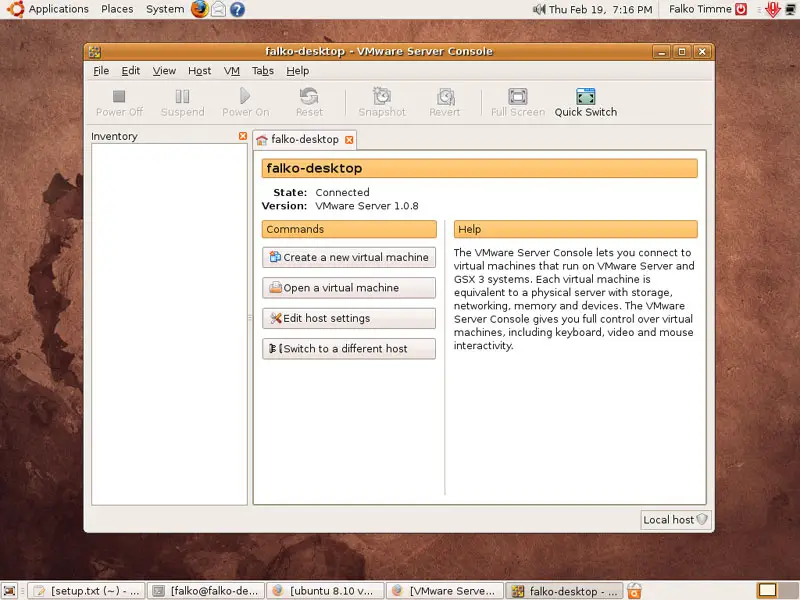
Afterwards, you can create virtual machines (or import your virtual Windows machine that you created with VMware Converter):
Links
- Ubuntu: http://www.ubuntu.com/
- VMware Server: http://www.vmware.com/download/server/





