
How To Create A LAMP Setup (Apache2, PHP, MySQL) On CentOS 5.x In An Amazon Linux AMI 32bits Or 64bits
This tutorial explains how to create a virtual machine with CentOS 5.x on Amazon's Elastic Compute Cloud (Amazon EC2) and how to set up a LAMP system (LAMP stands for "Linux, Apache, MySQL, PHP") in this virtual machine. We use an AMI (Amazon Machine Image) to set this virtual machine up.
I assume you have an Amazon EC2 account.
Create An AMI Instance
You need to go to the EC2 tab and there choose Launch Instance:

Then a small window will open and there you need to choose the AMI that you need for your project - in this case Basic 32-bit Amazon linux AMI or the 64-bit version:
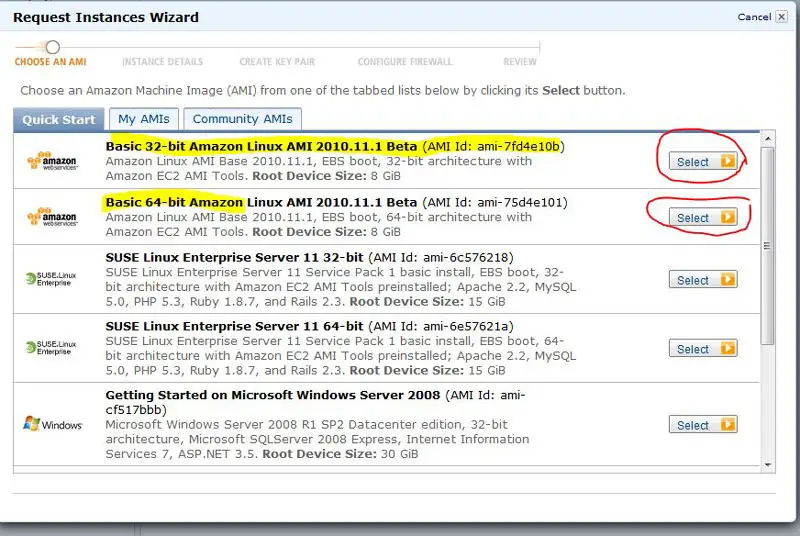
NOTE: the 64-bit version runs only on micro and large instances, for more information about the features see the Amazon documentation.
Then you need to choose the settings in the Amazon wizard. I always use:
- 1 instance (means one virtual machine)
- The availability zone depends on your selection and your region; for this case we choose No Preference.
- The instance type: choose small (if this is a test use micro because it's cheaper than the small one).
Click on the Continue button:
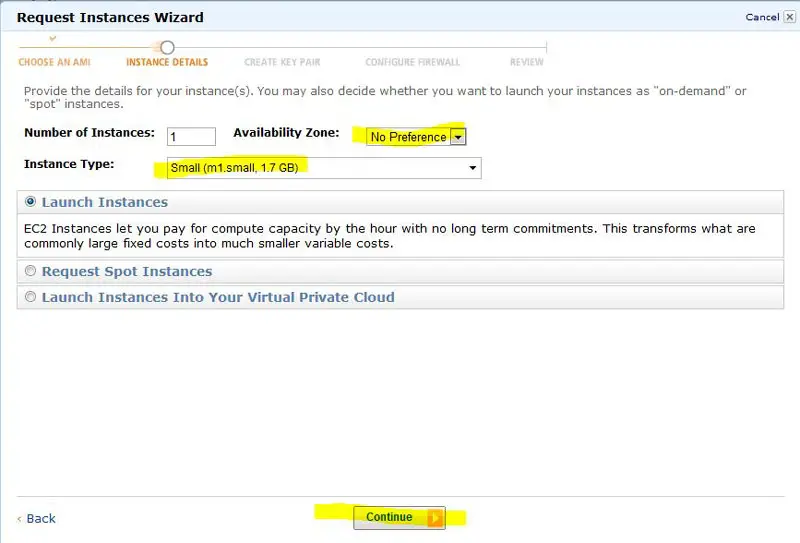
Then on the next screen use the default settings and click on the Continue button.
Then on the next screen you must choose a key for accessing your AMI; if this is your first AMI in EC2 you need to choose the option:
Create new key pair
and fill the Enter a name for your key pair input with the name of the key, for example myKey.
Then click on Create & Download your Key Pair button, and the browser will download the key file.
Note: It's very important to save the file in a secure directory because you will use this key to access your AMI (from now virtual machine).
Then you need to select the security groups. This means you need to choose the open ports or the security rules of your virtual machine. By default there is one active and open port; it is port 22 which allows you to access your virtual machine via SSH.
Connecting To Your Virtual Machine Via SSH
For this, I propose the Tunnelier program, because it is easy to use and you have console and SFTP at the same time.
I assume that you will connect from a Windows operating system; for other cases I will write the command to connect from your console.
The steps for connecting to the virtual machine under Windows are:
- Download the Tunnelier program from bitvise.com (it's free). Select Download Tunnelier (SSH Client).
- Install it like you normally do on Windows.
- Open the program.
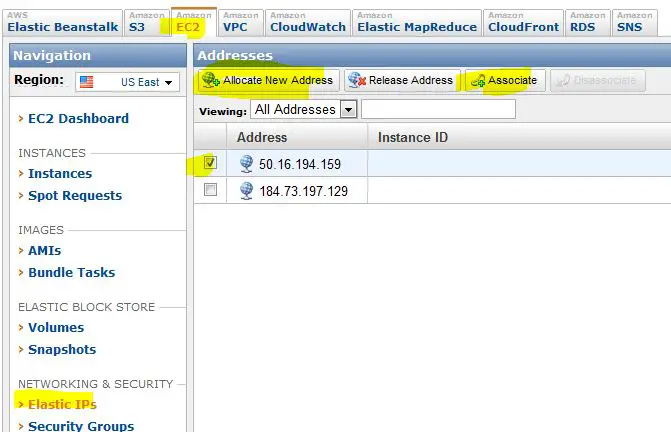
- Go to your EC2 dashboard and select the Elastic IP option from the left menu.
- In the main window click on the button Allocate New Address; a small screen will appear where you must confirm the action, then select click on the Yes, Allocate button.
- The new public IP will show in the panel. Now we need to associate it to our virtual machine.
To do this, select the IP and click on the Associate button (see the image) and then a small window named Associate Address will be displayed, and there you must choose the ID of your virtual machine from a list (in my case I have only one, therefore I can only select that one option), and then click on the Associate button.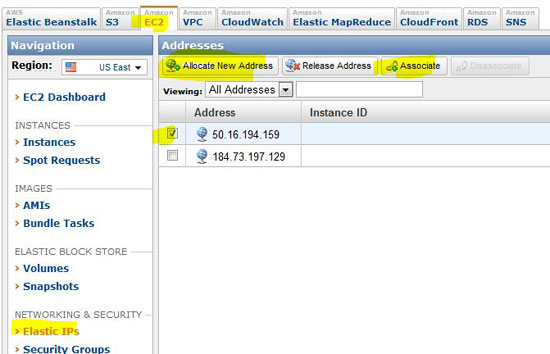
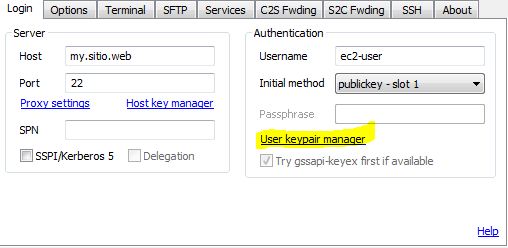
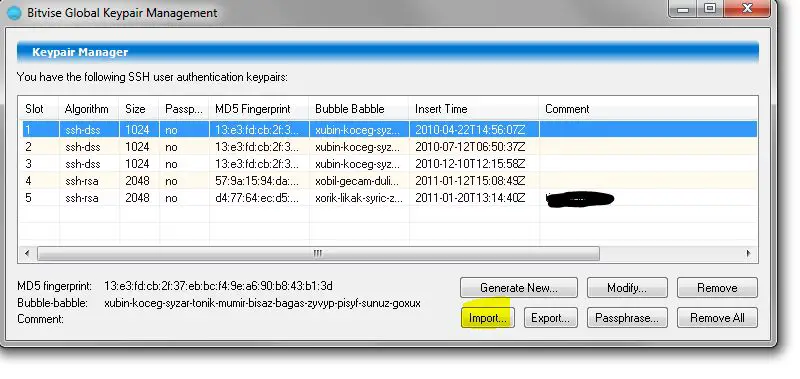
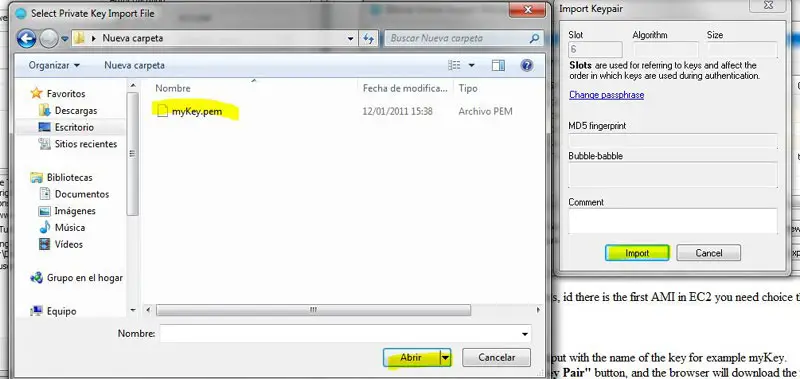
- Once we have an IP associated to our virtual machine, in the Tunnelier program we need to import the access key for our virtual machine. For this action we click on User keypair manager and as shown in the following images, import the my Key.pem file that we created before. And then it will appear in the list.
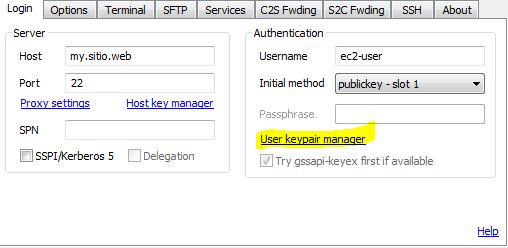
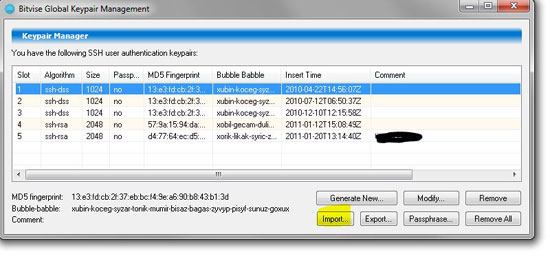
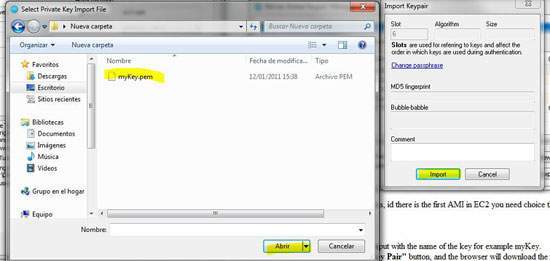
- Put special attention to the number in the list, because we use this number to make the connection.
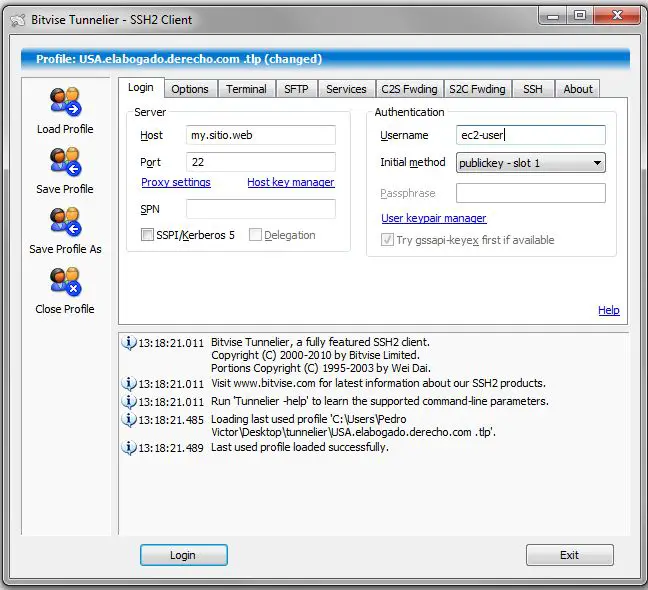
- Configure the rest as shown in the following image:
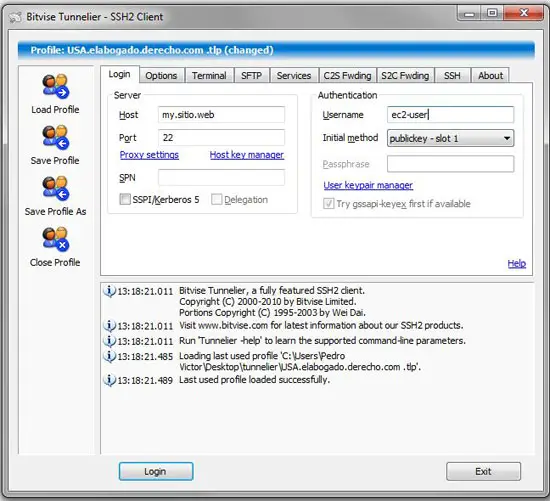
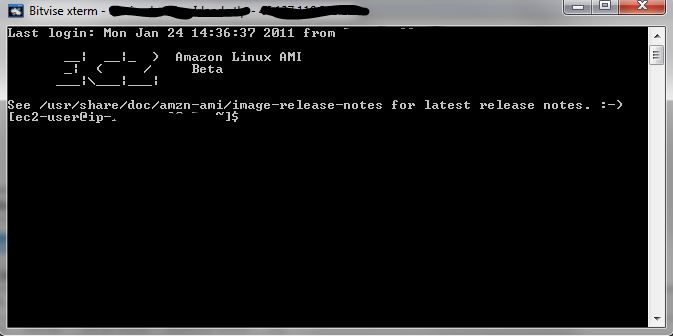
- And connect to your virtual machine (click on the login button); then you have the console and ftp like in the following image:
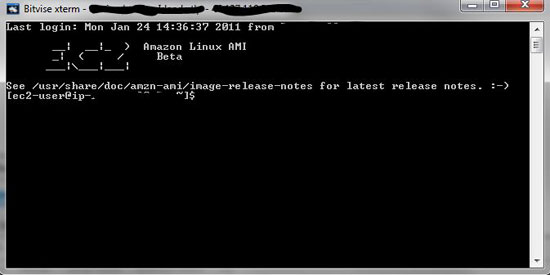
In the case you use Linux or Unix as your client system, you can connect using the following command from the command line:
ssh -i myKey.pem ec2-user@myPublicIP





