
Enabling Compiz Fusion On Linux Mint 11
Version 1.0
Authors: Falko Timme, Christian Schmalfeld <c [dot] schmalfeld [at] projektfarm [dot] de>
This tutorial shows how you can enable Compiz Fusion on a Linux Mint 11 desktop (the system must have a 3D-capable graphics card - I'm using an NVIDIA GeForce 8200 here). With Compiz Fusion you can use beautiful 3D effects like wobbly windows or a desktop cube on your desktop.
This document comes without warranty of any kind! I do not issue any guarantee that this will work for you!
1 Preliminary Note
I have tried this on a desktop computer with an NVIDIA GeForce 8200. It should work the same way with all other NVIDIA graphics cards.
2 Enabling The NVIDIA Driver
To use 3D effects on an NVIDIA graphics card, we need the proprietary NVIDIA driver which we can install from the Additional Drivers tool. The Additional Drivers tool can be started from Administration > Additional Drivers:
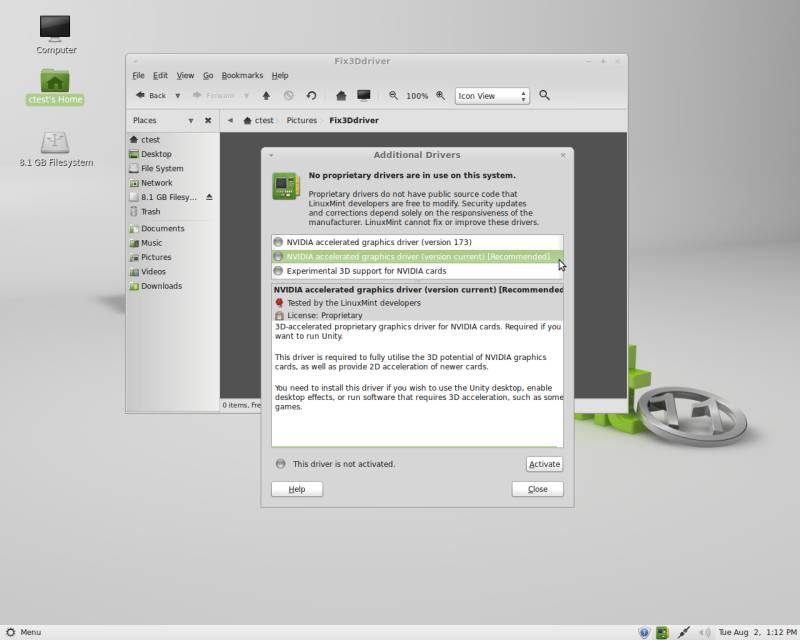
The Additional Drivers tool should tell
you that there are NVIDIA graphics drivers available for your system -
select the recommended one. To install it, click on Activate. You will be asked to type in your
password afterwards. The NVIDIA driver is now being downloaded and
installed:
The Additional Drivers tool should now
tell you that a system restart is required to activate the driver.
Click on Close to leave the Additional Drivers tool and then reboot the
system:
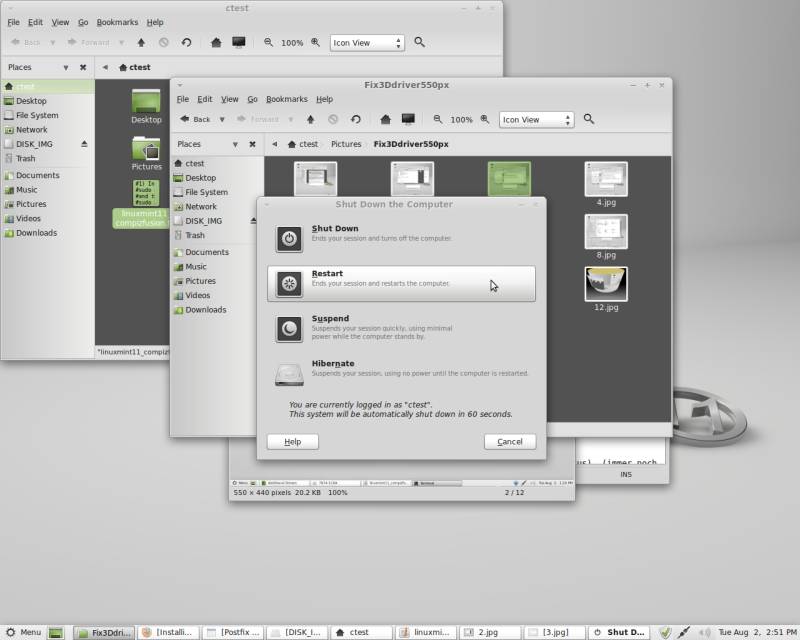
After the reboot, when you go to the Additional Drivers tool again, you will see the message This driver is activated but not currently in use. This is what we do to solve the problem:
3 Adding The ubuntu-x-swat ppa To sources.list
Open the Terminal (Menu > Terminal) and type in
sudo gedit /etc/apt/sources.list
Since you are now using the root user, you will be asked to type in your password.
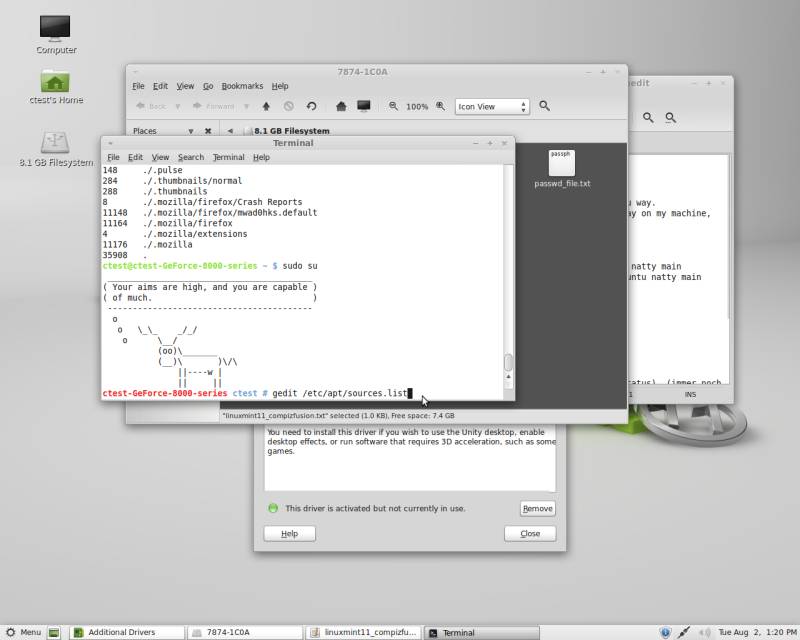
Add the following two lines to the opened sources.list:
deb http://ppa.launchpad.net/ubuntu-x-swat/x-updates/ubuntu natty main
deb-src http://ppa.launchpad.net/ubuntu-x-swat/x-updates/ubuntu natty main
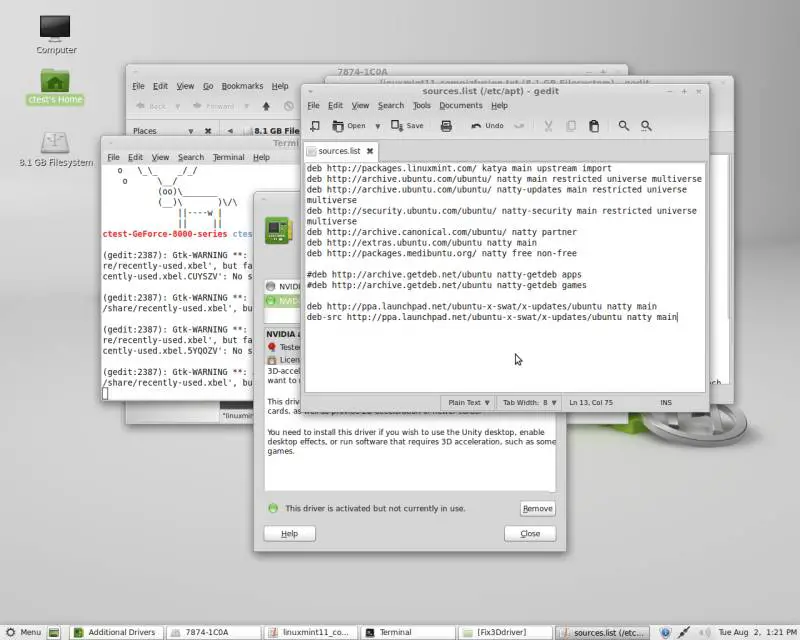
Now save the file and go back to the Terminal.
4 Import Key
Back in the Terminal, type in the following command:
sudo apt-key adv --recv-keys --keyserver keyserver.ubuntu.com AF1CDFA9
Again, you will be asked for your password. During this or the following steps, you may be asked to confirm your wish to proceed with your actions.
In that case, type Y and press Enter.
After the import is complete, type the following commands:
sudo apt-get update
sudo apt-get dist-upgrade
Reboot after you have completed these steps. After the reboot, you will still get the message This driver is activated but not currently in use in the Additional Drivers tool, but the NVIDIA driver should now work.
5 Install compiz-plugins-extra
Enter the Synaptic Package Manager and install the compiz-plugins-extra package.
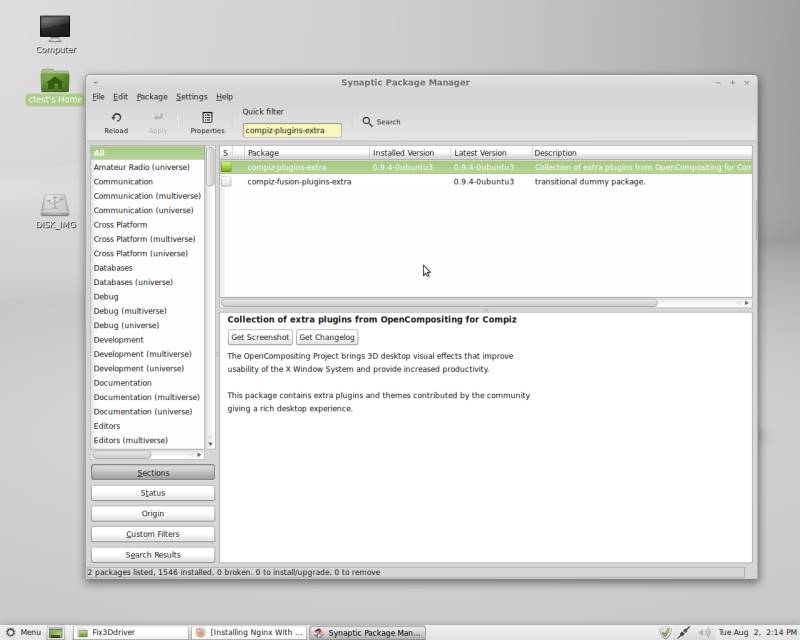
6 Configure Compiz Fusion
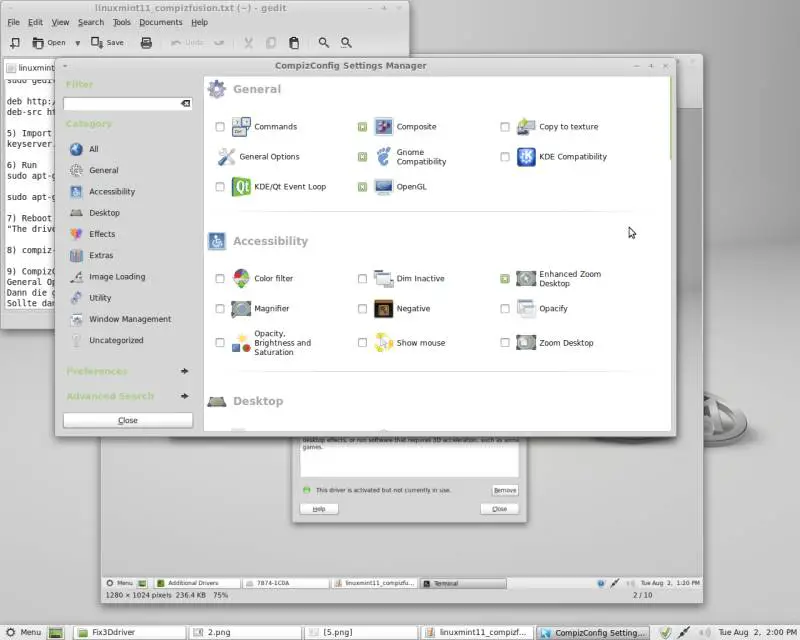
Now open the CompizConfig Settings Manager:
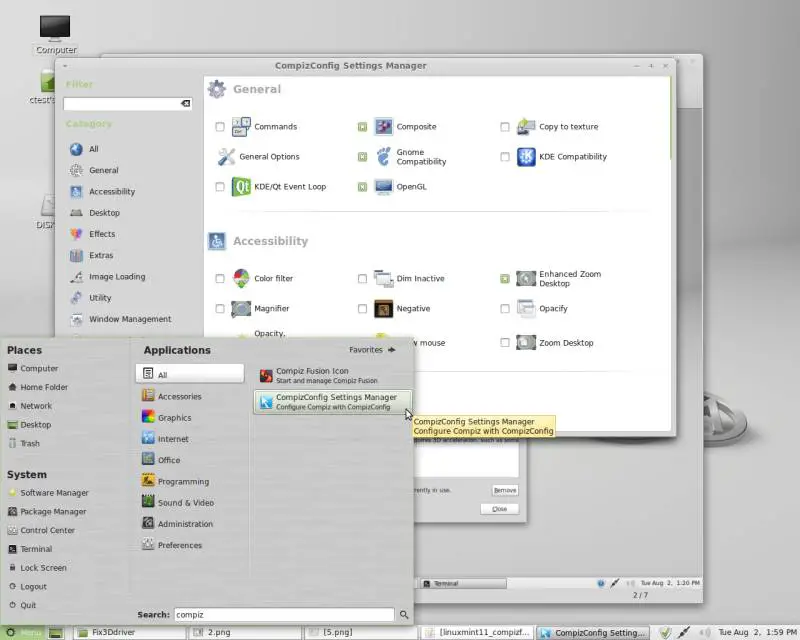
Select General Options...
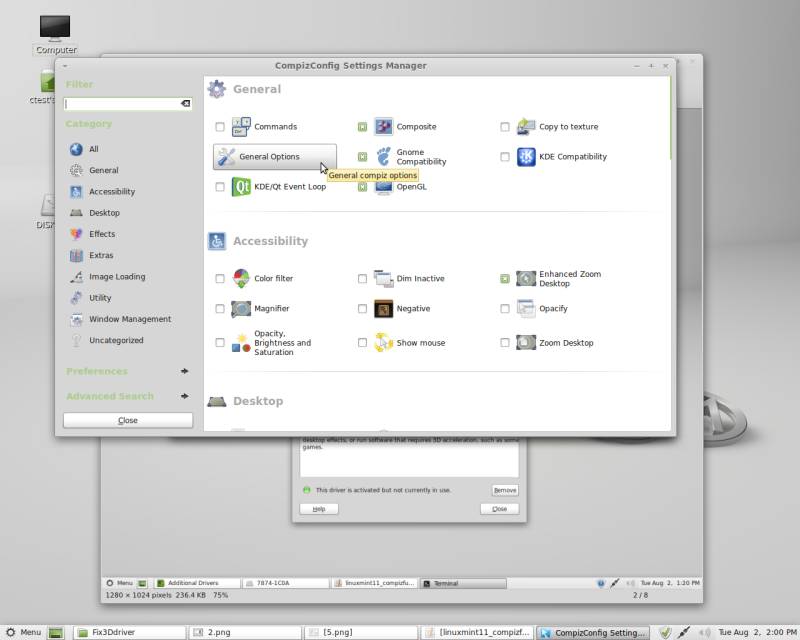
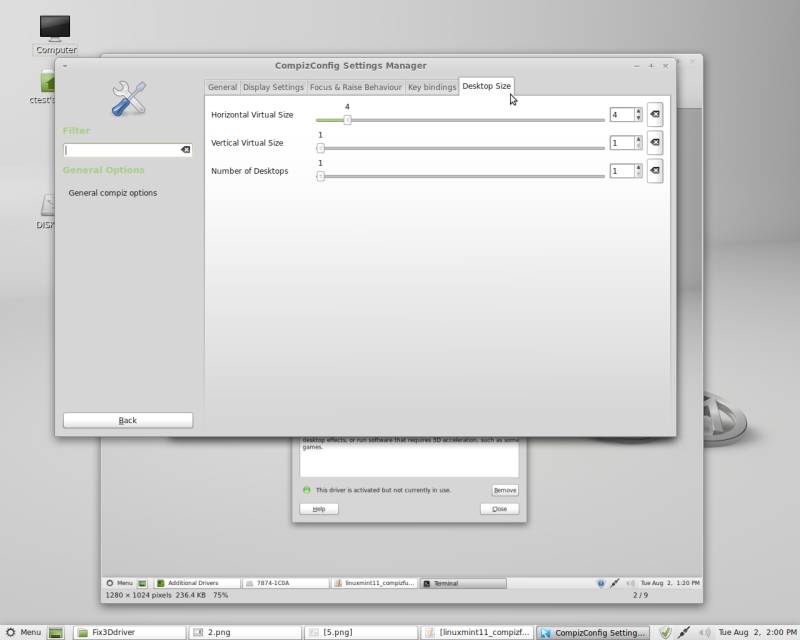
...and open the Desktop Size tab. Set Horizontal Virtual Size to 4 and Vertical Virtual Size as well as Number of Desktops to 1.
Now configure the other categories to your likings.
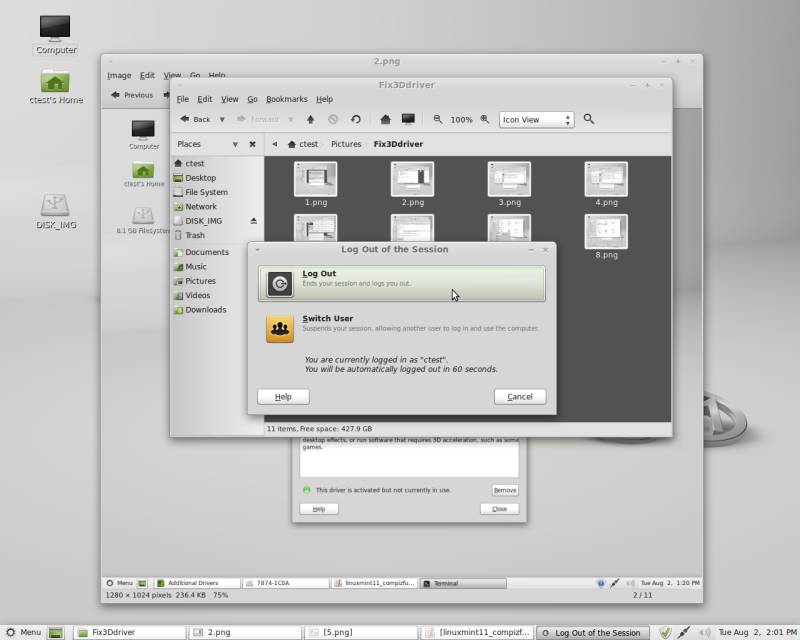
Log out of our desktop and log in again to find Compiz Fusion working.
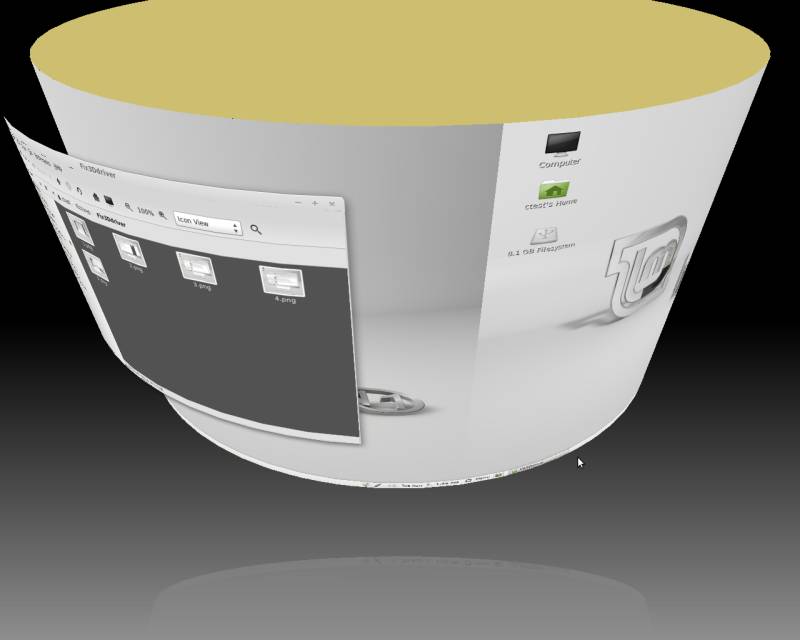
Enjoy your new desktop effects! Here is an example of what you can accomplish using Compiz Fusion.
7 Keyboard Shortcuts
Here's a list of the most common Compiz Fusion keyboard shortcuts. If they work for you depends on what effects you enabled in the CompizConfig Settings Manager.
SUPER+SHIFT+DRAG LEFT MOUSE = draw fire
SUPER+SHIFT+C = clear fire
CTRL+ALT+DRAG LEFT MOUSE = rotate cube
CTRL+ALT+LEFT ARROW = rotate cube
CTRL+ALT+DOWN ARROW = flat desktop
SHIFT+ALT+UP = initiate window picker
CTRL+ALT+DOWN = unfold cube
ALT+TAB = window switch
SUPER+TAB = flip switcher or ring switcher,
depending on which is enabled.
ALT+F7 = initiate 'move windows'
SHIFT+F9 = water effect
SHIFT+F10 = slow animations
CTRL+ALT+D = show desktop
For Grouping and Tabbing:
SUPER+S = select single window
SUPER+T = tab group
SUPER+Left = change left tab
SUPER+Right = change right tab
SUPER+G = group windows
SUPER+U = ungroup windows
SUPER+R = remove group window
SUPER+C = close group
SUPER+X = ignore group
Hold the SUPER button then select the
windows you want to group and then hit SUPER+G.
The SUPER key is the Windows key on most keyboards.
8 Links
- Compiz Fusion: http://www.compiz-fusion.org/
- Linux Mint: http://www.linuxmint.com/





