Enabling Compiz Fusion On A Debian Squeeze Desktop (Nvidia GeForce 8200)
Version 1.0
Author: Falko Timme  Follow me on Twitter
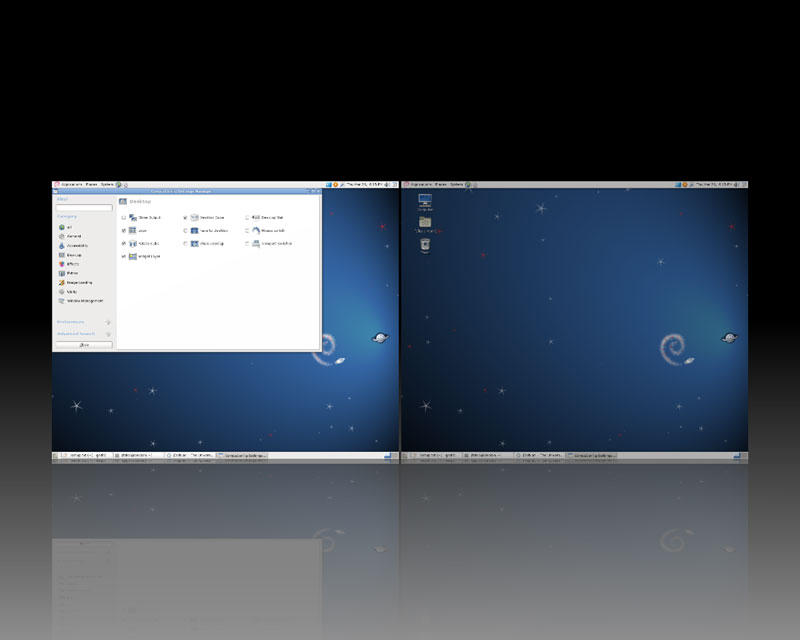
This tutorial shows how you can enable Compiz Fusion on a Debian Squeeze desktop (the system must have a 3D-capable graphics card - I'm using an Nvidia GeForce 8200 here). With Compiz Fusion you can use beautiful 3D effects like wobbly windows or a desktop cube on your desktop.
This document comes without warranty of any kind! I do not issue any guarantee that this will work for you!
1 Preliminary Note
I have tried this on a desktop computer with an Nvidia GeForce 8200. It should work the same way with all other Nvidia graphics cards.
2 Installing Compiz Fusion And The Nvidia Driver
Open a terminal and become root:
su
While Compiz Fusion is available in the main repository, the Nvidia driver is not - it comes from the non-free repository; that's why we must open /etc/apt/sources.list...
gedit /etc/apt/sources.list
... and append the string contrib non-free to all repositories:
deb http://ftp.de.debian.org/debian/ squeeze main contrib non-free deb-src http://ftp.de.debian.org/debian/ squeeze main contrib non-free deb http://security.debian.org/ squeeze/updates main contrib non-free deb-src http://security.debian.org/ squeeze/updates main contrib non-free deb http://ftp.de.debian.org/debian/ squeeze-updates main contrib non-free deb-src http://ftp.de.debian.org/debian/ squeeze-updates main contrib non-free |
Update the package database afterwards:
apt-get update
Now install Compiz Fusion and the Nvidia driver as follows:
apt-get install compiz compizconfig-settings-manager compiz-fusion-plugins-main compiz-gnome compiz-gtk fusion-icon compiz-fusion-plugins-extra compiz-fusion-plugins-unsupported nvidia-glx nvidia-xconfig nvidia-kernel-dkms nvidia-settings
Reboot the system afterwards:
reboot
After the system has come up again, become root again...
su
... and check if the Nvidia kernel module got loaded:
lsmod | grep -i nvidia
Output should be as follows:
root@debian:/home/falko# lsmod | grep -i nvidia
nvidia              10670090  0
i2c_core               15819  6 nouveau,drm_kms_helper,drm,i2c_algo_bit,nvidia,i2c_nforce2
root@debian:/home/falko#
3 Configuring xorg.conf
The next part is a bit tricky - we need to modify the file /etc/X11/xorg.conf. By default, this file does not exist on Debian Squeeze, so we have to generate it (in case the file already exists on your system, make a backup now so that you can restore your xorg.conf in case anything goes wrong).
To do this, we need to stop the Gnome display manager, which means you will not have a graphical desktop for a few minutes; instead, we have to go to the console:
/etc/init.d/gdm3 stop
This will stop the desktop. Press Alt + F2 to open a console. Log in as root.
Run
X -configure
This will create the file xorg.conf.new in root's home directory (you might see some error messages at the end of the output of the command, but usually you can ignore these). Move that file to /etc/X11/xorg.conf:
mv ~/xorg.conf.new /etc/X11/xorg.conf
Next run
nvidia-xconfig
This will adjust our /etc/X11/xorg.conf so that the right Nvidia driver is used.
Next open /etc/X11/xorg.conf...
vi /etc/X11/xorg.conf
... and make the following changes:
Add the following section (for example before the "Device" section):
[...]
Section "Extensions"
        Option "Composite" "enable"
EndSection
[...]
|
In Section "Device", add the following lines:
[...]
        Option "AllowGLXWithComposite" "true"
        Option "TripleBuffer" "true"
        Option "XAANoOffscreenPixmaps" "true"
        Option "RenderAccel" "true"
[...]
|
In Section "Screen", add the following lines:
[...]
        Option "AddARGBGLXVisuals" "true"
        Option "AddARGBVisuals" "true"
[...]
|
My final /etc/X11/xorg.conf looks as follows (please don't copy it as it might not work on your system - it is important that you modify your own xorg.conf!):
# nvidia-xconfig: X configuration file generated by nvidia-xconfig
# nvidia-xconfig:  version 1.0  (buildd@barber)  Sun Jun 13 12:08:56 UTC 2010

Section "ServerLayout"
    Identifier     "X.org Configured"
    Screen      0  "Screen0" 0 0
    InputDevice    "Mouse0" "CorePointer"
    InputDevice    "Keyboard0" "CoreKeyboard"
EndSection

Section "Files"
    ModulePath      "/usr/lib/xorg/modules"
    FontPath        "/usr/share/fonts/X11/misc"
    FontPath        "/usr/share/fonts/X11/cyrillic"
    FontPath        "/usr/share/fonts/X11/100dpi/:unscaled"
    FontPath        "/usr/share/fonts/X11/75dpi/:unscaled"
    FontPath        "/usr/share/fonts/X11/Type1"
    FontPath        "/usr/share/fonts/X11/100dpi"
    FontPath        "/usr/share/fonts/X11/75dpi"
    FontPath        "/var/lib/defoma/x-ttcidfont-conf.d/dirs/TrueType"
    FontPath        "built-ins"
EndSection

Section "Module"
    Load           "record"
    Load           "dri2"
    Load           "dbe"
    Load           "extmod"
    Load           "glx"
EndSection

Section "InputDevice"
    Identifier     "Keyboard0"
    Driver         "kbd"
EndSection

Section "InputDevice"
    Identifier     "Mouse0"
    Driver         "mouse"
    Option         "Protocol" "auto"
    Option         "Device" "/dev/input/mice"
    Option         "ZAxisMapping" "4 5 6 7"
EndSection

Section "Monitor"
    Identifier     "Monitor0"
    VendorName     "Monitor Vendor"
    ModelName      "Monitor Model"
EndSection

Section "Extensions"
        Option "Composite" "enable"
EndSection

Section "Device"

        ### Available Driver options are:-
        ### Values: <i>: integer, <f>: float, <bool>: "True"/"False",
        ### <string>: "String", <freq>: "<f> Hz/kHz/MHz"
        ### [arg]: arg optional
        #Option     "SWcursor"                   # [<bool>]
        #Option     "HWcursor"                   # [<bool>]
        #Option     "NoAccel"                    # [<bool>]
        #Option     "ShadowFB"                   # [<bool>]
        #Option     "VideoKey"                   # <i>
    Identifier     "Card0"
    Driver         "nvidia"
    VendorName     "nVidia Corporation"
    BoardName      "C77 [GeForce 8100 / nForce 720a]"
    Option "AllowGLXWithComposite" "true"
    Option "TripleBuffer" "true"
    Option "XAANoOffscreenPixmaps" "true"
    Option "RenderAccel" "true"
EndSection

Section "Screen"
    Identifier     "Screen0"
    Device         "Card0"
    Monitor        "Monitor0"
    Option "AddARGBGLXVisuals" "true"
    Option "AddARGBVisuals" "true"
    SubSection     "Display"
        Viewport    0 0
    EndSubSection
    SubSection     "Display"
        Viewport    0 0
        Depth       4
    EndSubSection
    SubSection     "Display"
        Viewport    0 0
        Depth       8
    EndSubSection
    SubSection     "Display"
        Viewport    0 0
        Depth       15
    EndSubSection
    SubSection     "Display"
        Viewport    0 0
        Depth       16
    EndSubSection
    SubSection     "Display"
        Viewport    0 0
        Depth       24
    EndSubSection
EndSection
|
Now start the desktop again:
/etc/init.d/gdm3 start
If the desktop doesn't start, either delete /etc/X11/xorg.conf (if you had no /etc/X11/xorg.conf in the beginning), or, if there already was an /etc/X11/xorg.conf file, restore the original /etc/X11/xorg.conf from your backup and run /etc/init.d/gdm3 start again - this should bring up your original desktop again, but of course, you cannot use Compiz Fusion then.
If your desktop did start with your new xorg.conf - fine! Let's go on.
Open a terminal again and become root:
su
Next check if your desktop is ready to use 3D effects:
glxinfo | grep direct
Output should be as follows:
root@debian:/home/falko# glxinfo | grep direct
direct rendering: Yes
    GL_EXT_Cg_shader, GL_EXT_depth_bounds_test, GL_EXT_direct_state_access,
root@debian:/home/falko#
4 Starting Compiz Fusion
To start Compiz Fusion, go to Applications > System Tools > Compiz Fusion Icon:
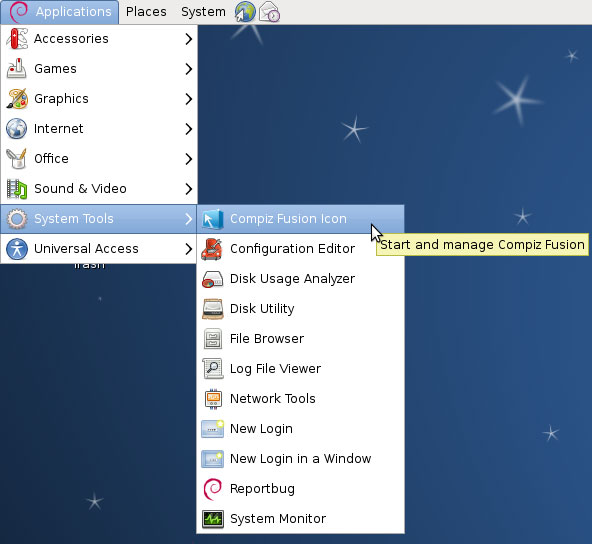
This will actually not start Compiz Fusion, but add a Compiz Fusion icon to the upper right taskbar from where you can configure Compiz Fusion and finally start it:

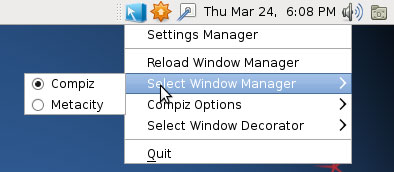
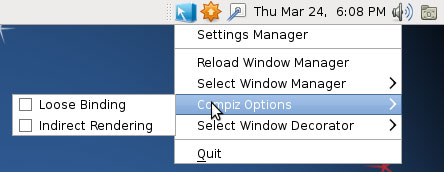
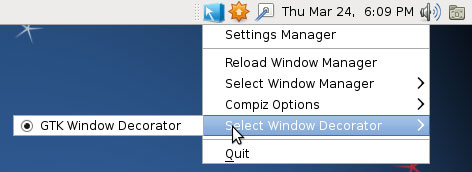
Right-click that icon and make sure your settings are as follows:
Select Window Manager: Compiz
Compiz Options: none selected
Select Window Decorator: GTK Window Decorator
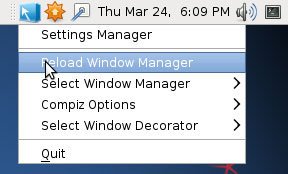
To start Compiz Fusion, select Reload Window Manager:
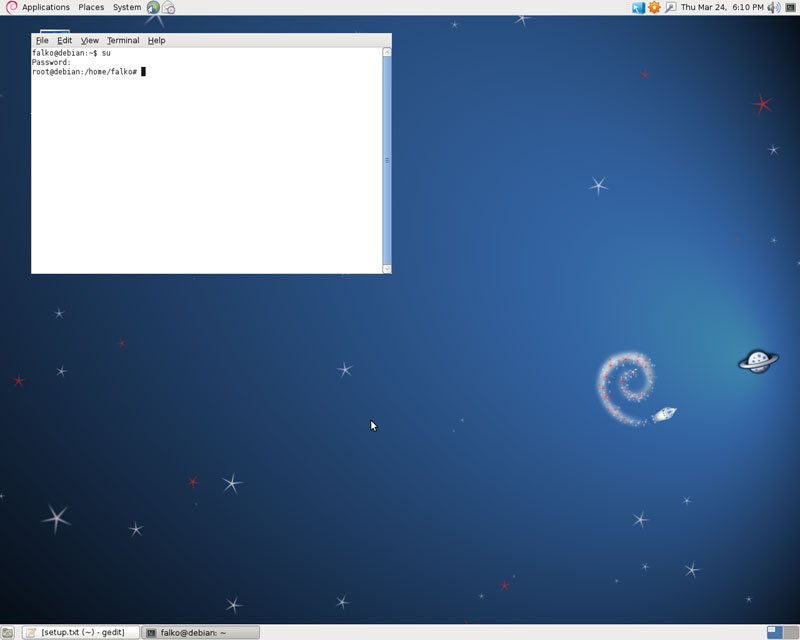
If you notice that your windows lose their title bar and cannot be moved anymore (like in the following screenshot where the title bar of the terminal window has gone)...
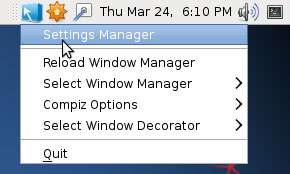
... right-click the Compiz Fusion icon again and select Settings Manager (you can as well go to System > Preferences > CompizConfig Settings Manager):
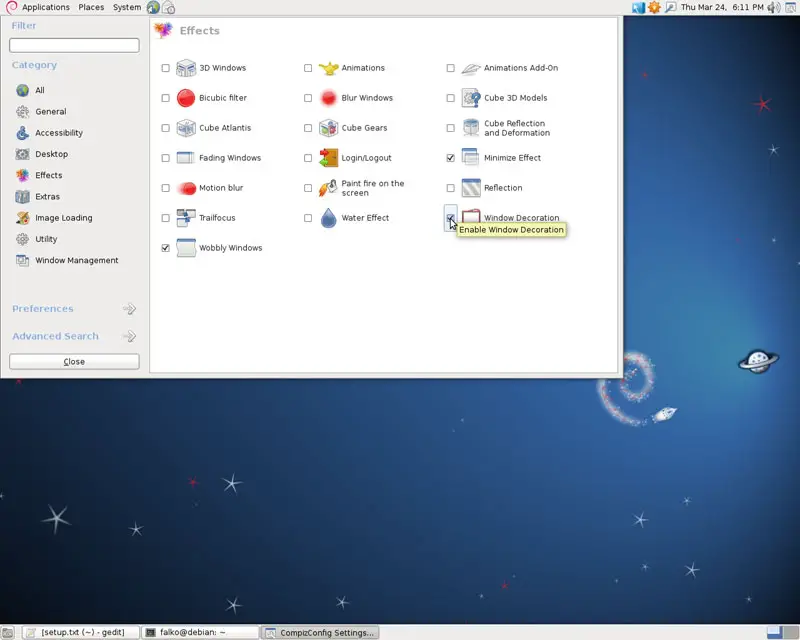
In the CompizConfig Settings Manager, go to Effects and enable Window Decoration...
... and then go to Window Management and check Move Window and Resize Window:
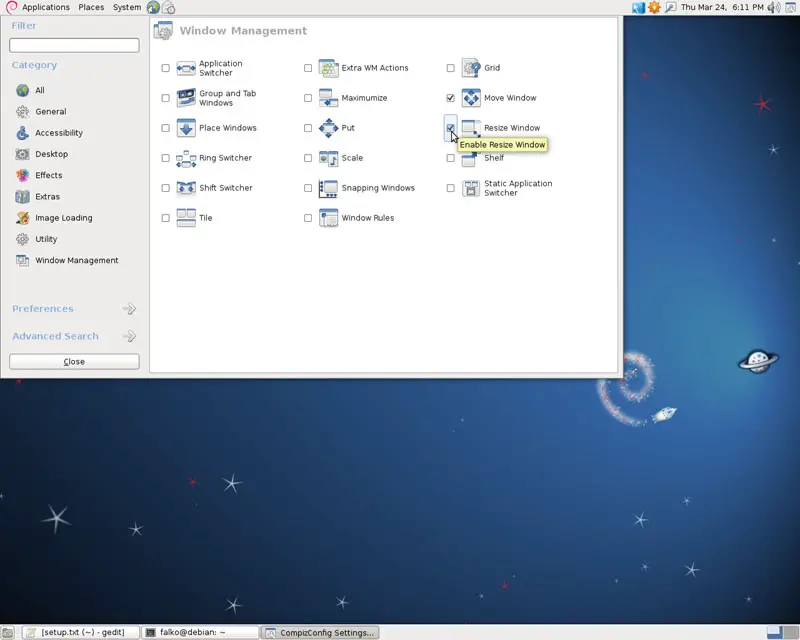
This should bring back your window decorations, and if everything went well, Compiz Fusion is now working, and you can play with your first 3D effects: