
How To Install Drupal 5.6 On Debian Etch With ISPConfig
Drupal is a PHP based CMS (Content Management System) with great community support and a huge amount of modules. For more info visit Drupal.org.
Drupal can be installed as a single site or it can be installed as a multisite.
Single Site Installation
is a common installation of the program core.
Multisite Installation
use the program core installed on the first website to serve for more websites. This way you can save space on your hard drive because you do not need to install the full Drupal core for each website. Instead you have only one Drupal core installation and you create symlinks from other websites directories to the Drupal core folders.
This How-To
will describe how I installed Drupal on my Debian Etch server with ISPConfig. I am sure that there are other ways how to achieve this goal and probably some are not so tedious as is mine. But this is how I did it and if anybody will point me out to a better route I will take it. Disclaimer: I started with Linux only last October and with Drupal just 5 days ago. I think that from this statement it is clear, that I can not guarantee that this How-To will work for you and neither can I guarantee that it is safe to install Drupal this way.
The first part of this How-To will show you how to install the Drupal core (aka Drupal single site installation).
1. Assumptions And Preparations:
1.1 System And Software:
Perfect Debian Etch setup with ISPConfig (see Falko's How-To). Thank you Falko.
Note: this set-up should work on all other Linux distros as long as your web directories are stored under /www/web1/web/ or as long as you change relevant commands according to the settings on your server.
1.2 In This How-To I Will Use The Following Names:
Your Drupal website: www.example.ltd
website administrator: admin
MySQL superuser: root
(Note: MySQL root user account was created when you installed MySQL on your server)
MySQL superuser's password: rootpassword
New MySQL database: web1_db1
New MySQL user: web1_u1
New MySQL password: web1password
We will install Drupal 5.6
2. Create A New Website
First we need to create in ISPConfig new websitewww.examle.tld, set up its administrator user admin and create its MySQL database.
Go to ISPConfig and create new website: Click ISP Manager=>New site. Fill in all relevant information, for hostname use www and for the domain name example.tld. Enable PHP scripts and MySQL. PHP Safe Mode must not be selected. Do not click save yet as we need to create a new user and grant him administrators rights. To do so click: User and Email=>New and set up a new user with the name admin. Add an email address and grant to this user administrator rights. Click on Save. We are back in the window ISP Site opened on tab Basic. To create a database click on Options=>Database New.
ISPConfig will show you:
Database name: web1_db1
Database user: web1_u1
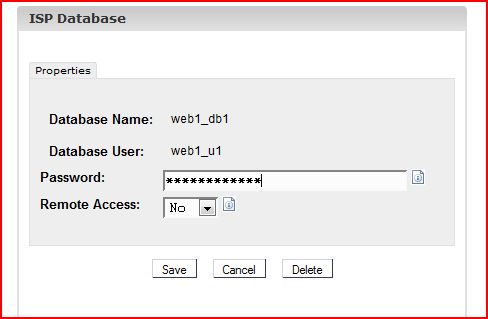
Create a password and click on Save. Once again we are back in the window ISP Site opened on the tab Basic. Now it is time to save the new website's configuration so click on Save on the bottom.
3. Configure MySQL
Now we need to grant specific privileges to the new MySQL user web1_u1 . We can do it on the shell command line.
!!!Important!!!
Log in to mysql as the MySQL superuser root and with the password rootpassword. Do not use the newly created MySQL user web1_u1! You will need to have enough rights to grant privileges to the user web1_u1.
mysql -u root -p
You will be prompted for a password. Enter rootpassword.
Now you should see the following:
mysql>
Insert:
GRANT SELECT, INSERT, UPDATE, DELETE, CREATE, DROP, INDEX, ALTER, CREATE TEMPORARY TABLES, LOCK TABLES ON web1_db1.* TO 'web1_u1'@'localhost' IDENTIFIED BY 'web1password';
If successful, MySQL will reply with:
Query OK, 0 rows affected
To activate the new permissions, enter the following command:
FLUSH PRIVILEGES;
Privileges granted. To exit mysql mode press ctrl+z
In the next part we will start the installation.





