
Build A Full-Featured Mail Server On CentOS 6 With Postfix, Dovecot, PostgreSQL
Summary
We're going to set up a free, full-featured mail server on CentOS 6.2, all mail service related components are free and open source, and you have control over your own data. The installation process is extremly easy and smooth.
By following this tutorial, you will have below major software and services ready for production use:
- Postfix: SMTP service
- Dovecot: POP3/POP3S, IMAP/IMAPS, Managesieve service
- PostgreSQL: Storing mail accounts and application data
- Apache: Web server
- Amavisd, SpamAssassin, ClamAV: Anti-spam, anti-virus
- Roundcube: Webmail
- Fail2ban: scans log files (e.g. /var/log/maillog) and bans IPs that show the malicious signs -- too many password failures, seeking for exploits, etc.
- iRedAdmin: A basic, free & open source administration panel to manage the mail accounts. Full featured edition is available for purchase here: http://www.iredmail.org/admin_panel.html.
- Awstats: Apache and Postfix log analyzer
- phpPgAdmin: web-based administration tool for PostgreSQL
Introduce iRedMail
Homepage of iRedMail project is here: http://www.iredmail.org/
iRedMail is:
- A ZERO COST, fully fledged, full-featured mail server solution. All components are free and open source software.
- An open source project, released under GPLv2, hosted on BitBucket.
With iRedMail, you can set up a full-featured, zero-cost mail server in less than 2 minutes. iRedMail works on 8 major Linux/BSD distributions:
- Red Hat Enterprise Linux 5.x, 6.x
- CentOS 5.x, 6.x
- Scientific Linux 5.x, 6.x
- Debian 6.x (Squeeze)
- Ubuntu 10.04 LTS, 11.10, 12.04
- Linux Mint 12 (based on Ubuntu)
- Gentoo Linux, the latest official release (or daily build) with the latest portage
- openSUSE 12.1
- FreeBSD 8.x, 9.x
The latest beta release of iRedMail, 0.8.0-beta4, supports PostgreSQL on RHEL/CentOS/Scientific Linux (6.x), Ubuntu (11.10, 12.04), FreeBSD.
System Requirements
WARNING: iRedMail is designed to be deployed on a FRESH server system, which means your server does NOT have mail related components installed, e.g. Apache, PostgreSQL, OpenLDAP, Postfix, Dovecot, Amavisd, etc. Otherwise it may override your existing files/configurations althought it will backup files before modifing, and it may be not working as expected.
To install iRedMail, you need:
- A FRESH, minimal working CentOS Linux 6. The latest 6.2 release is recommended.
- At least 512MB of memory is required for production use.
Preparations
Set A Fully Qualified Domain Name (FQDN) Hostname On Your Server
We need to set a FQDN hostname before we set up the mail server.
On CentOS Linux, hostname is set in two files:
Hostname setting: /etc/sysconfig/network
# Part of file: /etc/sysconfig/network
HOSTNAME=demo.iredmail.org
Hostname <=> IP address mapping: /etc/hosts. WARNING: Please list the FQDN hostname as the first item.
# Part of file: /etc/hosts
127.0.0.1   demo.iredmail.org demo localhost localhost.localdomain
Verify the FQDN hostname with command 'hostname -f'. If you change the hostname, please reboot the server to make it work.
$ hostname -f
demo.iredmail.org
Enable yum repositories for installing new packages
Please enable all default yum repositories in /etc/yum.repos.d/CentOS-Base.repo, and disable all third-party repositories. Repositories are enabled if you set "enabled=1" in the repo file.
Download The Latest Release Of iRedMail
Visit Download page to get the latest release of iRedMail. At least iRedMail-0.8.0-beta4 is required.
Upload iRedMail to your mail server via ftp or scp or whatever method you can use, login to the server to install iRedMail. We assume you uploaded it to directory /root/iRedMail-x.y.z.tar.bz2 (replace x.y.z by the actual version number).
Uncompress iRedMail tarball:
# cd /root/
# tar xjf iRedMail-x.y.z.tar.bz2
Start iRedMail Installer
It's now ready to start iRedMail installer, it will ask you some simple questions, that are all steps to set up a full-featured mail server.
# cd /root/iRedMail-x.y.z/
# bash iRedMail.sh
Screenshots Of iRedMail Installation
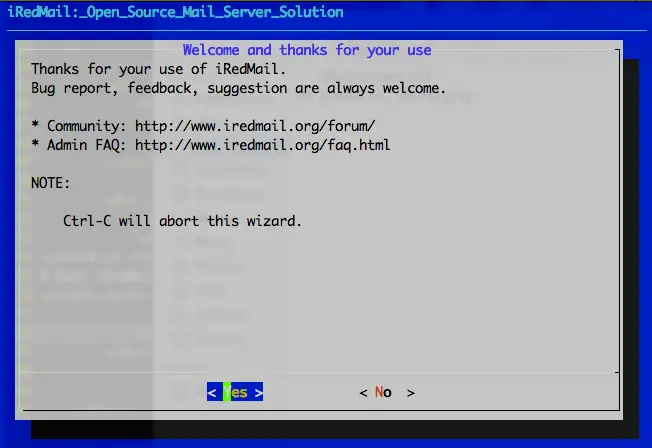
1) Welcome and thanks for your use:
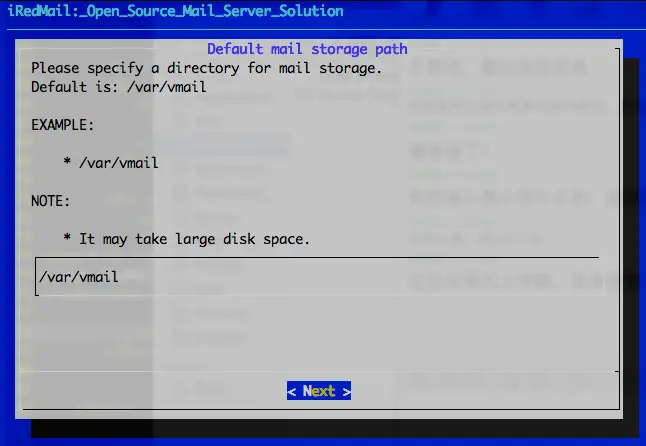
2) Specify location to store all mailboxes. Default is /var/vmail/.
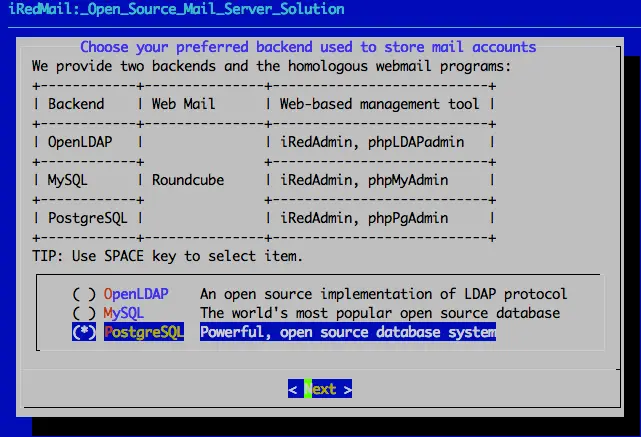
3) Choose backend used to store mail accounts. We will choose PostgreSQL for example in this tutorial, please choose the one which you're familiar with. You can manage mail accounts with iRedAdmin, our web-based iRedMail admin panel.
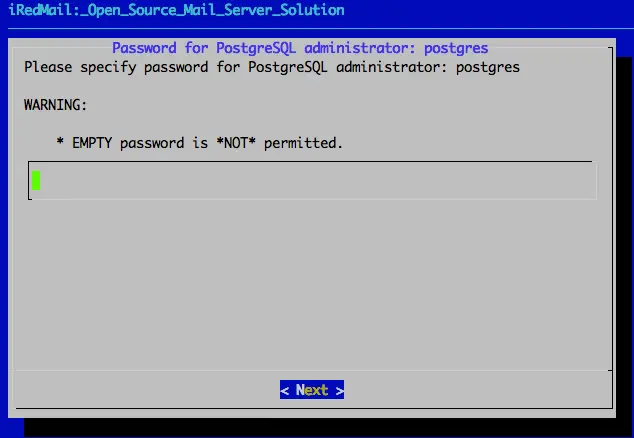
4) Set password of PostgreSQL admin user. PostgreSQL is used to store mail accounts and application data. e.g. Roundcube webmail, Amavisd-new.
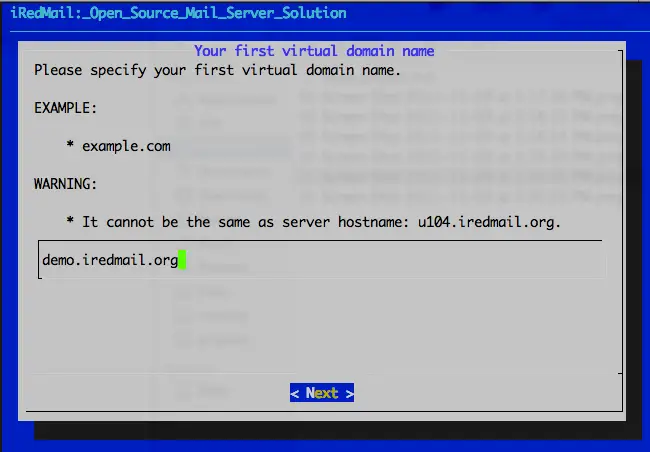
5) Add your first mail domain name:
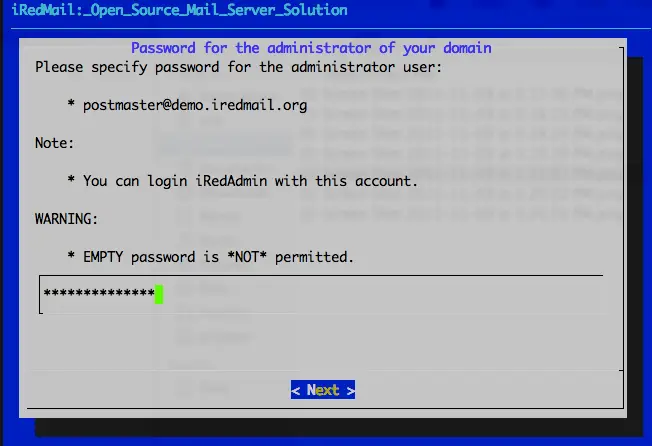
6) Set password of admin account of your first mail domain. NOTE:
- This account is used only for system administration, not a mail user. That means you CANNOT login to webmail with this account.
- You can login to iRedAdmin (web-based iRedMail admin panel) with this account for mail accont management, login name is full email address.
- Admin username is hard-coded, you can create new admins with iRedAdmin after installation has completed.
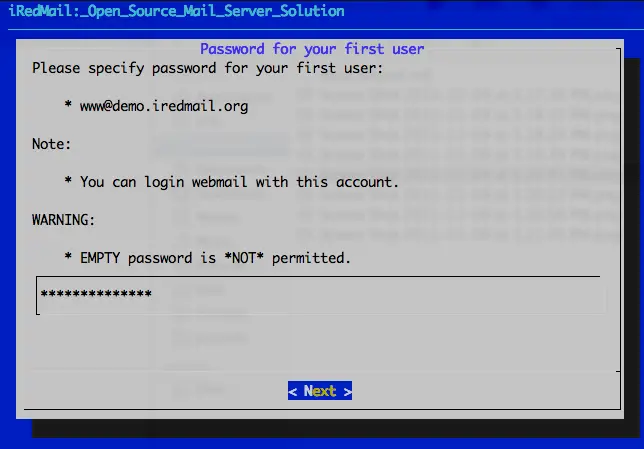
7) Set password of first mail user of your first mail domain. NOTE:
- This account is a normal mail user, that means you can login to webmail with this account, login name is full email address.
- Username is hard-coded, you can create new mail users with iRedAdmin after installation has completed.
8) Choose optional components:
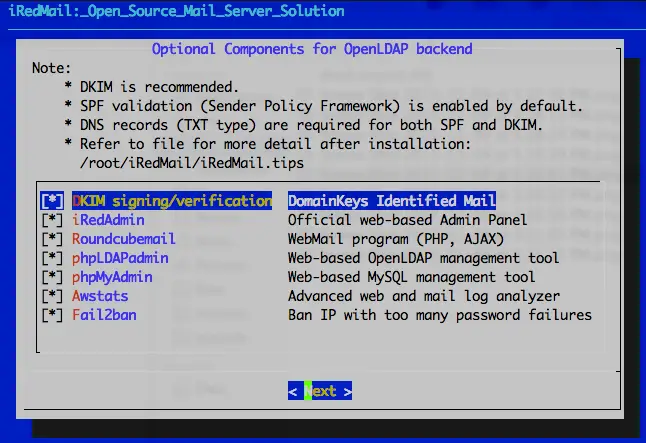
After these questions, iRedMail installer will ask you to confirm this installation. It will install and configure required packages automatically. Type y or Y and press Enter to confirm, type n or N and press Enter to cancel this installation.
...
Configuration completed.
*************************************************************************
***************************** WARNING ***********************************
*************************************************************************
*                                                                       *
* Please do remember to *MOVE* configuration file after installation    *
* completed successfully.                                               *
*                                                                       *
*   * /root/iRedMail-x.y.z/config
*                                                                       *
*************************************************************************
< Question > Continue? [y|N]
That's all you need to do to set up a free and full-featured mail server. Easy enough?
Important Things You Should Know After Installation
- Read file /root/iRedMail-x.y.z/iRedMail.tips first, it contains:
- URLs, usernames and passwords of web-based applications
- Location of mail serve related software configuration files
- Some other important and/or sensitive information
- Setup DNS record for SPF
- Setup DNS record for DKIM
Access Webmail And Other Web Applications
After installation has successfully completed, you can access web-based programs if you choose to install them. Replace 'your_server' below by your actual server name or IP address.
- Webmail: http://your_server/mail/ (or /webmail, /roundcube. HTTPS is available also.)
- Admin panel: httpS://your_server/iredadmin/
- phpMyAdmin: httpS://your_server/phpmyadmin/
- Awstats: httpS://your_server/awstats/awstats.pl?config=web (or ?config=smtp)
Get Technical Support
iRedMail project provides fast and effect online support, please post all issues, feedbacks, feature requests, suggestions in our online support forum, it's more responsible than you expected: http://www.iredmail.org/forum/.





