
Virus Protection With AVG Antivirus On Ubuntu Feisty Fawn - Page 2
On this page
3 AVG Antivirus Settings
You can change the AVG Antivirus settings under Service > Program settings:
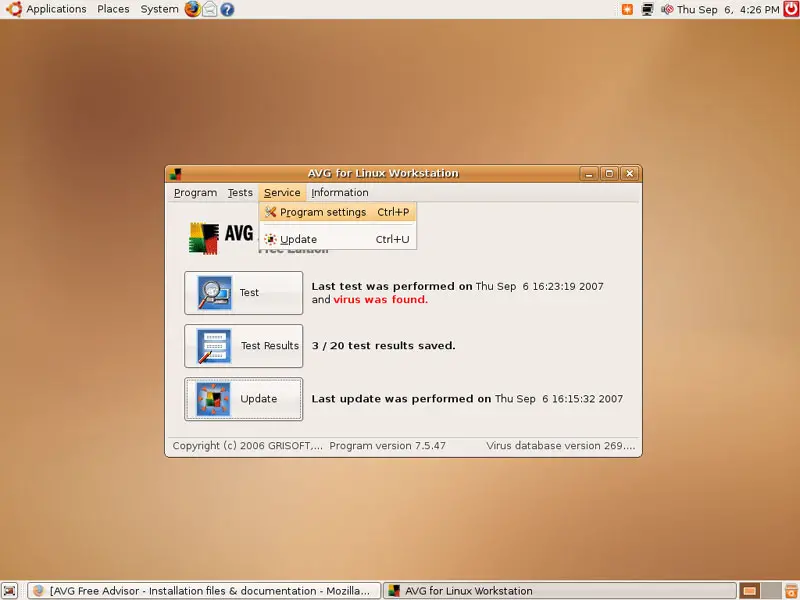
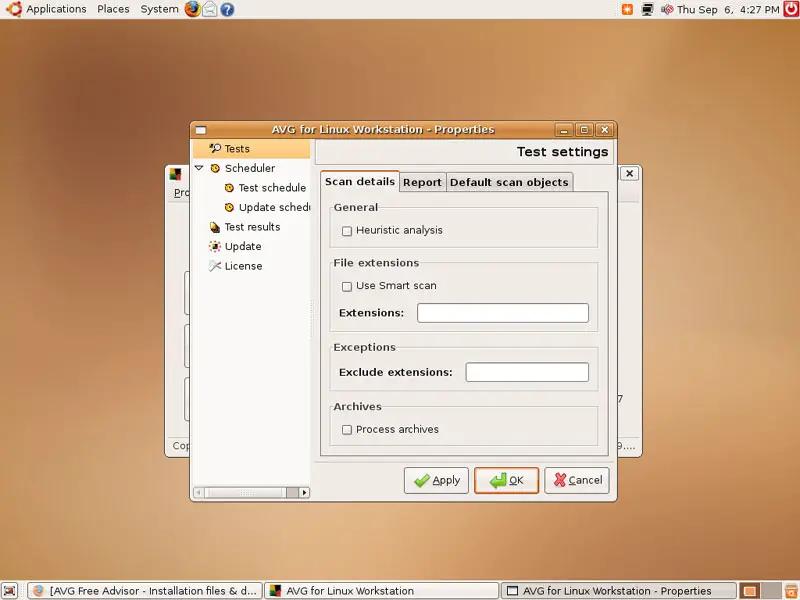
Browse the settings to see if there's something you'd like to change. For example, you can tell AVG to run an automatic virus scan at system bootup or at a certain time each day, etc. Normally, the default settings are ok.
4 Updating AVG Antivirus
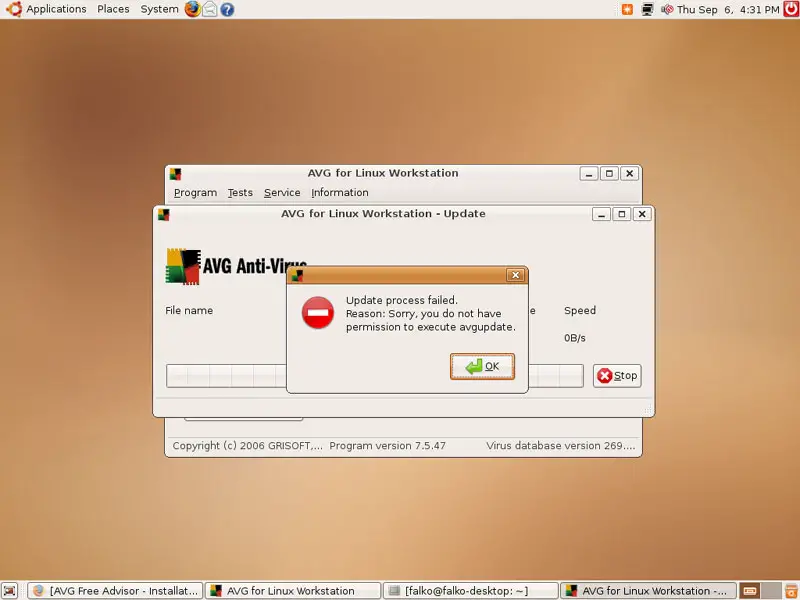
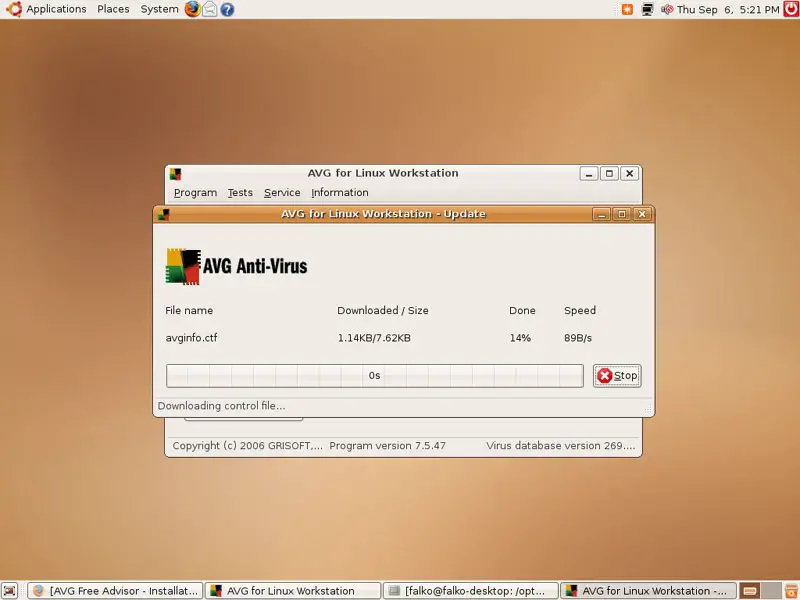
If you'd like to update AVG Antivirus (new virus signatures, new program versions), click on the Update button in the main window. AVG will then try to download the latest updates from the internet. If everything goes fine and you get no errors, you can skip this chapter.
If you get the following error: Update process failed. Reason: Sorry, you do not have permission to execute avgupdate...
... open a terminal (Applications > Accessories > Terminal):
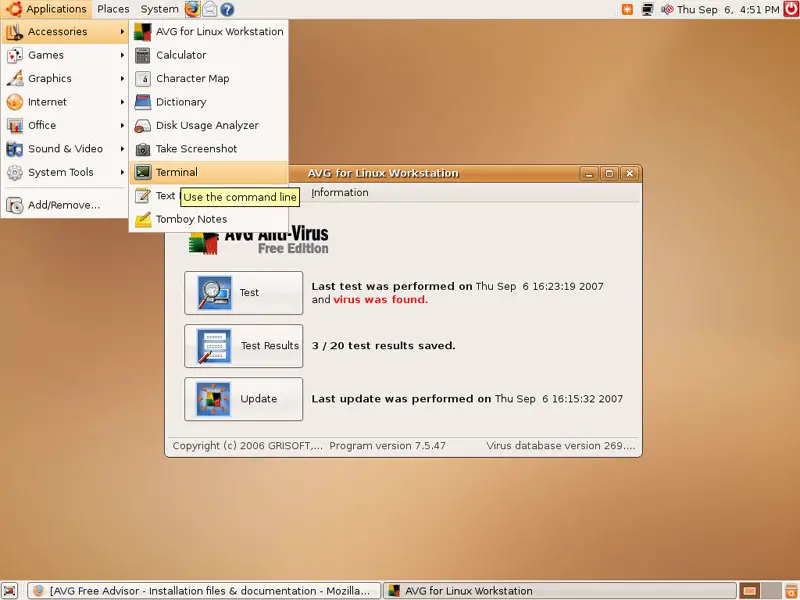
... and run the following commands:
sudo chmod 775 /opt/grisoft/avg7/bin/avgupdate
cd /opt/grisoft/avg7/var/
sudo chmod 777 run
sudo chmod 777 update/log
Afterwards, try the update again. If everything goes well, you can skip the rest of this chapter:
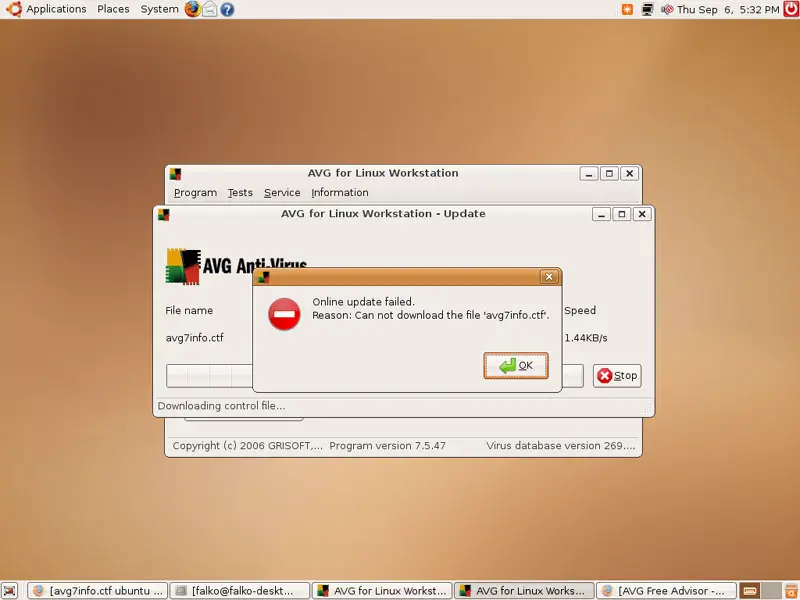
If you now get an error like Online update failed. Reason: Can not download the file 'avg7info.ctf'...
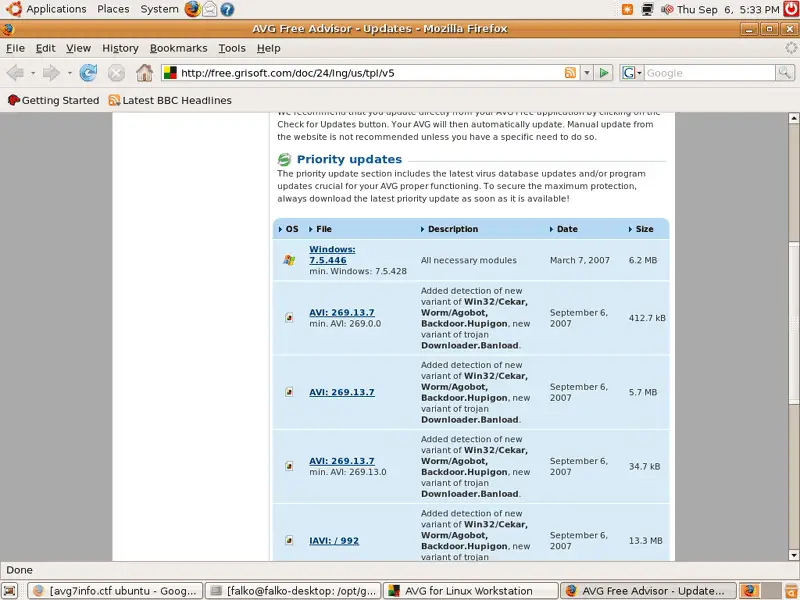
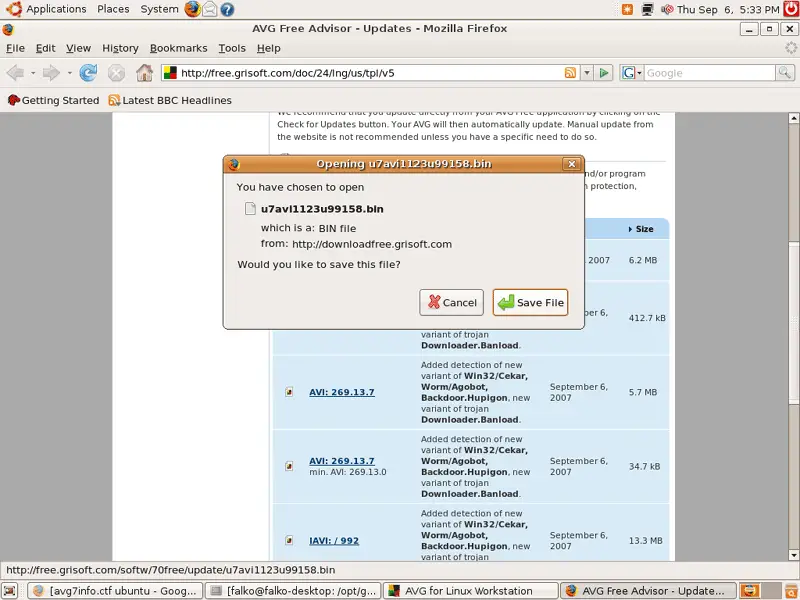
... you can manually download the latest updates from http://free.grisoft.com/doc/24/lng/us/tpl/v5 and save them in a special folder (e.g. /home/falko/avg):
In AVG Antivirus, go to Service > Program settings:
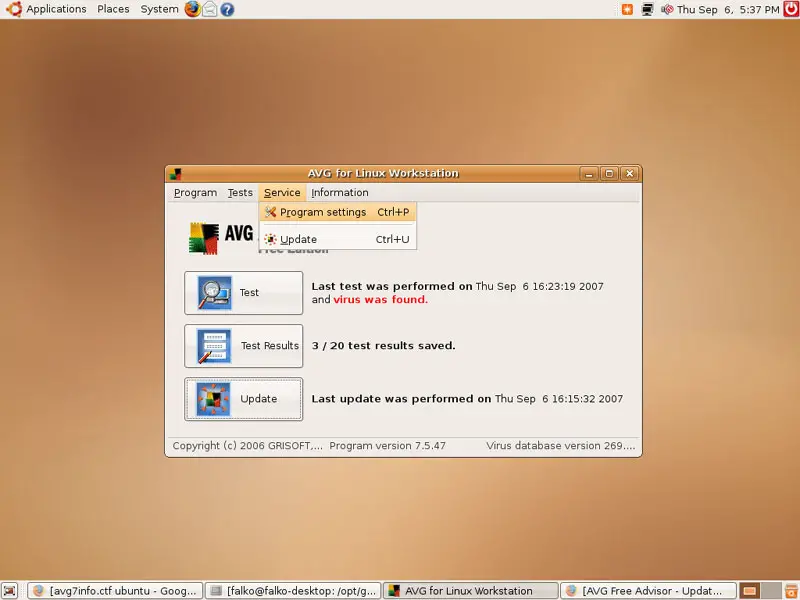
Then go to Update > Source, select Folder, and click on the Browse button:
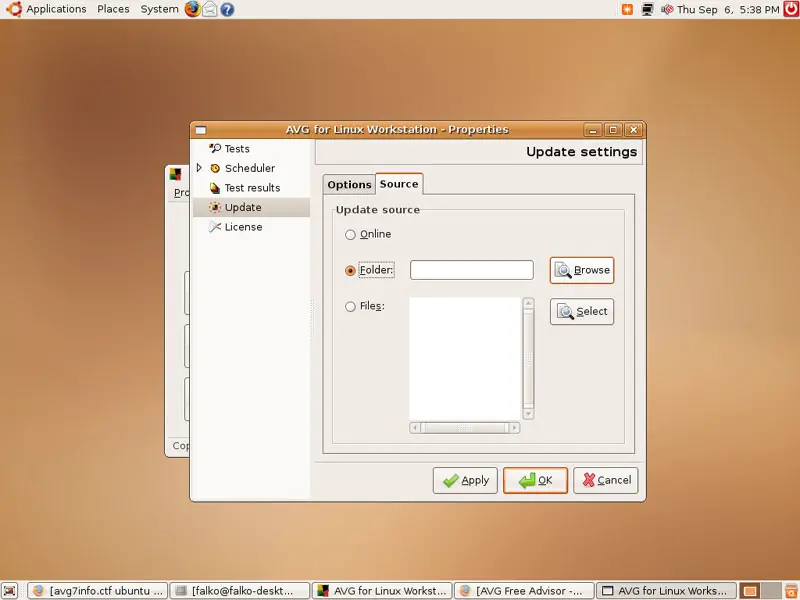
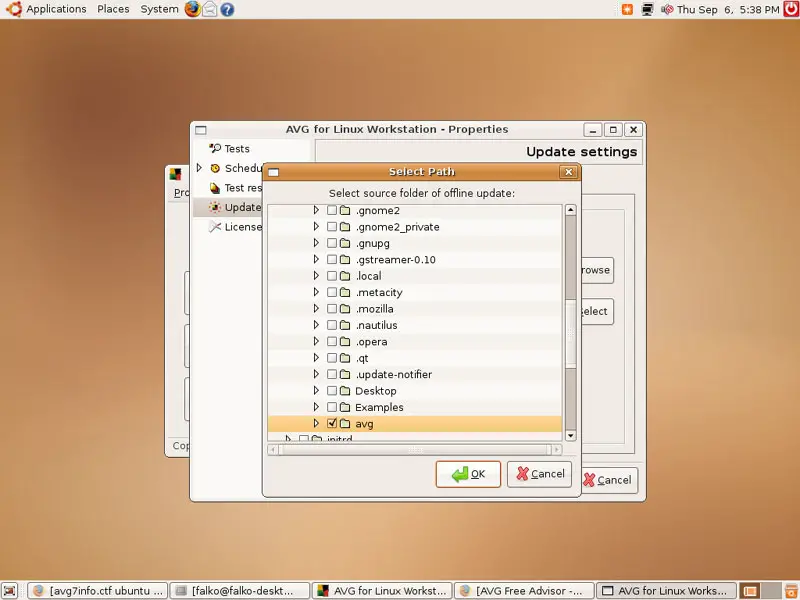
Select the folder where you've saved the updates (e.g. /home/falko/avg):
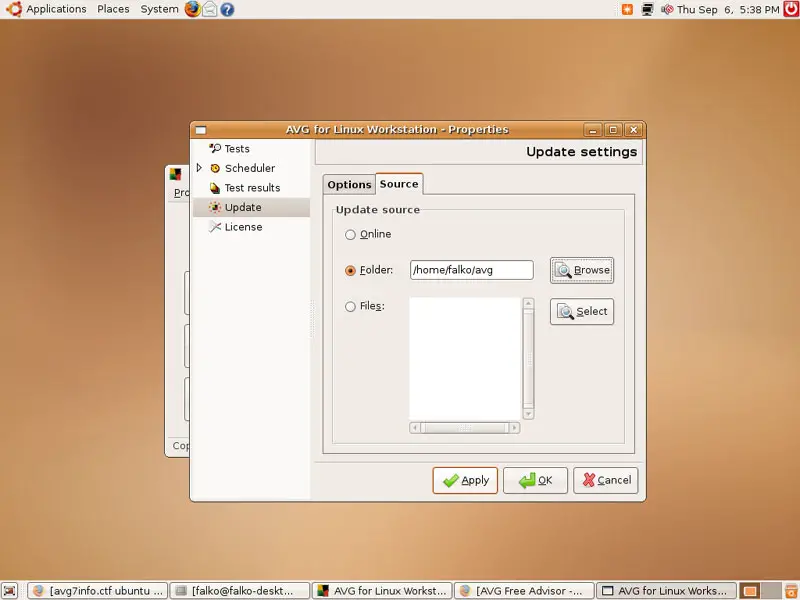
Click on Apply in the Update settings and leave the AVG configuration:
Now click on Update again:
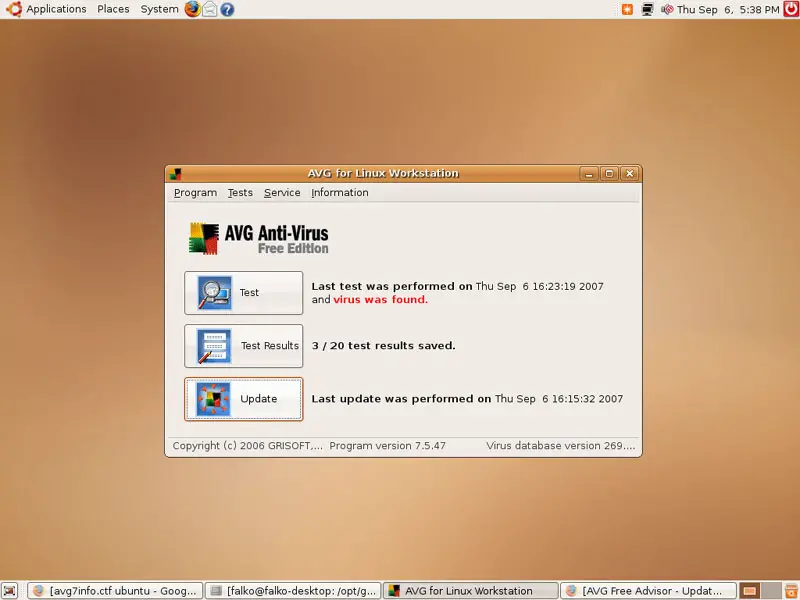
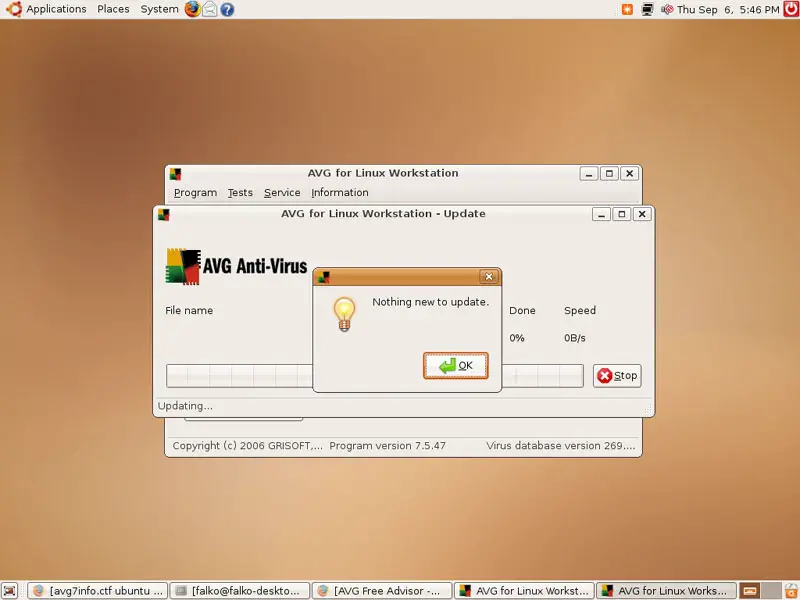
The update should now work without errors. In my case, there was nothing to update:
5 Links
- AVG Antivirus: http://free.grisoft.com/doc/5390
- Ubuntu: http://www.ubuntu.com





