
Integrating APC (Alternative PHP Cache) Into PHP5 (Fedora 8 & Apache2)
Version 1.0
Author: Falko Timme
This guide explains how to integrate APC (Alternative PHP Cache) into PHP5 on a Fedora 8 system (with Apache2). APC is a free and open PHP opcode cacher for caching and optimizing PHP intermediate code. It's similar to other PHP opcode cachers, such as eAccelerator and XCache.
I do not issue any guarantee that this will work for you!
1 Preliminary Note
I have tested this on a Fedora 8 server with the IP address 192.168.0.100 where Apache2 and PHP5 are already installed and working. I'll use Apache's default document root /var/www/html in this tutorial for demonstration purposes. Of course, you can use any other vhost as well, but you might have to adjust the path to the info.php file that I'm using in this tutorial.
2 Checking PHP5's Current State
First, before we install APC, let's find out about our PHP5 installation. To do this, we create the file info.php in our document root /var/www/html:
vi /var/www/html/info.php
<?php phpinfo(); ?> |
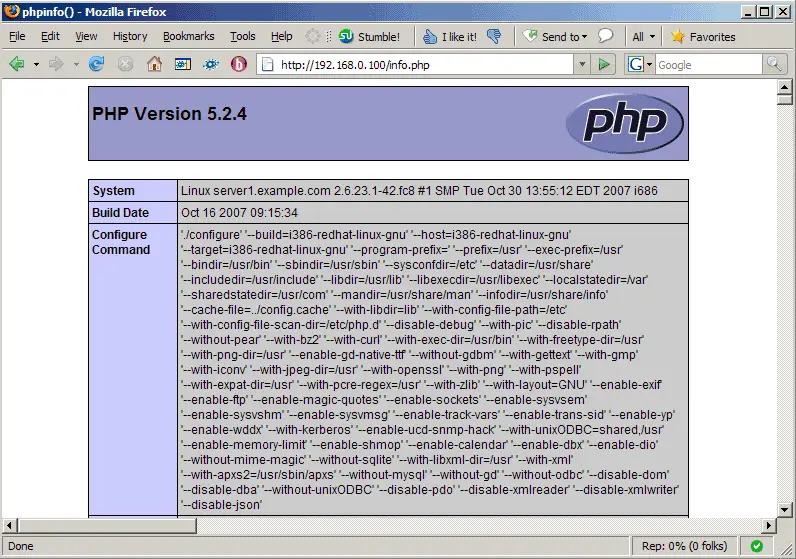
Afterwards, we call that file in a browser: http://192.168.0.100/info.php
As you see, we have PHP 5.2.4 installed...
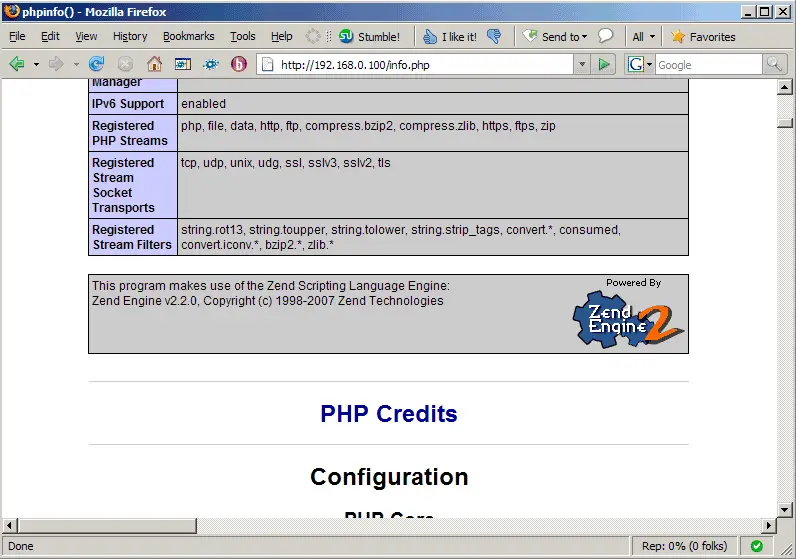
... but APC isn't mentioned anywhere on the page:
3 Installing APC
APC is a PHP extension that can be installed using PECL. PECL comes with the php-pear package, so we install that now:
yum install php-pear
Furthermore we must install some APC dependencies so that PECL can build APC:
yum install php-devel httpd-devel
yum groupinstall 'Development Tools'
yum groupinstall 'Development Libraries'
Now that all dependencies are installed, we can install APC as follows:
pecl install apc
[root@server1 ~]# pecl install apc
downloading APC-3.0.18.tgz ...
Starting to download APC-3.0.18.tgz (115,957 bytes)
.........................done: 115,957 bytes
47 source files, building
running: phpize
Configuring for:
PHP Api Version: 20041225
Zend Module Api No: 20060613
Zend Extension Api No: 220060519
1. Use apxs to set compile flags (if using APC with Apache)? : yes
1-1, 'all', 'abort', or Enter to continue: <-- ENTER
[...]
----------------------------------------------------------------------
Libraries have been installed in:
/var/tmp/pear-build-root/APC-3.0.18/modules
If you ever happen to want to link against installed libraries
in a given directory, LIBDIR, you must either use libtool, and
specify the full pathname of the library, or use the `-LLIBDIR'
flag during linking and do at least one of the following:
- add LIBDIR to the `LD_LIBRARY_PATH' environment variable
during execution
- add LIBDIR to the `LD_RUN_PATH' environment variable
during linking
- use the `-Wl,--rpath -Wl,LIBDIR' linker flag
- have your system administrator add LIBDIR to `/etc/ld.so.conf'
See any operating system documentation about shared libraries for
more information, such as the ld(1) and ld.so(8) manual pages.
----------------------------------------------------------------------
Build complete.
Don't forget to run 'make test'.
running: make INSTALL_ROOT="/var/tmp/pear-build-root/install-APC-3.0.18" install
Installing shared extensions: /var/tmp/pear-build-root/install-APC-3.0.18/usr/lib/php/modules/
running: find "/var/tmp/pear-build-root/install-APC-3.0.18" -ls
1996900 4 drwxr-xr-x 3 root root 4096 Apr 8 16:32 /var/tmp/pear-build-root/install-APC-3.0.18
1996959 4 drwxr-xr-x 3 root root 4096 Apr 8 16:32 /var/tmp/pear-build-root/install-APC-3.0.18/usr
1996960 4 drwxr-xr-x 3 root root 4096 Apr 8 16:32 /var/tmp/pear-build-root/install-APC-3.0.18/usr/lib
1996961 4 drwxr-xr-x 3 root root 4096 Apr 8 16:32 /var/tmp/pear-build-root/install-APC-3.0.18/usr/lib/php
1996962 4 drwxr-xr-x 2 root root 4096 Apr 8 16:32 /var/tmp/pear-build-root/install-APC-3.0.18/usr/lib/php/modules
1996958 432 -rwxr-xr-x 1 root root 435950 Apr 8 16:32 /var/tmp/pear-build-root/install-APC-3.0.18/usr/lib/php/modules/apc.so
Build process completed successfully
Installing '/usr/lib/php/modules/apc.so'
install ok: channel://pecl.php.net/APC-3.0.18
configuration option "php_ini" is not set to php.ini location
You should add "extension=apc.so" to php.ini
[root@server1 ~]#
Now that APC is installed, we create the configuration file /etc/php.d/apc.ini. We must at least add the line extension=apc.so in there; all other configuration options are optional. You can find a list of all available configuration options on http://de2.php.net/manual/en/ref.apc.php.
vi /etc/php.d/apc.ini
extension=apc.so apc.enabled=1 apc.shm_size=30 |
That's it. Restart Apache, and you're done:
/etc/init.d/httpd restart
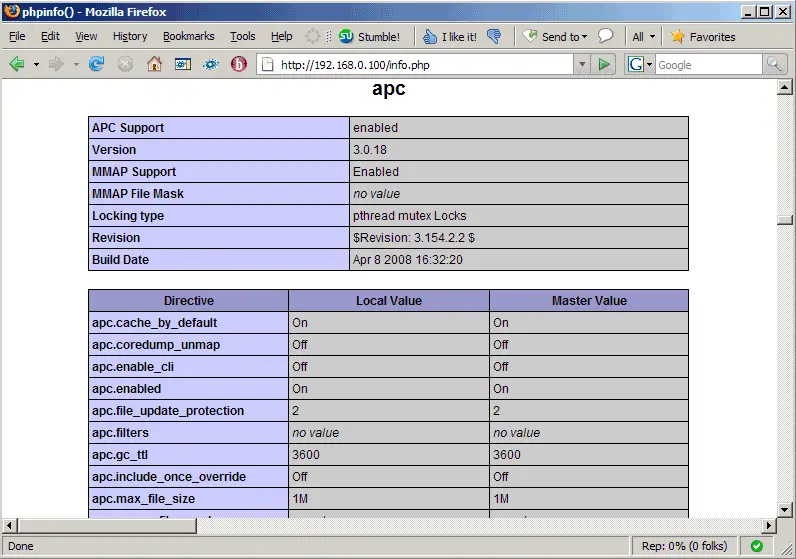
Afterwards, open info.php again in a browser: http://192.168.0.100/info.php
You should now see APC mentioned on the page which means it has successfully been integrated and is working as expected:
4 Links
- APC: http://pecl.php.net/package/APC
- PHP: http://www.php.net
- Apache: http://httpd.apache.org
- Fedora: http://fedoraproject.org





